CUBEROOT · GOLF TOGETHER
The Marker
Complete Illustrated User Guide
Your hole-by-hole golf companion.
With The Scorecard, or on its own.
Keep scores for one to four players. Score yourself, let a caddie enter scores, follow a card live, or view the group on Apple Watch. Sign in to post eligible rounds to The Scorecard, or play without an account and keep and share your card.
Instructions updated 13 November 2026 for The Marker 1.1.0 · Large-print edition. Every picture is a real screen of the app, in its Lake blue look, with made-up golfers. The Apple Watch pictures are diagrams.
Download this illustrated guide as PDF
The pictures below are real screens of The Marker 1.1.0, taken with made-up golfers, groups and courses. No real account or card is shown. Tap a picture, or View this screen larger, to see it full size.
1. Choose how to play
The Marker is a companion to The Scorecard and a complete standalone scorecard for one to four players.
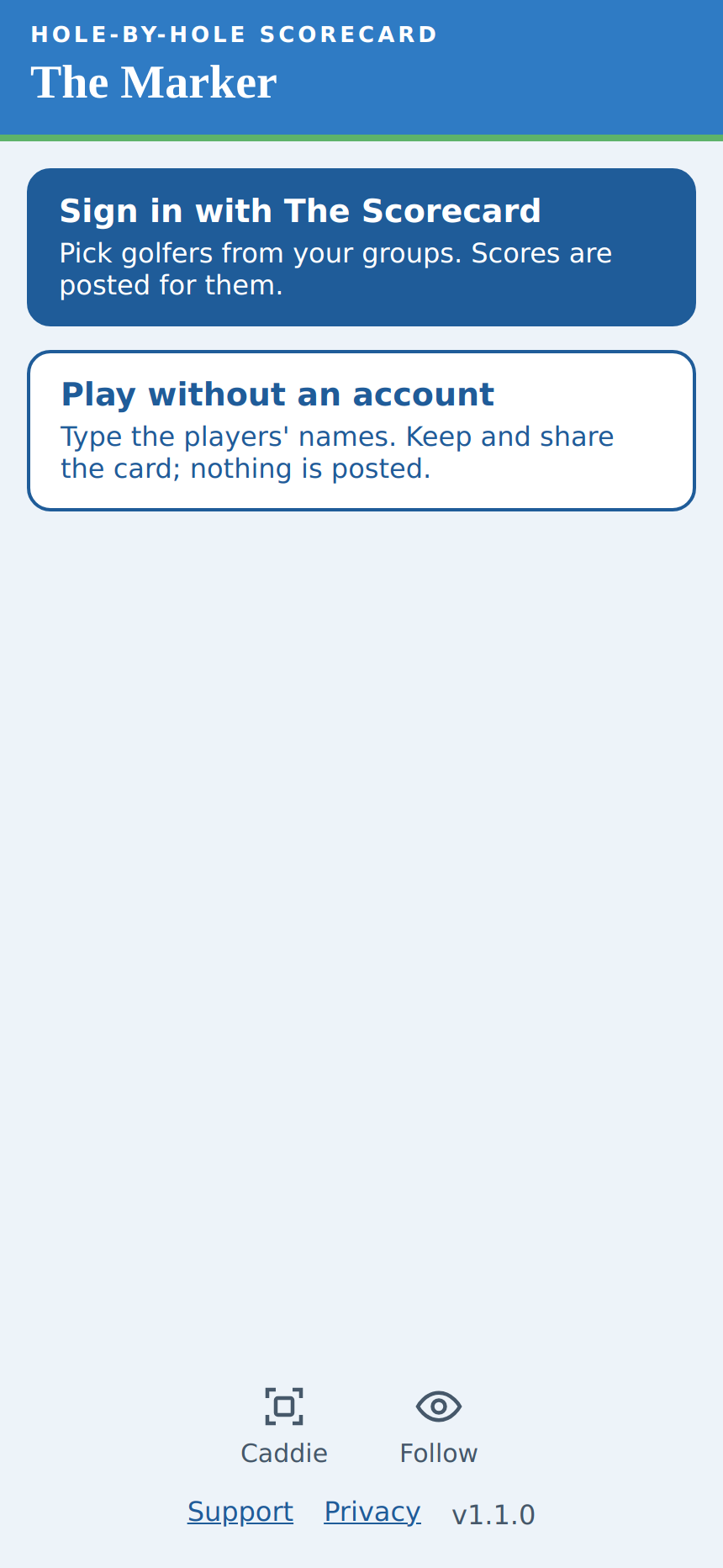
1. Choose how to play: steps
- Choose Sign in with The Scorecard to use your existing account and pick golfers from your groups. Eligible finished rounds can be posted for those golfers.
- Choose Play without an account to type player names, keep the card on this device and share it. No Scorecard account is required.
- Continue your round appears when a round is already saved. A saved correction or re-post instead shows Continue your correction or Continue your re-post. Open the web app while connected before leaving for the course.
2. Sign in and recover access
Use the same email address and password as The Scorecard.
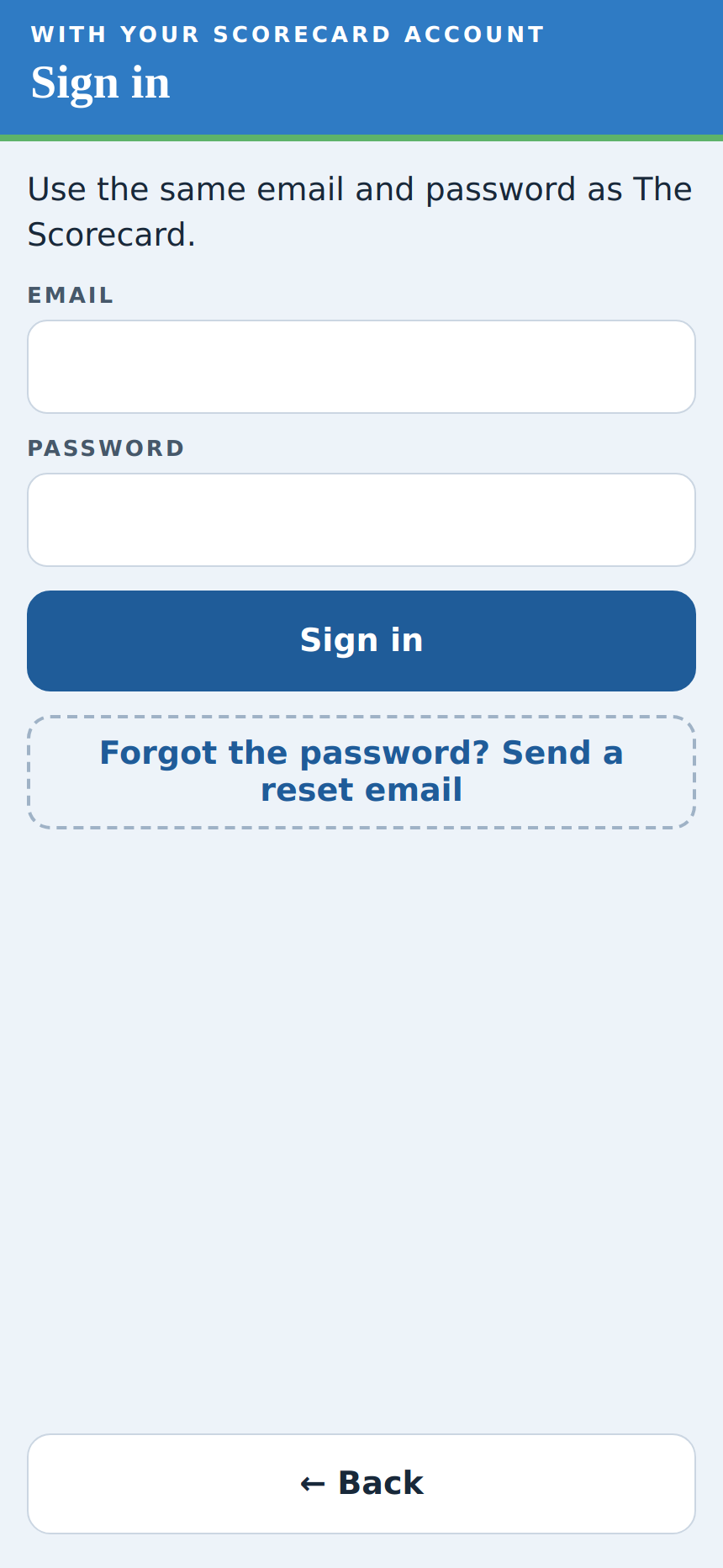
2. Sign in and recover access: steps
- Enter your Scorecard email and password, then tap Sign in. On the start screen, tap Start a new round.
- For a forgotten password, enter your email and tap Forgot the password? Send a reset email. Follow the email to reset your shared Scorecard password.
- Signing in needs an internet connection. If you have no account, return and choose Play without an account. Account and group setup are handled in The Scorecard.
3. Set up the round
Check these choices before you tee off.
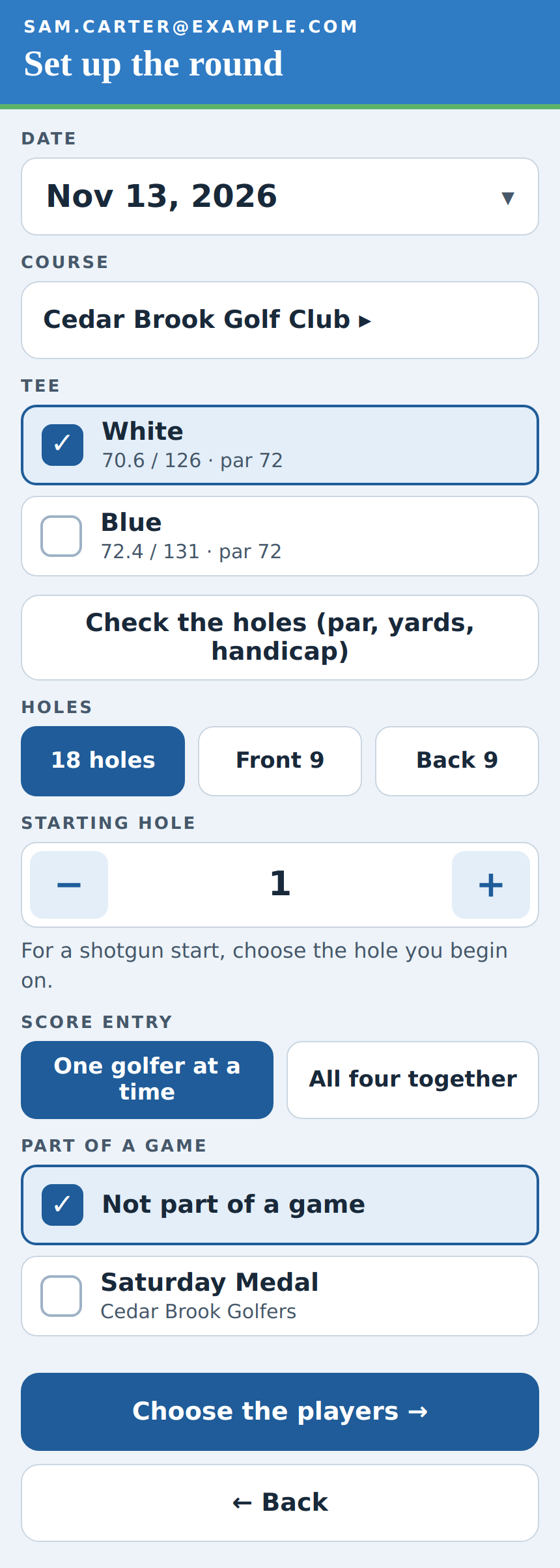
3. Set up the round: steps
- Tap the date to open the calendar. Select the month, year and day played, or type the date as year, month, day. Future dates are blocked. Choose the course and the tee actually used.
- Choose 18 holes, Front 9 or Back 9. A nine-hole card can be shared but cannot be posted to The Scorecard.
- Set the Starting hole for a shotgun start. An 18-hole round starting on 10 goes through 18, then 1 through 9.
- Choose your score-entry layout. The selected course and tee apply to everyone on this card; use separate cards for different tees.
4. Choose the round date
Use the app’s calendar to select a past date or today.
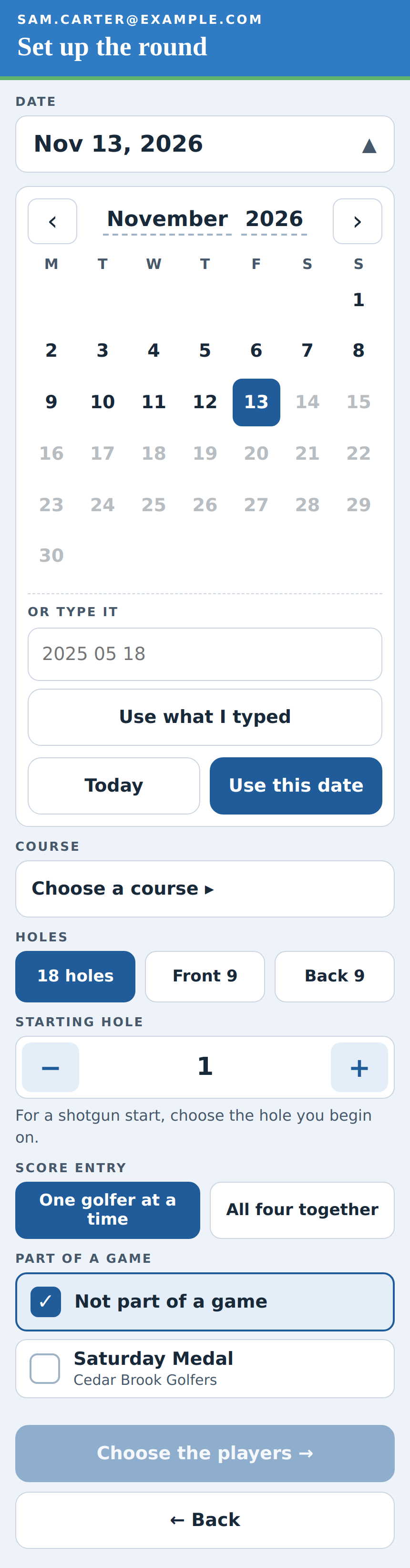
4. Choose the round date: steps
- Tap the date in Set up the round to open the calendar. Use the arrows for the previous or next month. Tap the month name or year to choose it directly.
- Tap the day you played. The calendar closes with that date selected. Future days cannot be selected.
- For another date, use Or type it: enter year, month, day, for example 2025 05 18 or 20250518, then tap Use what I typed. Invalid or future dates show an error.
- Today selects today. Use this date closes the calendar keeping the selected date. Changing the date clears the chosen game; check Part of a game again.
5. Find and check a course
Check the course data against the club’s current scorecard.
5. Find and check a course: steps
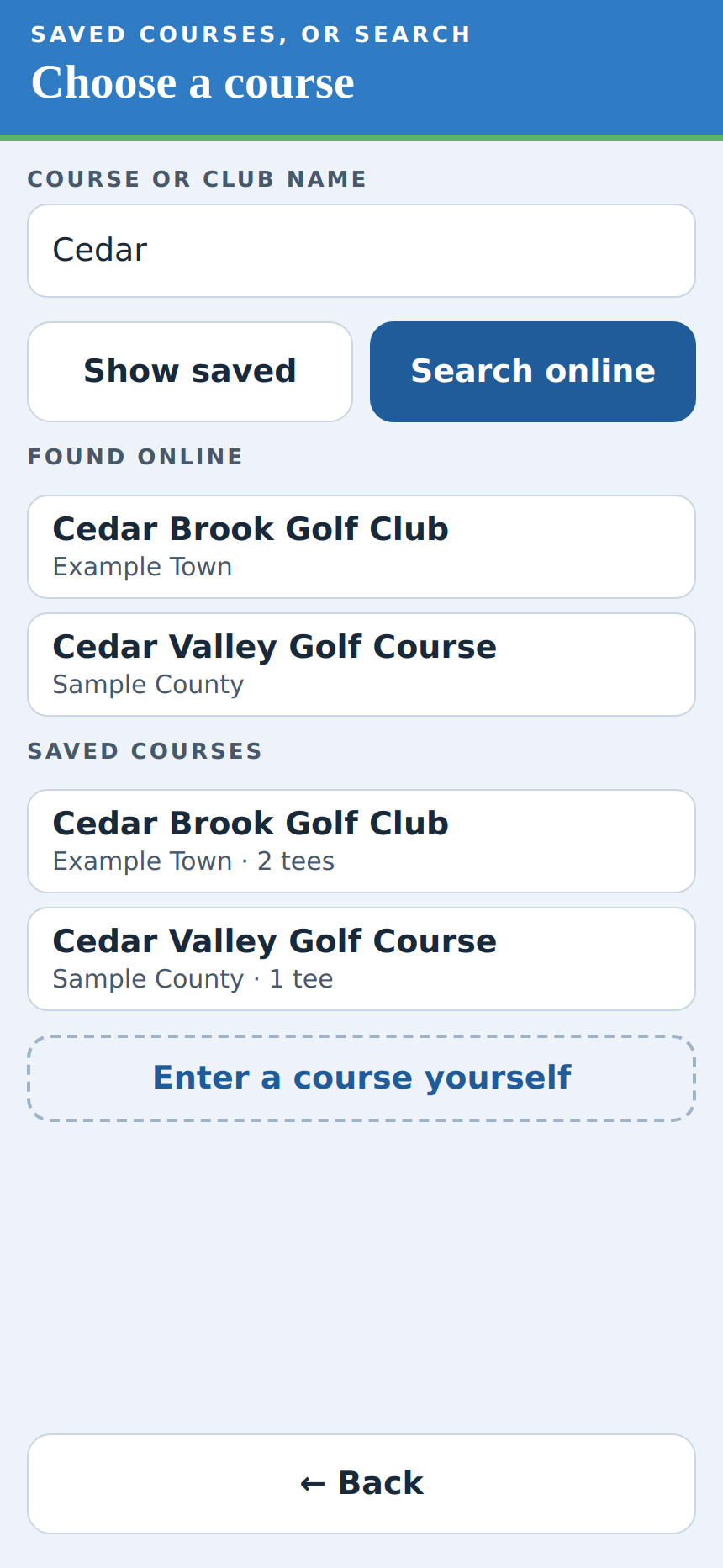
- Tap Choose a course. Enter a name and choose Show saved or Search online. Select the right club and tee.
- Back in setup, tap Check the holes (par, yards, handicap) when available. Compare the hole details with the club’s card.
- If details are missing or wrong, use the correction option or Enter a course yourself. Online search needs a connection; previously saved courses are available locally.
- Withdrawn course details cannot be used. Follow the message to find corrected data or enter the current club card. Shared course administration belongs in The Scorecard. If a locally saved course has a Delete button, it removes that course from this device only, after confirmation. Shared-library entries do not show this button.
6. Enter a course yourself
Manual entry is available even when you cannot read a photo.

6. Enter a course yourself: steps
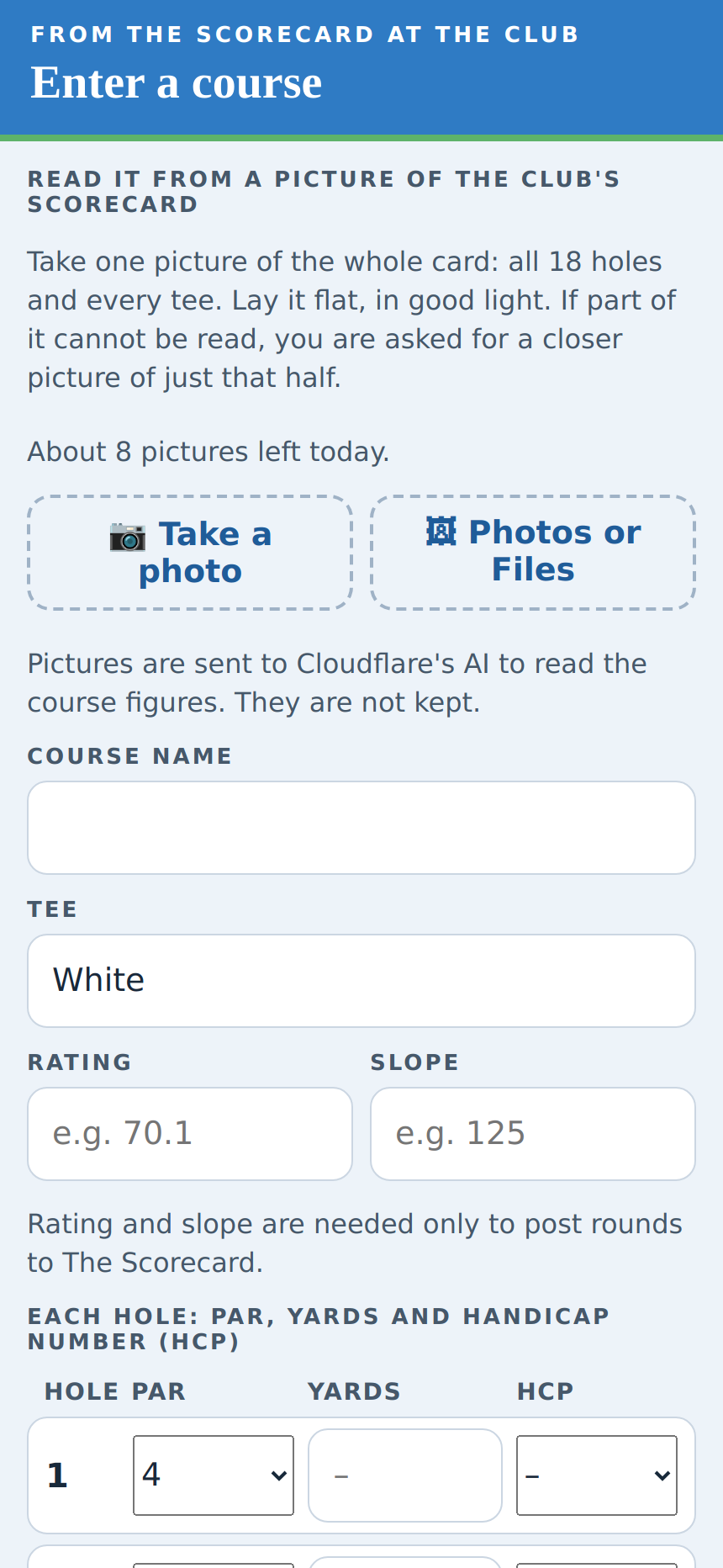
- Choose Enter a course yourself. Type the course name and tee. Copy rating and slope from the club card if you intend to post.
- Check every hole’s par: the form starts with par 4, so change it where needed. Yards are optional.
- Enter each HCP / Handicap / S.I. number exactly as printed. Use each number from 1 to 18 once, or leave all blank. Missing HCP makes stroke allocation approximate.
- Tap Use this course. Manually entered data can be used for eligible Scorecard rounds; a photo or provider verification is not required.
7. Read the club card from a photo
This reads course details, not the players’ handwritten scores.
7. Read the club card from a photo: steps
- Open Enter a course yourself. Type the course name and use a photo button. Lay the club card flat in good light.
- Include all 18 holes, every tee, ratings, slopes, par, handicap numbers and printed totals. Avoid glare and cut-off edges.
- Wait while the picture is read: a large spinner and Reading your scorecard stay on screen until it is done. If asked, take a closer picture of the missing or unclear half.
- Photo reading needs internet and an available daily allowance. Check the displayed pictures-left message. If unavailable, enter the details by hand.
8. Confirm the photo reading
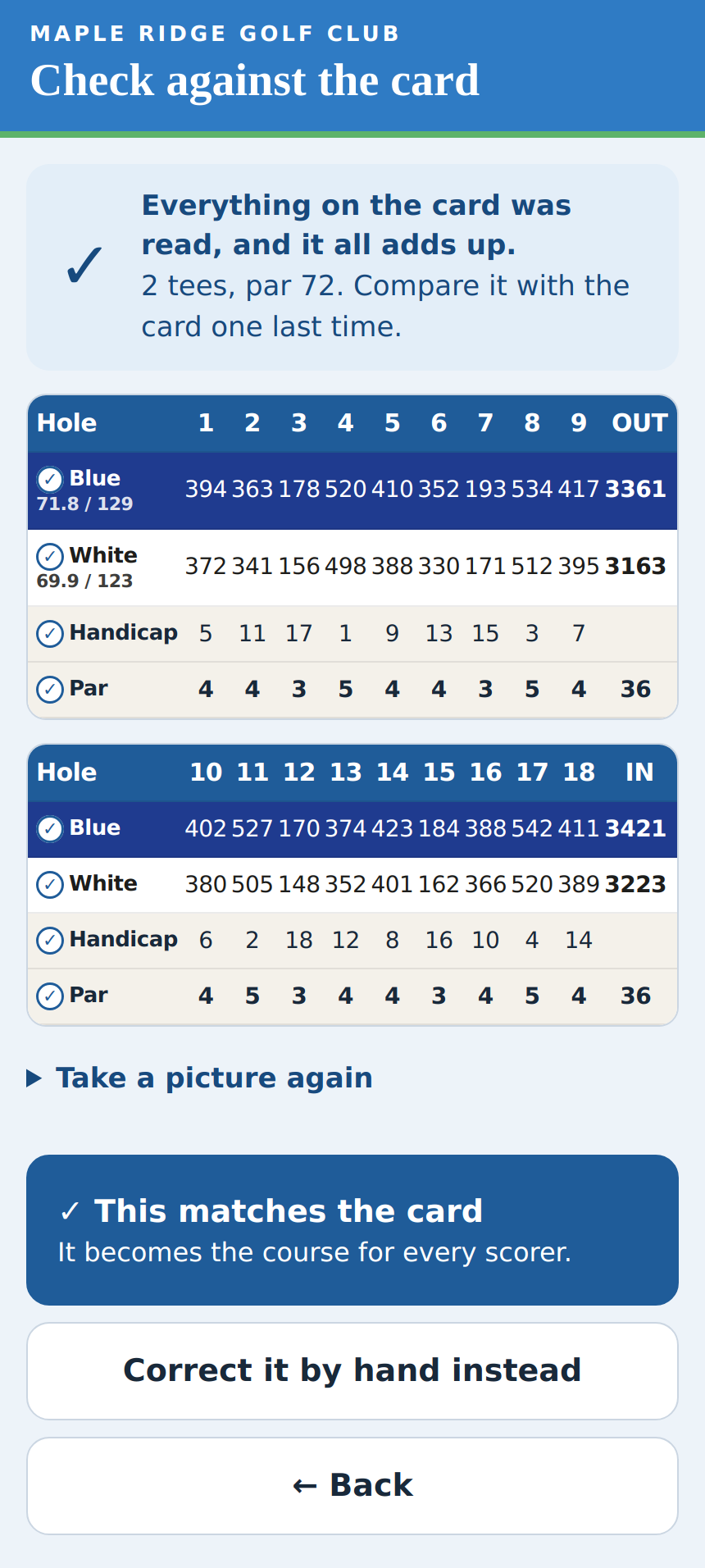
A green check means the app’s checks passed. You must still compare the values with the printed card.
8. Confirm the photo reading: steps
- Review both nines and every tee, not just the tee you will play. Check rating, slope, yards, par, handicap numbers and totals.
- Red marks indicate missing or problematic values. Retake the requested part, or choose Correct it by hand instead and select a tee.
- Read any warning about the printed card’s own totals. Confirm only when the displayed data matches the card.
- Tap This matches the card when available. Signed-in, verified data becomes shared course data; without an account it is saved on this device. Then choose your tee.
9. Choose one to four players
Group golfers can be posted; typed guests are scored and shared only.
9. Choose one to four players: steps
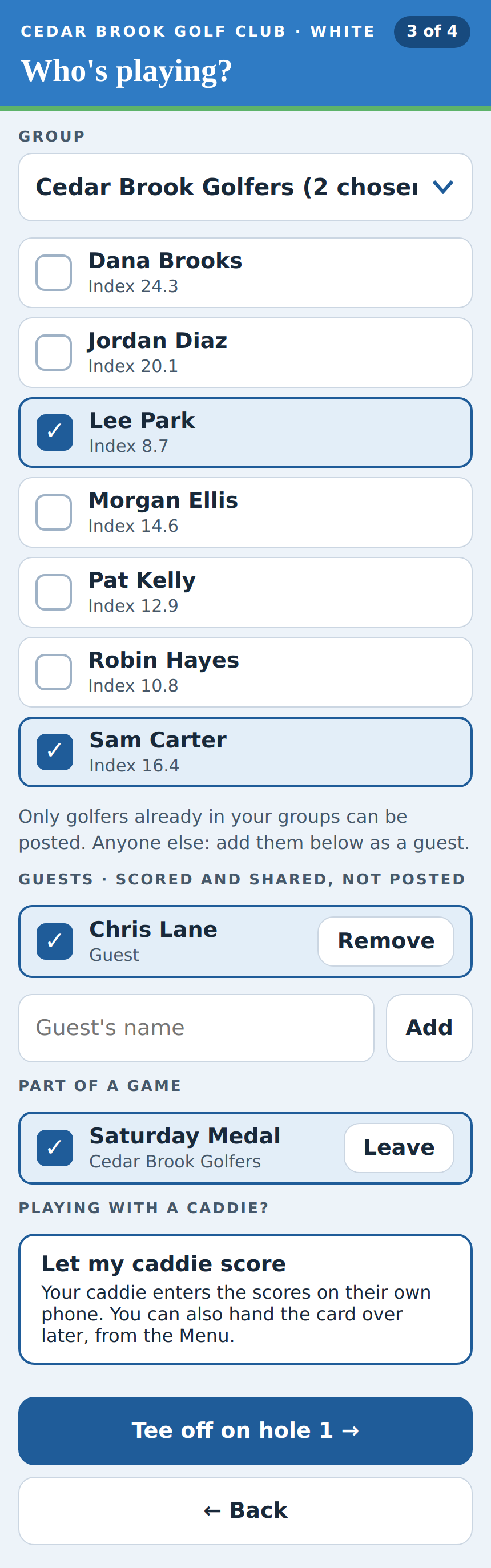
- Tap Choose the players. Signed-in users select a group and tap existing golfers. You may select golfers from your own groups, up to four total.
- Add other people by typing a name and tapping Add. Without an account, enter each player this way. Typed names are guests, even if they resemble a member’s name.
- Tap a selected member again to deselect; use Remove for a typed player. Check the names, then tap Tee off on hole ….
10. Start or join a game
A game puts several cards on one leaderboard. Signed-in scorers start one, or join one with its six-number code.
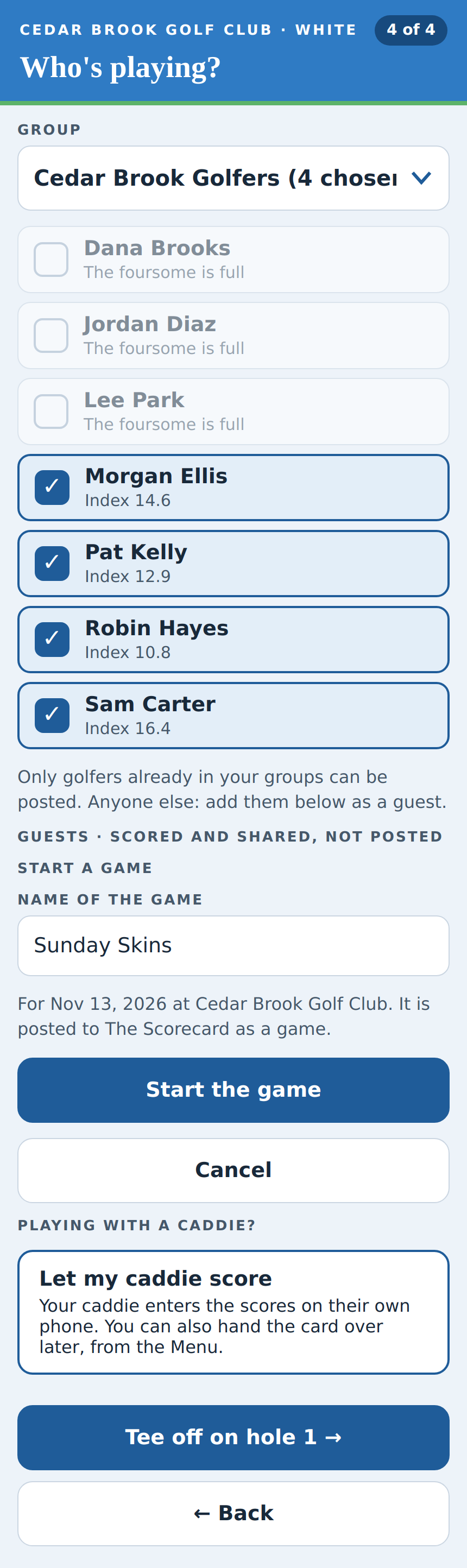
10. Start or join a game: steps
- On Who's playing?, under Part of a game?, tap Start a game. Type the game's name and tap to create it. The Marker shows the game's six-number code.
- The other scorers tap Join a game on their own Who's playing? screen and type that code. Every card in the game then shares one leaderboard.
- A game already set up for that date in The Scorecard can also be chosen in Set up the round, under Part of a game. Changing the date clears it.
- Forgot to join before tee-off? Tap No game at the top of any hole: you can join or start a game during the round. Rounds are posted to the game only for golfers in the game's group.
10A. The game code and leaderboard
During the round, the game's name sits at the top of every hole. Tap it for the code and the leaderboard.
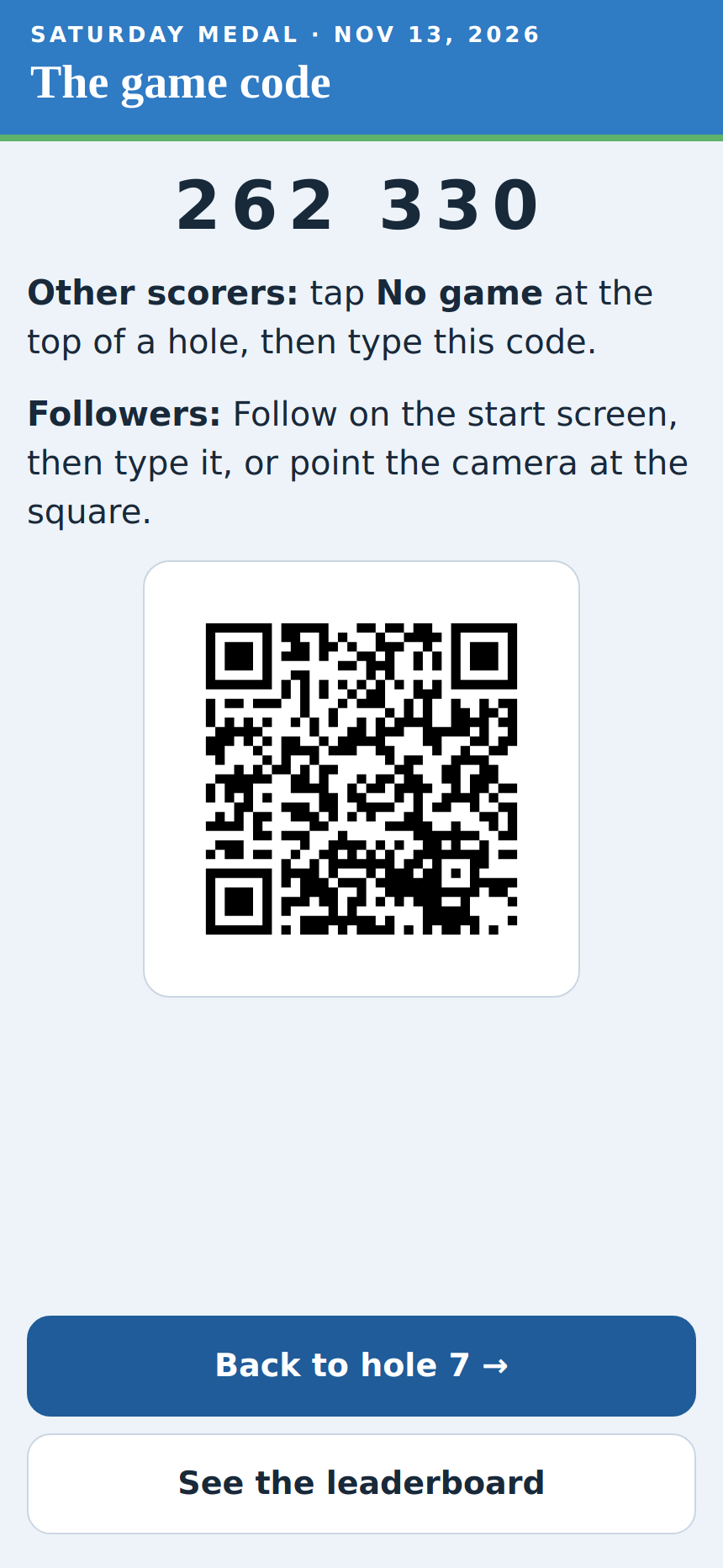
10A. The game code and leaderboard: steps
- Tap the game's name at the top of a hole (the ⛳ button). The game code shows the six numbers and a QR square.
- Other scorers: tap No game at the top of a hole, then type this code. Followers: tap Follow on the start screen and type it, or point the phone's camera at the square.
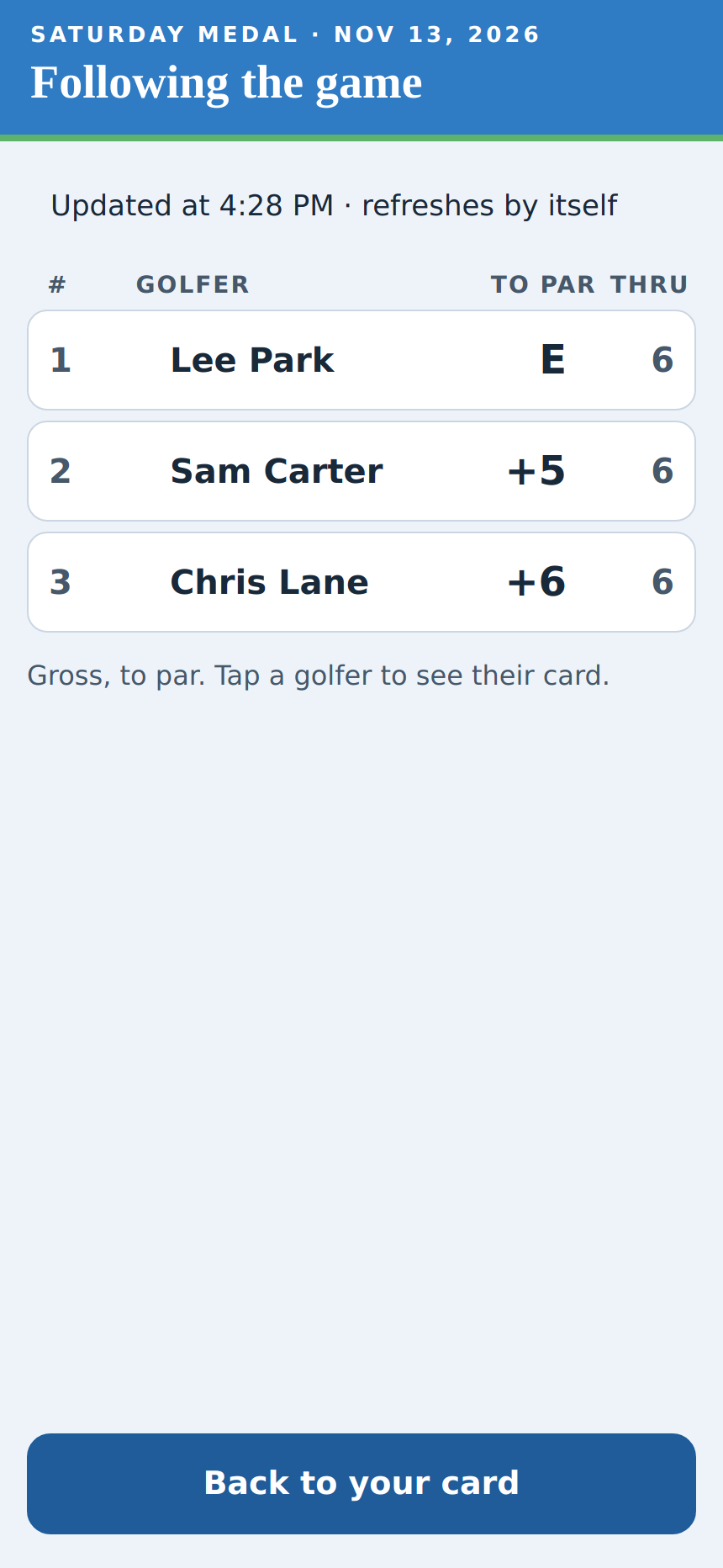
- Tap See the leaderboard. Each line shows the place, the golfer, their score to par and the holes played. Tap a golfer to see their card.
- The leaderboard refreshes by itself while it is open. Tap Back to return to your hole.
11. Enter scores, one golfer at a time
Enter the strokes actually taken. The app calculates its handicap adjustment separately.
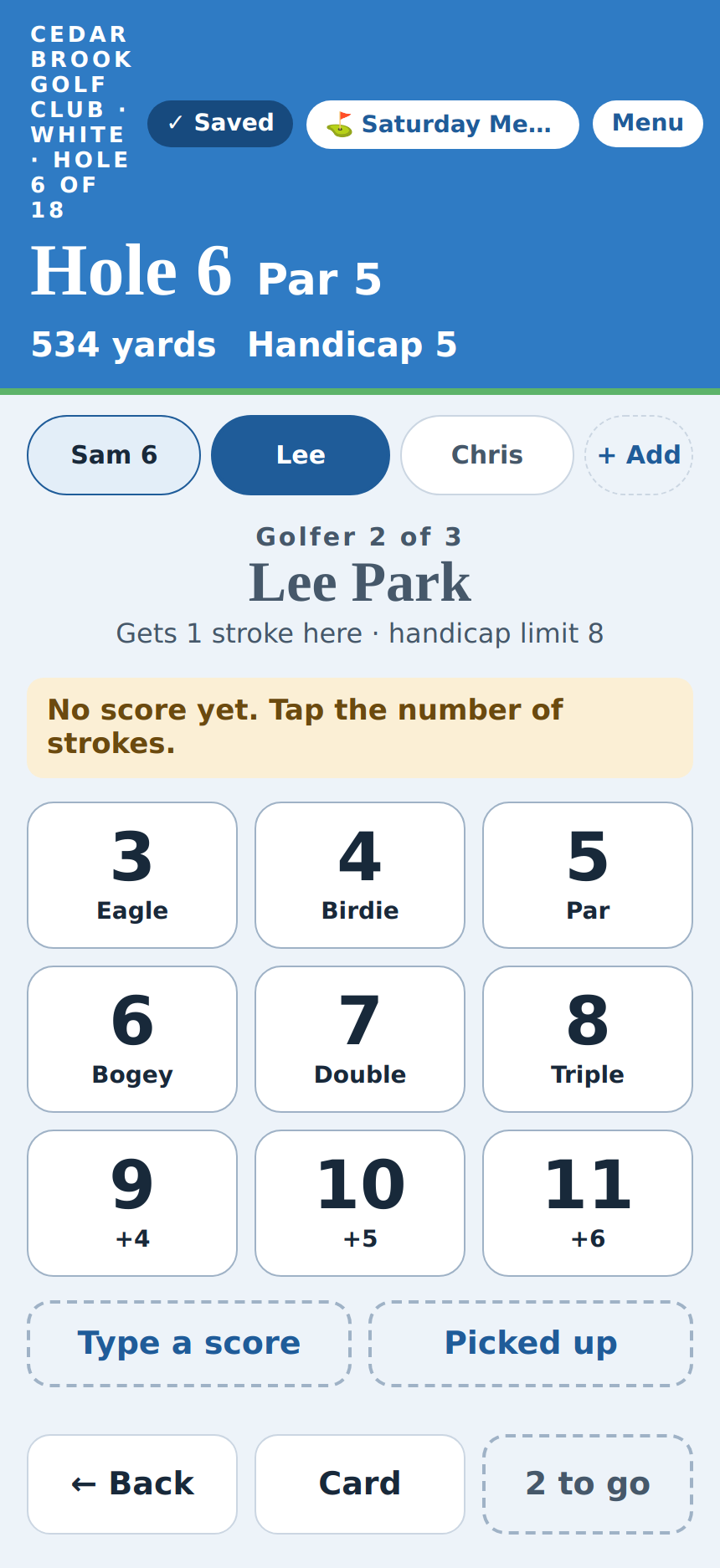
11. Enter scores, one golfer at a time: steps
- Tap the golfer’s name, then tap their score tile. The entered value is highlighted. Tap another value to correct it.
- Tap the next golfer’s name and enter that score. Use Type a score for a whole number from 1 to 20.
- Use Picked up when the player did not finish the hole. This records X; it is not a zero.
- When everyone has an entry, tap the next-hole button. After the final hole, tap Finish. Watch for save errors before continuing.
12. Enter all players together
Switch layouts at any time without losing scores.
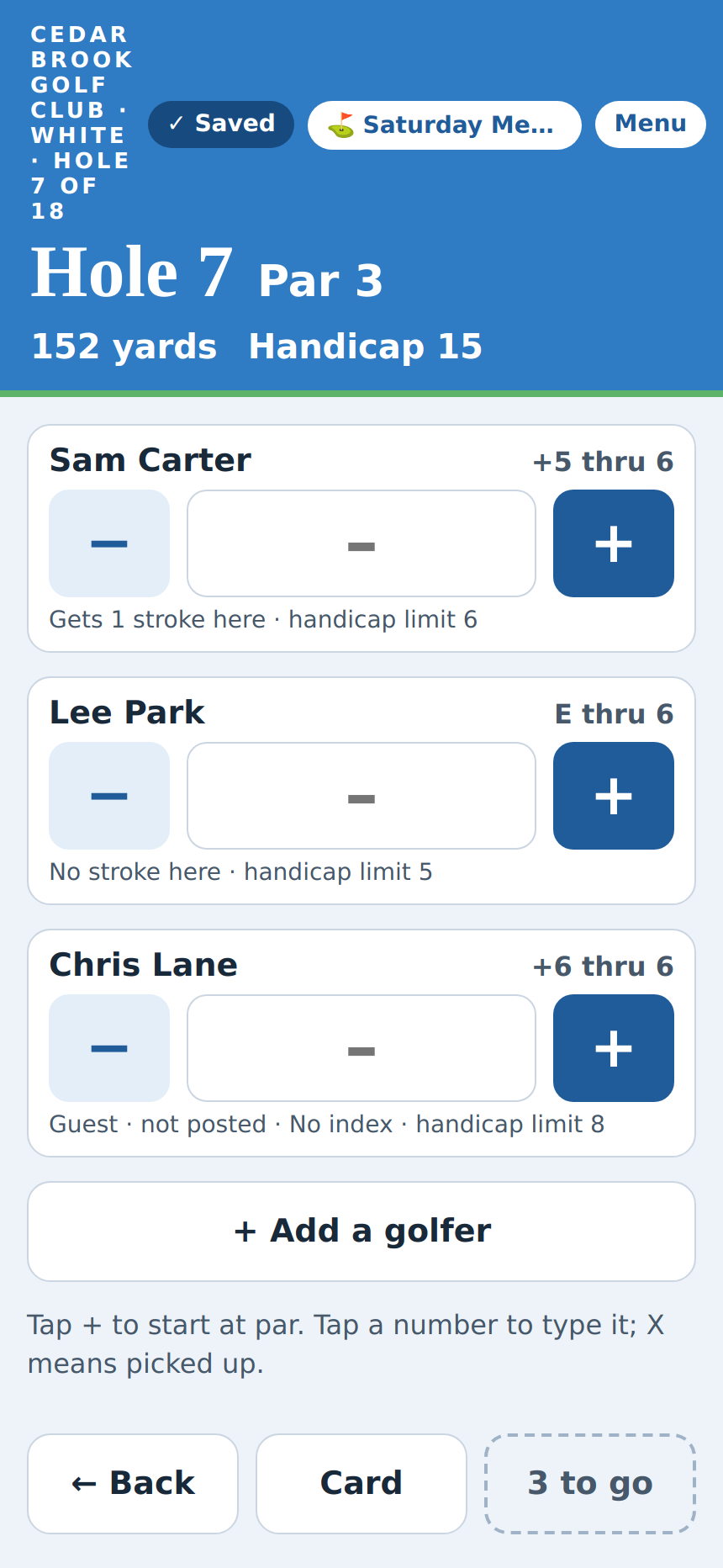
12. Enter all players together: steps
- Choose All four together in setup, or use Menu to switch during play. It also works with fewer than four players.
- Tap + on an empty score to start at par. Then use minus or plus, or tap the score field and type a whole number from 1 to 20.
- Type X for picked up. If your keyboard does not offer X, switch to one-golfer mode and tap Picked up.
- Enter a score for everyone, then advance. Blank fields remain unfinished; they do not count as par.
12A. Add a golfer who arrives late
A golfer who joins after tee-off is scored from the hole they join.
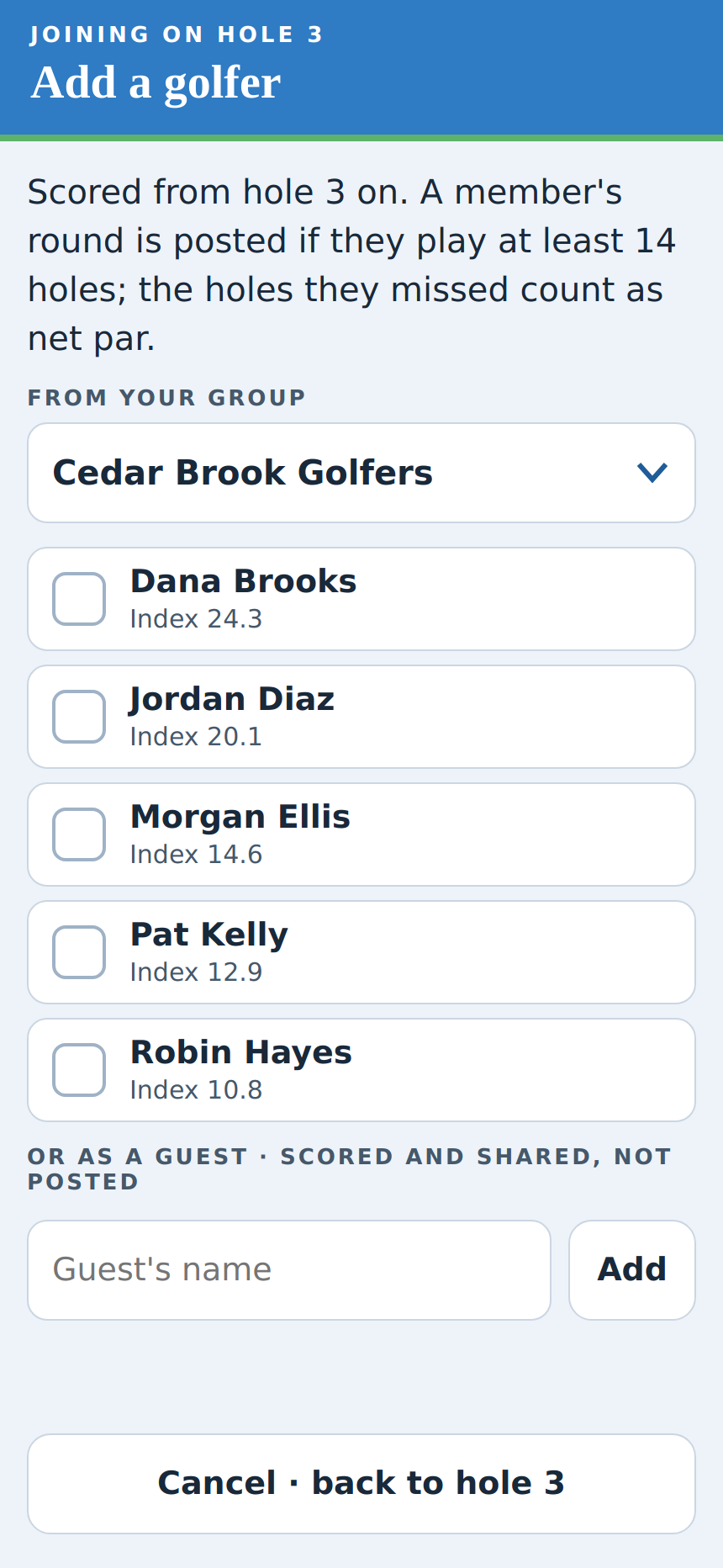
12A. Add a golfer who arrives late: steps
- At the top of the hole, tap + Add beside the golfers' names. It shows while the card has fewer than four golfers.
- Pick the golfer from your group, or type a guest's name and tap Add. The golfer is scored from this hole on.
- A member's round is posted if they play at least 14 holes. The holes they missed count as net par: par plus the strokes they receive on that hole.
- With fewer than 14 holes, the golfer's scores are kept and shared, but not posted. Tap Cancel to go back to the hole without adding anyone.
- A posted card with a late golfer can be corrected like any other card. The holes they missed stay at net par.
13. Fix scores before posting
Return to the totals directly after changing a hole.
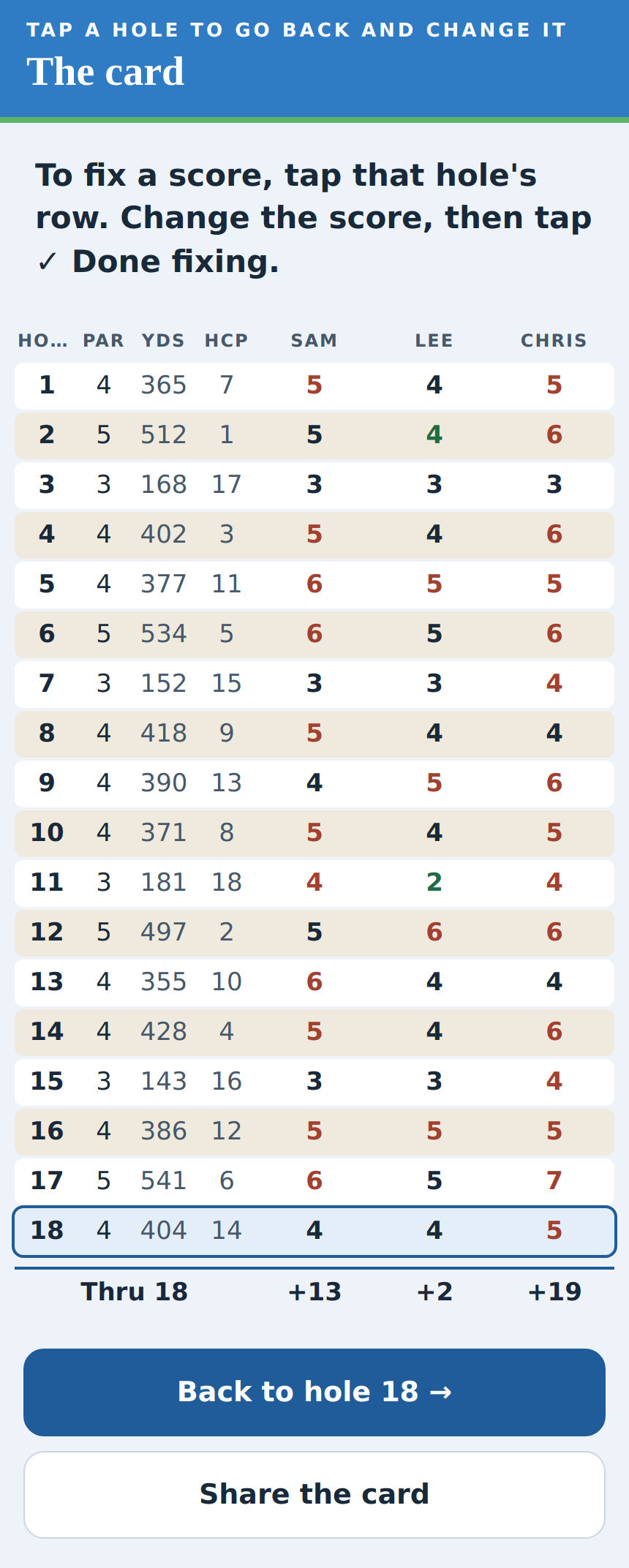
13. Fix scores before posting: steps
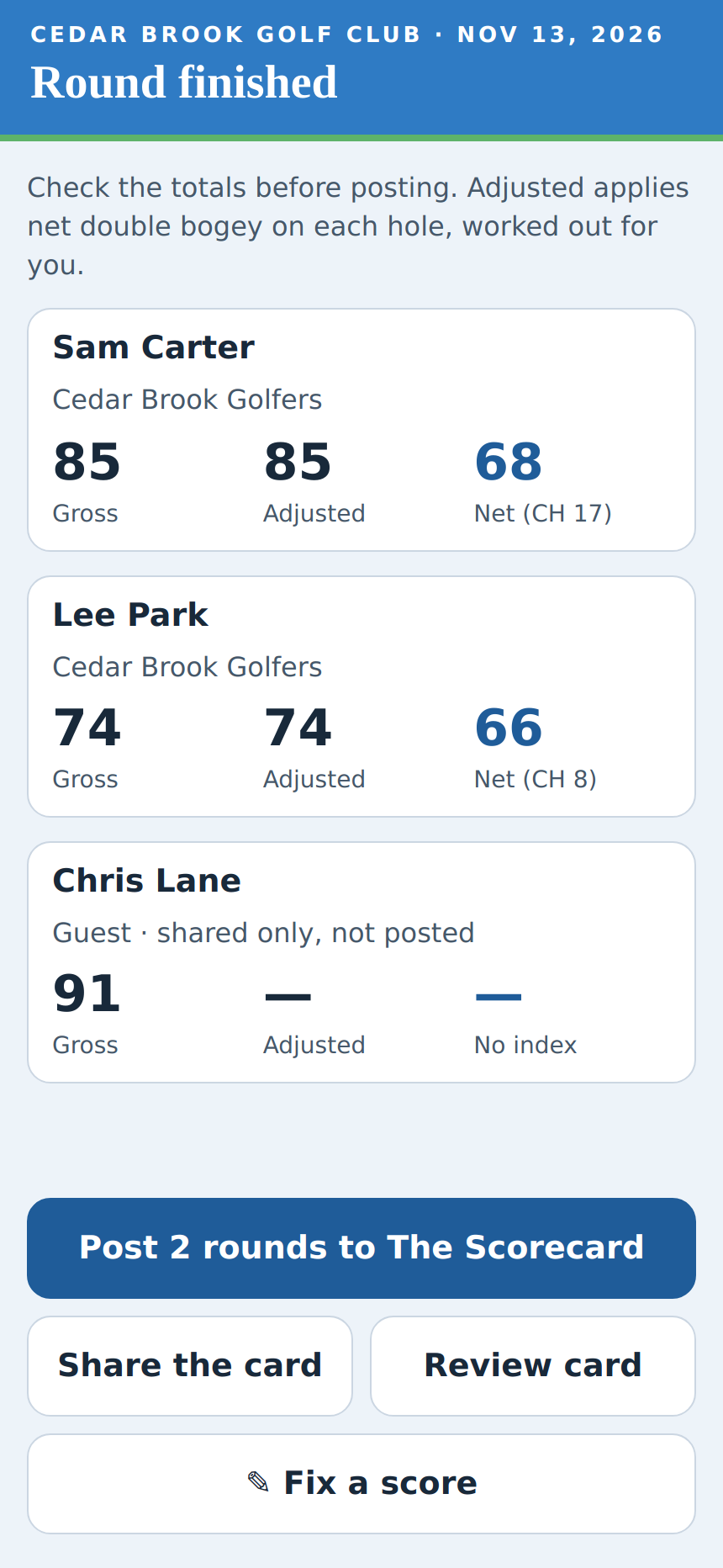
- On Round finished, tap Fix a score, or open Review card. Tap the row for the hole you want to change.
- Choose the golfer and change their score in either scoring layout. Tap Done fixing — back to the totals when the card is complete.
- Check the totals again, then post eligible rounds or keep/share the card. You no longer need to walk through the remaining holes after fixing a completed card.
14. Understand the totals
Illustrative 18-hole example: gross 90, adjusted 88 and course handicap 10.
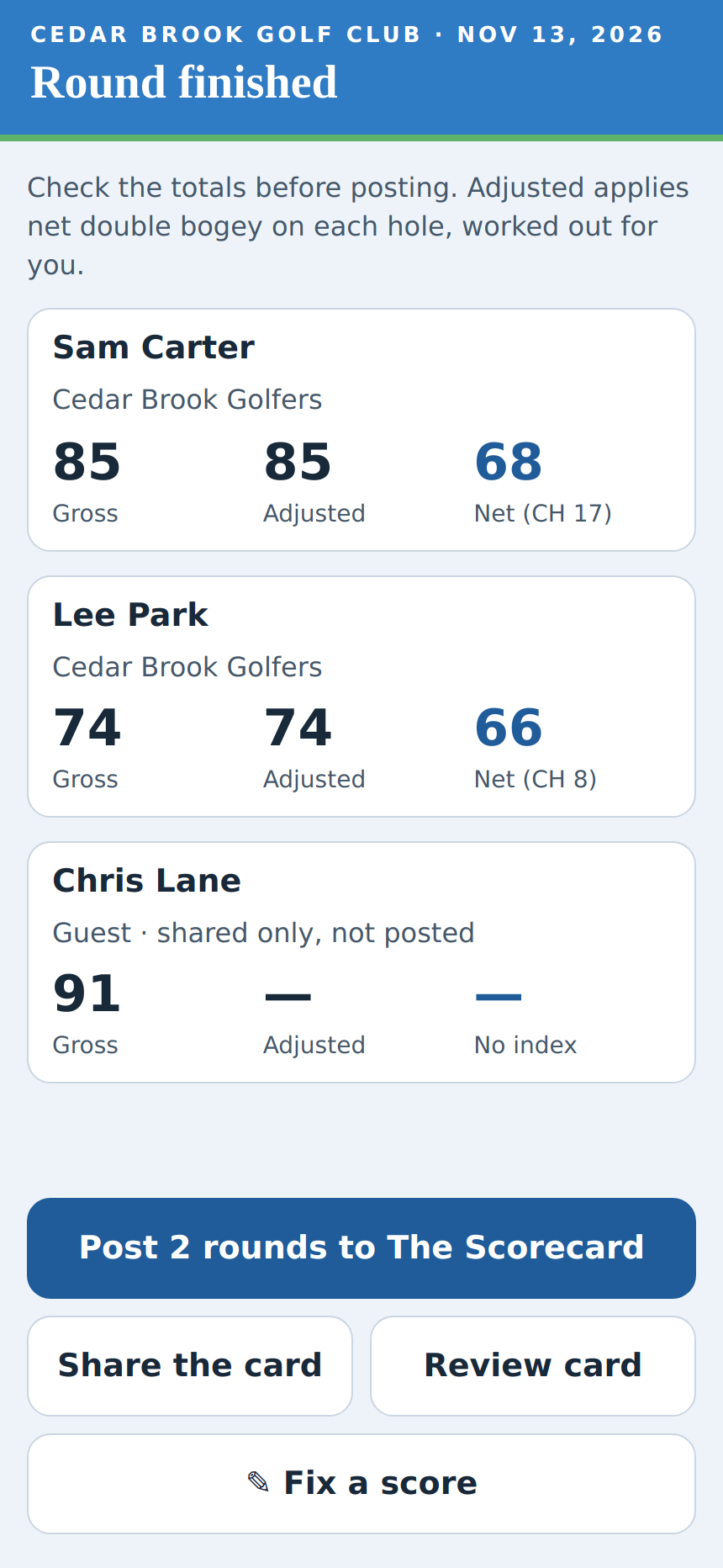
14. Understand the totals: steps
- Gross adds entered strokes. For an X, the app substitutes that hole’s handicap limit, so it is not a count of strokes actually finished on that hole.
- Adjusted caps high hole scores at the app’s handicap limit: normally par + 2 + strokes received. With no known course handicap, the app uses par + 5.
- Net is gross minus course handicap when the round is complete and a handicap is available. Do not use a nine-hole net display as a posted 18-hole result.
- E means even with par. + and − show over and under par. Stroke notes depend on the selected tee, the player’s index and hole handicap data.
15. Post eligible rounds to Scorecard
Posting and sharing are different actions.
15. Post eligible rounds to Scorecard: steps
- Check all totals. Tap Post … rounds to The Scorecard when shown. The number counts eligible group golfers, not guests.
- Posting requires a signed-in card, at least one selected group golfer, 18 holes, rating and slope, and a score on every required hole. The server checks the submission too.
- Nine-hole cards, standalone cards and typed guests are kept and shared instead. Read the reason if no Post button is available.
- A standalone card does not become postable just by signing in later. Start in signed-in mode and select the actual group golfers when posting is your goal.
16. Confirm the posting result
Do not treat Waiting or Checking as a successful post.
16. Confirm the posting result: steps
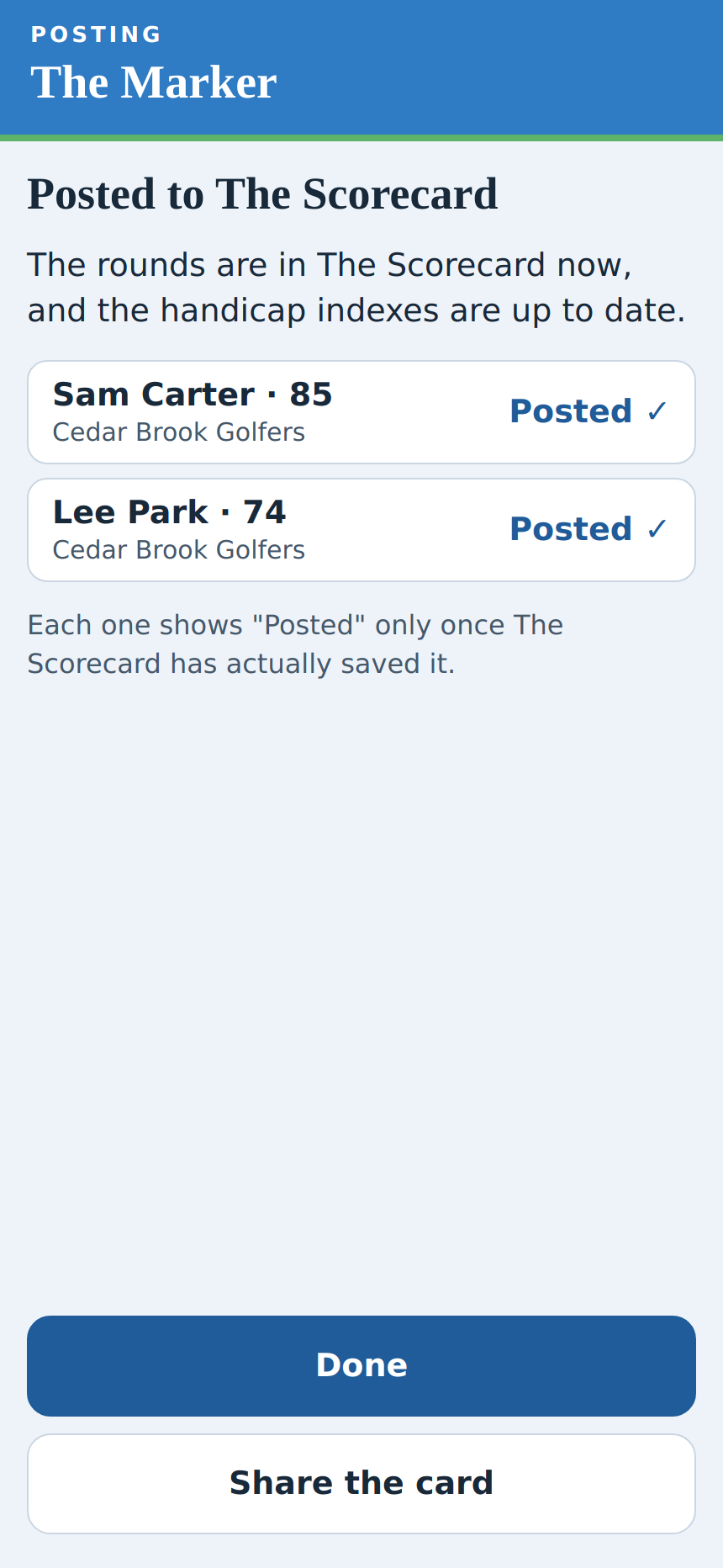
- Waiting means the card is saved locally for sending. Reopen The Marker on the same browser, sign in to the original account if needed and leave it open with a connection.
- Checking means the submission reached the service and is being processed. Allow a few minutes and check again.
- Posted ✓ confirms acceptance. Open The Scorecard to verify the rounds. The service recalculates the posting data, so its final values are authoritative.
- For Not posted, read the reason and keep or share the card. Do not re-enter the same rounds while the original submission is still waiting or being checked.
17. Correct a posted card
The Marker can now correct hole scores on an eligible posted card. A connection is required.
17. Correct a posted card: steps
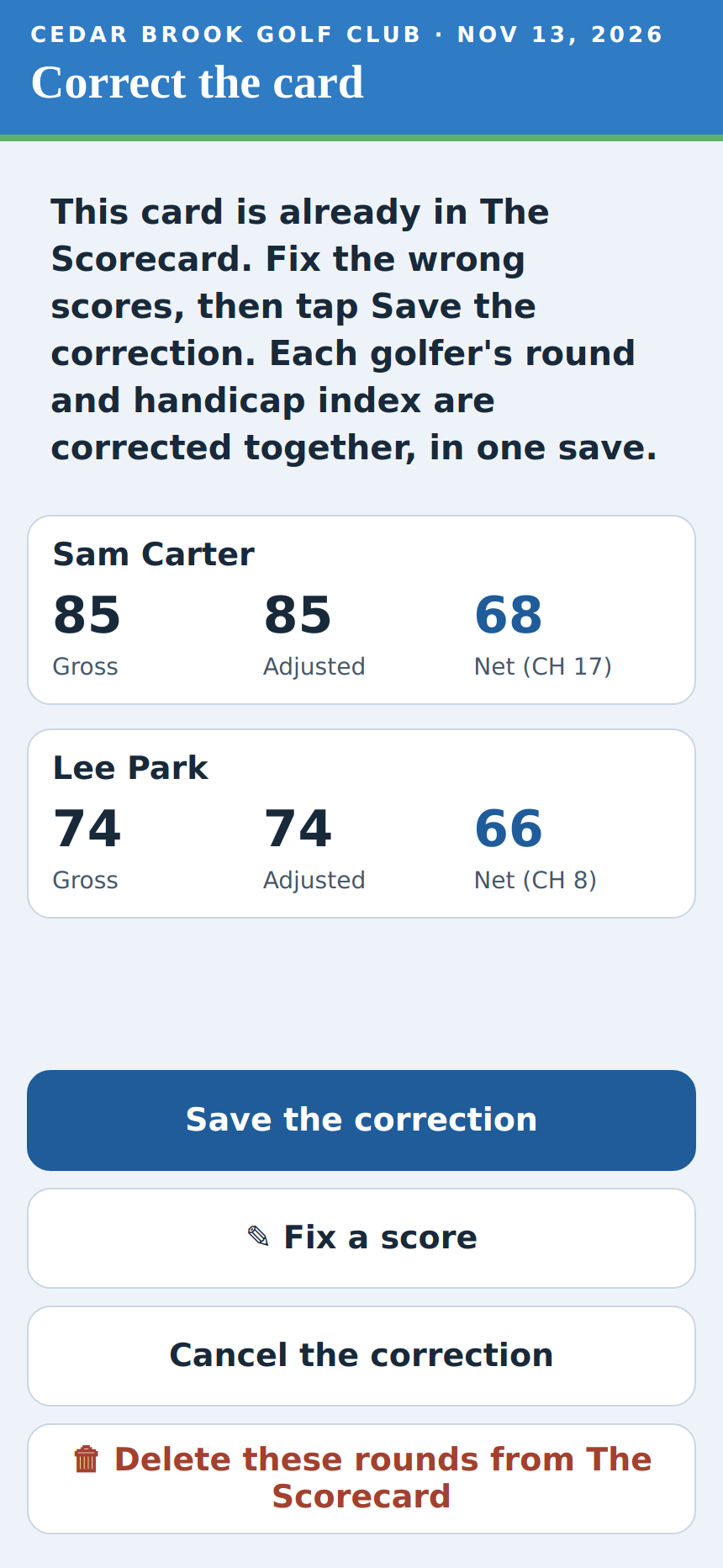
- Sign in and open Your cards → Correct a posted card, then select a card. You can also open a posted card saved on this device and tap Correct this card. Finish or end another active round first.
- The original scorer can correct the card for 24 hours after posting. An owner or admin of every group represented on the card can correct it at any time. The service checks your access.
- Tap Fix a score, tap the hole’s row, choose the golfer and change the strokes. Tap Done fixing — back to the totals to return directly. Repeat for other errors.
- Review the totals and tap Save the correction. Wait for Corrected in The Scorecard. The affected rounds and handicap indexes are updated together. If no score changed, the app says nothing was saved.
- A correction changes hole scores only. It keeps the original players, date, course, tee and game. If someone has changed a round directly in Scorecard, read the refusal and ask an owner/admin to resolve it there.
- Cancel the correction discards the current correction after confirmation. Menu offers the same cancel action while correcting. If the connection fails, keep the screen and try again online.
18. Re-post after rounds were deleted
Use Re-post only for the cards the app identifies under Deleted in The Scorecard.
18. Re-post after rounds were deleted: steps
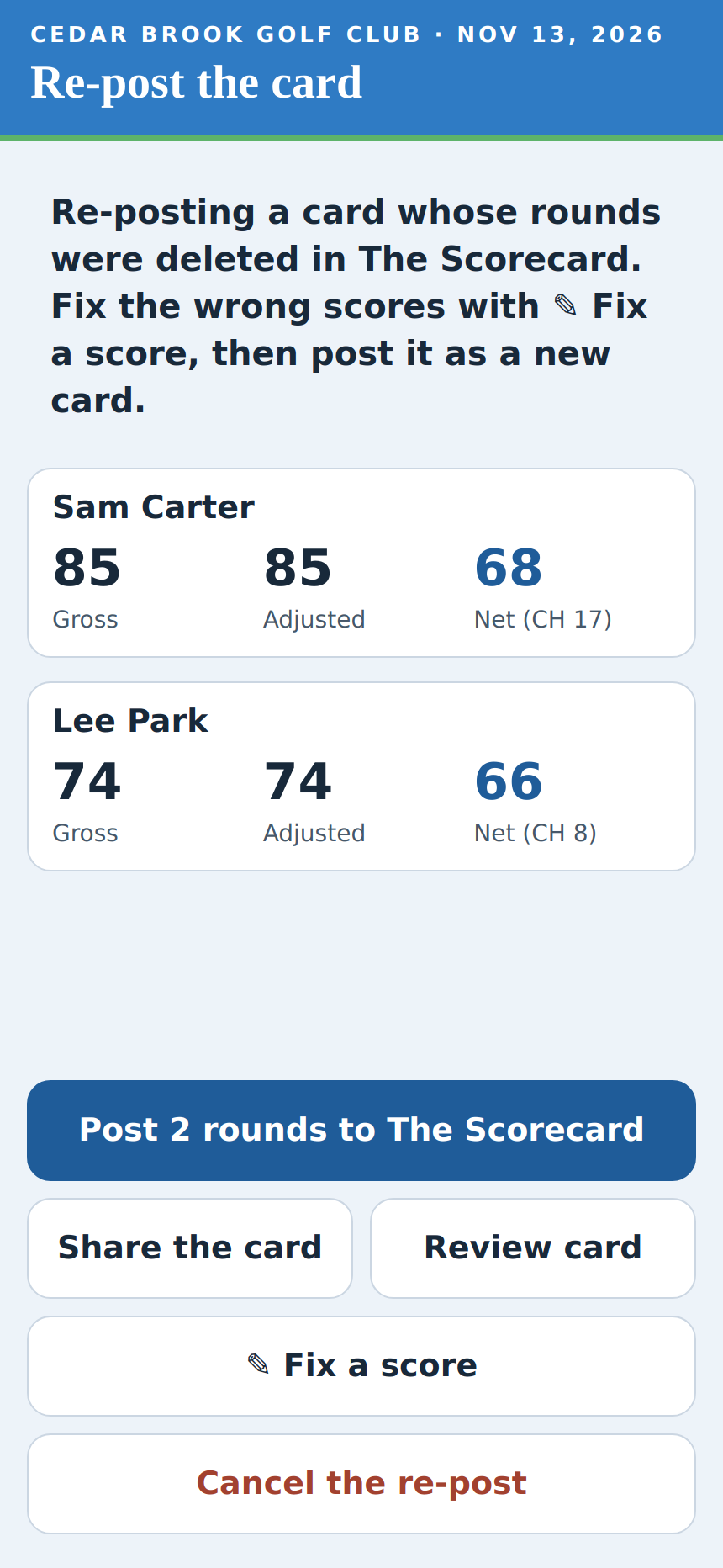
- Open Your cards. Under Deleted in The Scorecard, the app names the golfers whose rounds were deleted. Tap Re-post. Opening a saved original card may instead offer Edit and re-post.
- The scorer, or an owner/admin of every group on the original card, may re-post. Finish or end another active round first. Only golfers with deleted rounds are put on the new card; surviving rounds are kept.
- Use Fix a score, select the hole, change the strokes, then tap Done fixing — back to the totals. Check the date, golfers and totals shown.
- Tap Post … rounds to The Scorecard. This creates a new card for the deleted rounds. Wait for Posted ✓. Once accepted, the new card replaces the original copy in this device’s card history.
- Hide takes the deleted-round reminder off that list after confirmation; it changes no Scorecard round. If the original card remains on this device, opening it still offers Edit and re-post.
- Cancel the re-post discards the current re-post without sending it. If the service says a round still exists or the card was already re-posted, check the current records before proceeding.
19. Share a card
Share during play, after finishing or from Your cards.
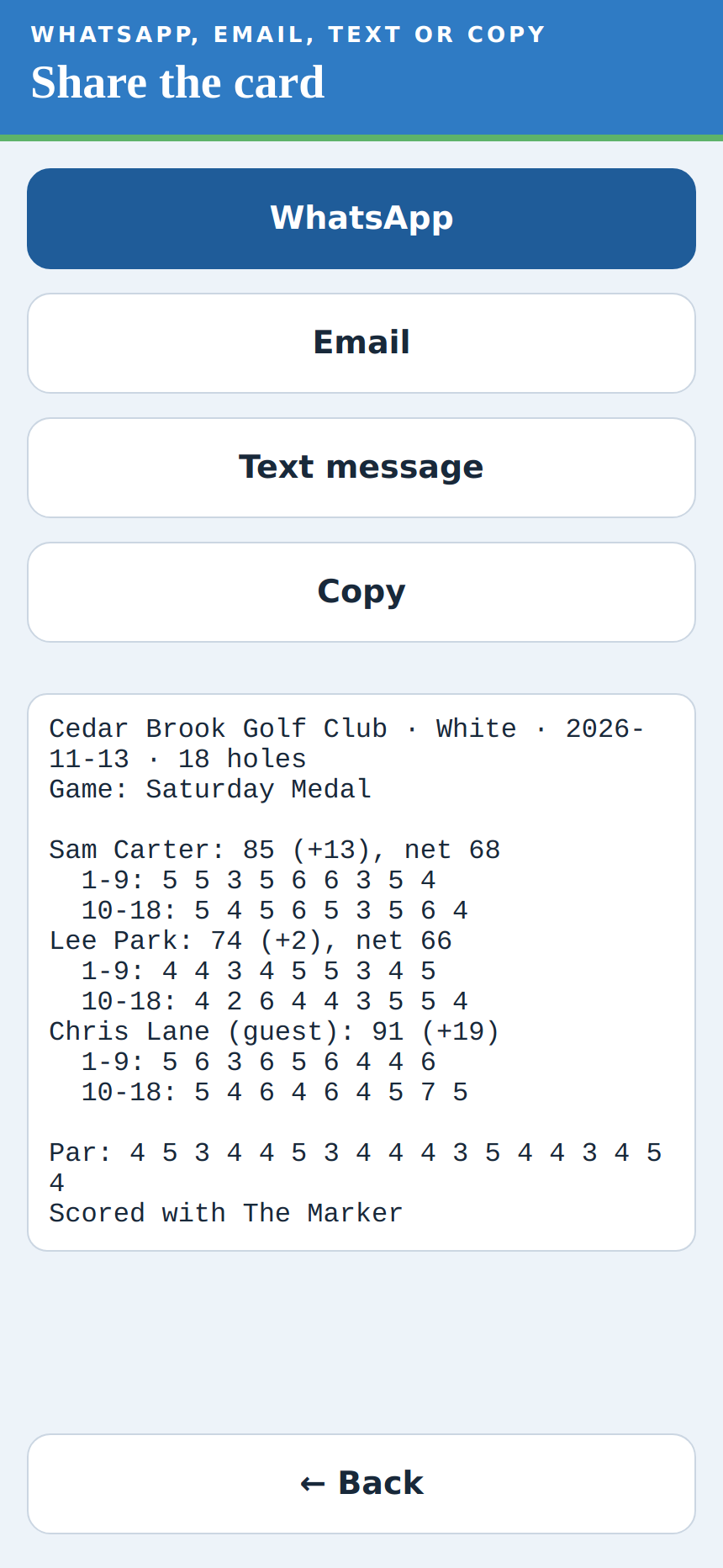
19. Share a card: steps
- Tap Share the card. Your device may show its native share sheet; otherwise choose WhatsApp, Email, Text message or Copy.
- Choose the recipients in your messaging app and send when ready. Sharing sends a text summary with hole scores; it does not post rounds to The Scorecard.
- If Copy is blocked, press and hold the displayed text and copy it manually. An unfinished card can also be shared; missing holes appear as dashes.
20. Resume, keep and delete cards
Local cards belong to this device and browser.
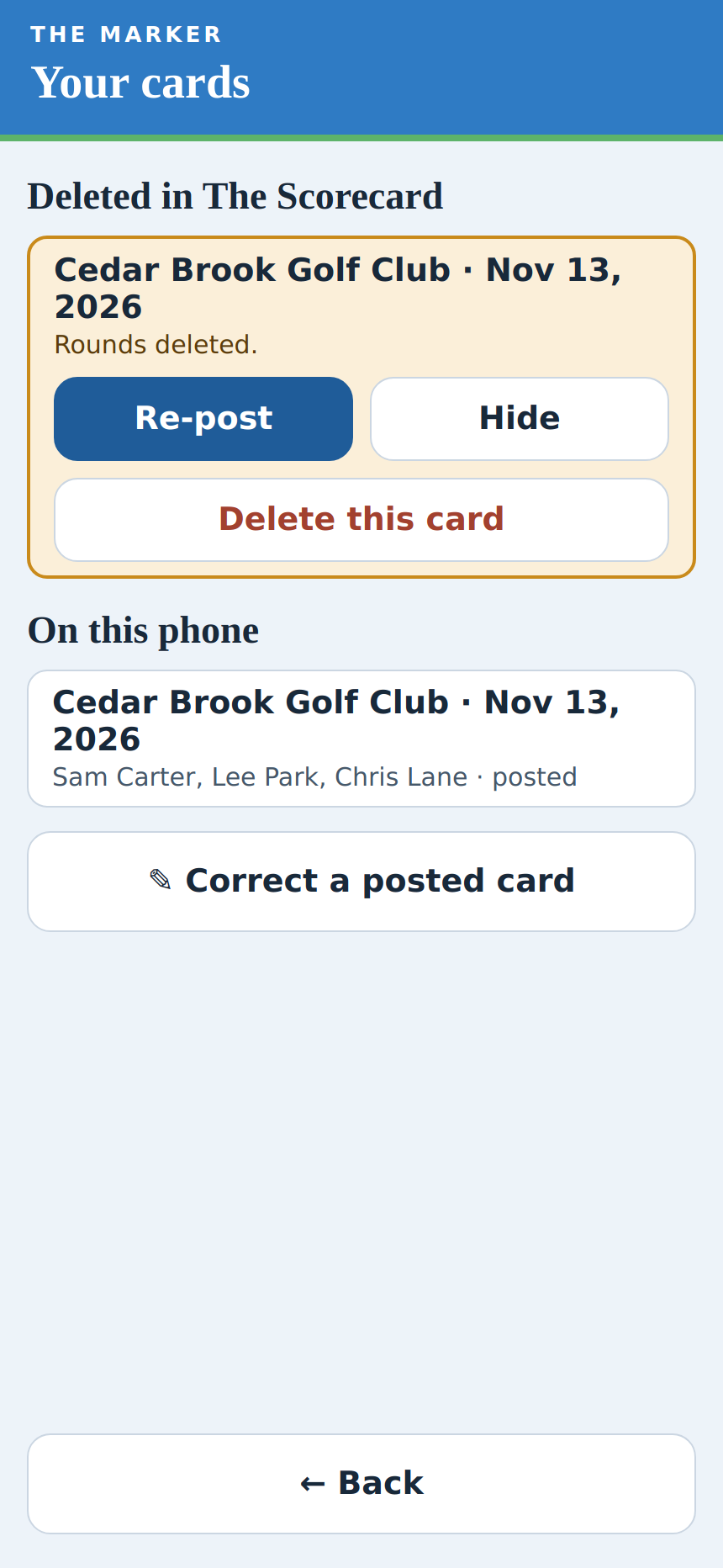
20. Resume, keep and delete cards: steps
- Return to the start screen through Menu. Use Continue your round to resume. To stop permanently without posting, choose End this round without posting and confirm.
- Your cards shows cards saved on this device (up to 30), and signed-in users can also see eligible cards whose rounds were deleted in Scorecard. Open a local card to view, share or use its available correction action.
- Delete this card is available only when allowed. Deletion is permanent; posted cards and cards being checked cannot be deleted here.
- Clearing browser data or changing devices does not carry local cards across. Share important cards before clearing data or exceeding the history limit.
21. When something goes wrong
Keep the card and resolve the displayed message first.
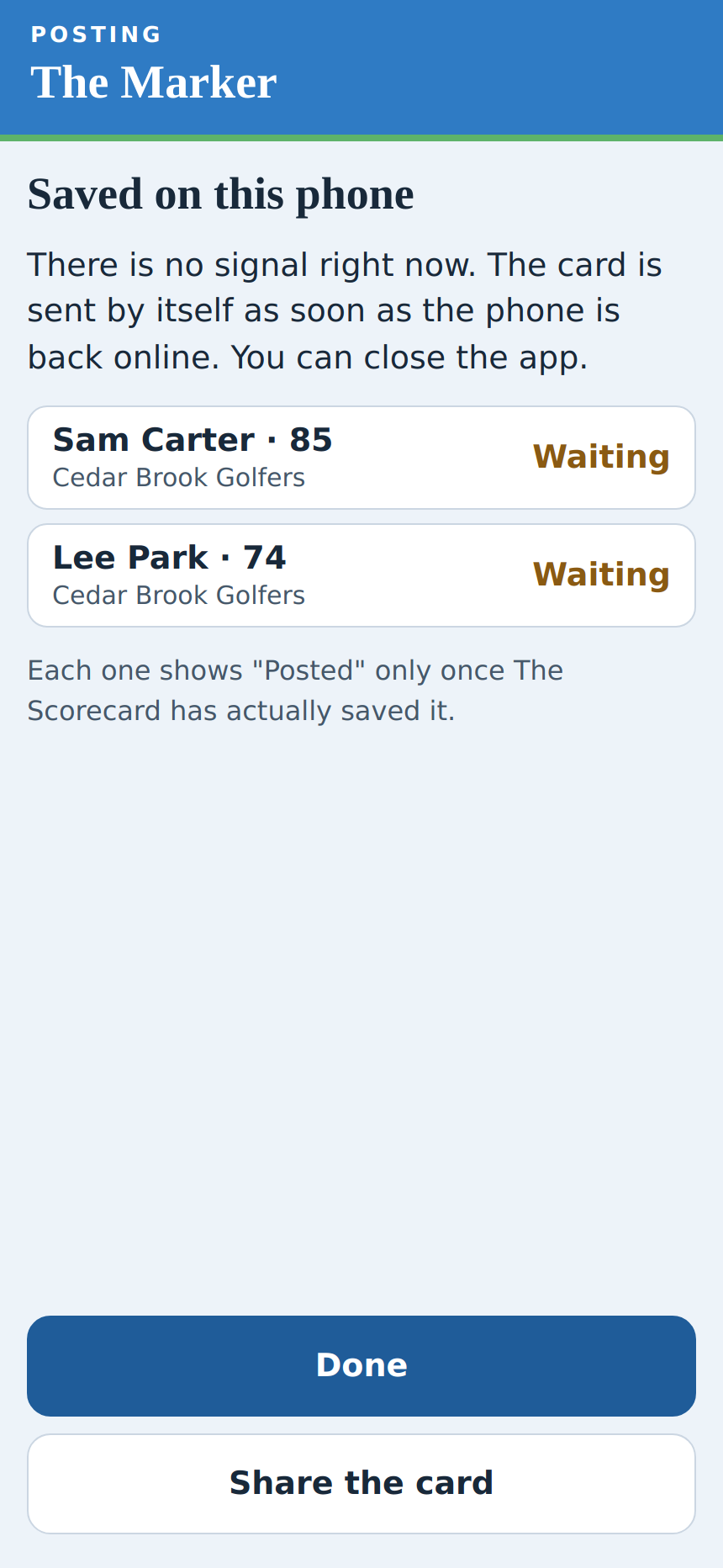
21. When something goes wrong: steps
- No signal: a loaded round can save scores locally. Search, sign-in, photo reading and posting need internet. This web release does not guarantee a fresh offline launch; keep the loaded page available.
- Save error: do not assume the latest score was kept. Check browser storage, avoid private browsing and retry. Share a copy before clearing anything.
- Missing golfer: check the group and connection. A typed guest cannot be posted as that group golfer. Manage membership in The Scorecard.
- Photo or posting problem: read the message, use manual course entry when needed, and check posting status online. For help, use Support on the app’s start screen.
22. The Menu bubble during play
The Menu control appears at the top of the hole screen beside the saved indicator. Tap it without leaving your round.
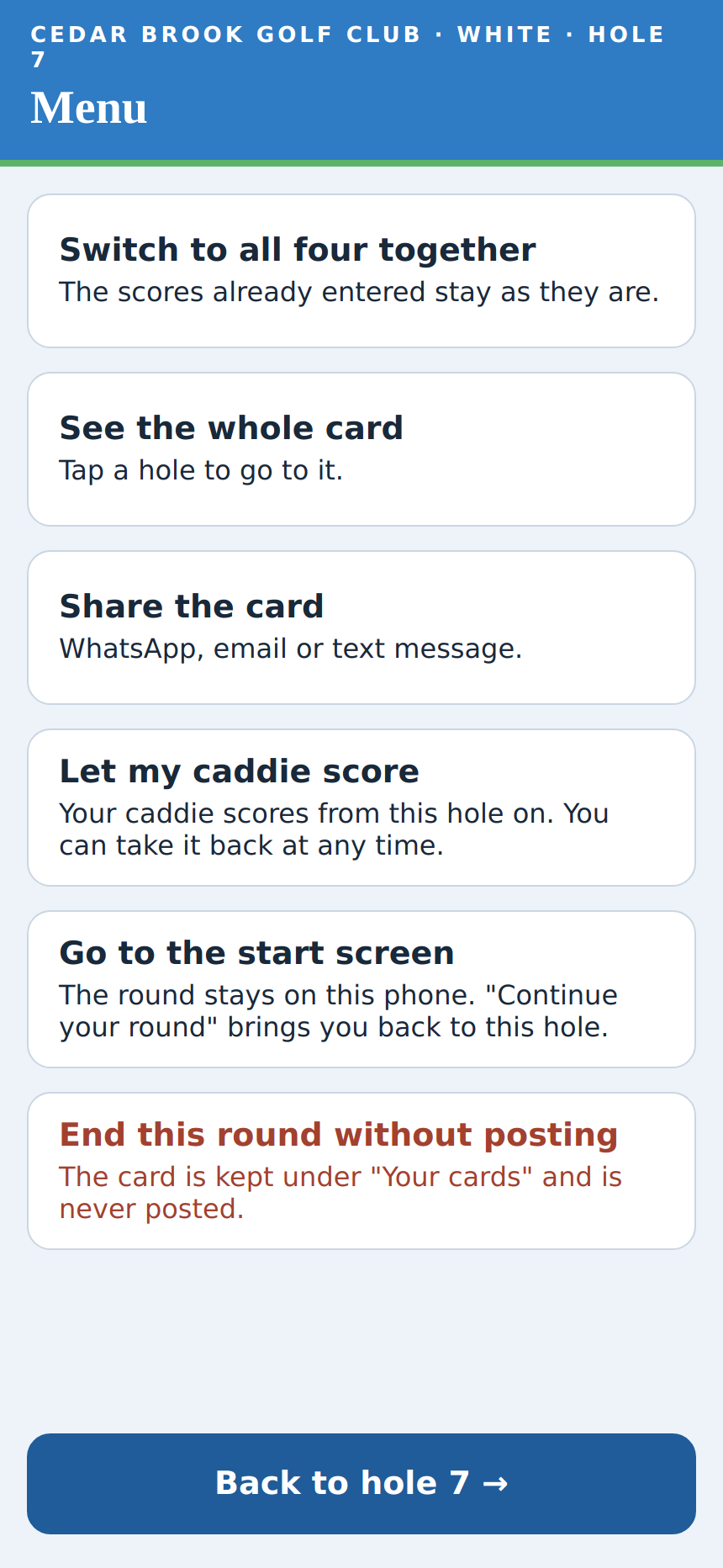
22. The Menu bubble during play: steps
- Tap Menu at the top right while entering scores.
- Choose Switch to change the score-entry view. Your entered scores stay saved.
- Let my caddie score hands the card to a caddie from this hole on. You can take it back at any time.
- See the whole card lets you review holes; Share the card sends a score summary. Let others follow this card shows a code and QR link for live, read-only viewing.
- Go to the start screen keeps the active round for Continue your round. End this round without posting is different: it ends the round and keeps a historical card without posting.
- While correcting a posted card, Cancel the correction replaces End this round without posting. It abandons the correction after confirmation. Tap Back to hole to return to scoring.
23. Let a caddie score on a second phone
The caddie enters scores for the golfer but cannot post rounds, access Scorecard groups, or view the account's personal information. The member who owns the card reviews it and is responsible for posting.
23A. Start the caddie card
- Member: Sign in using the Scorecard account. Choose the round date, course, tee, players and score-entry layout.
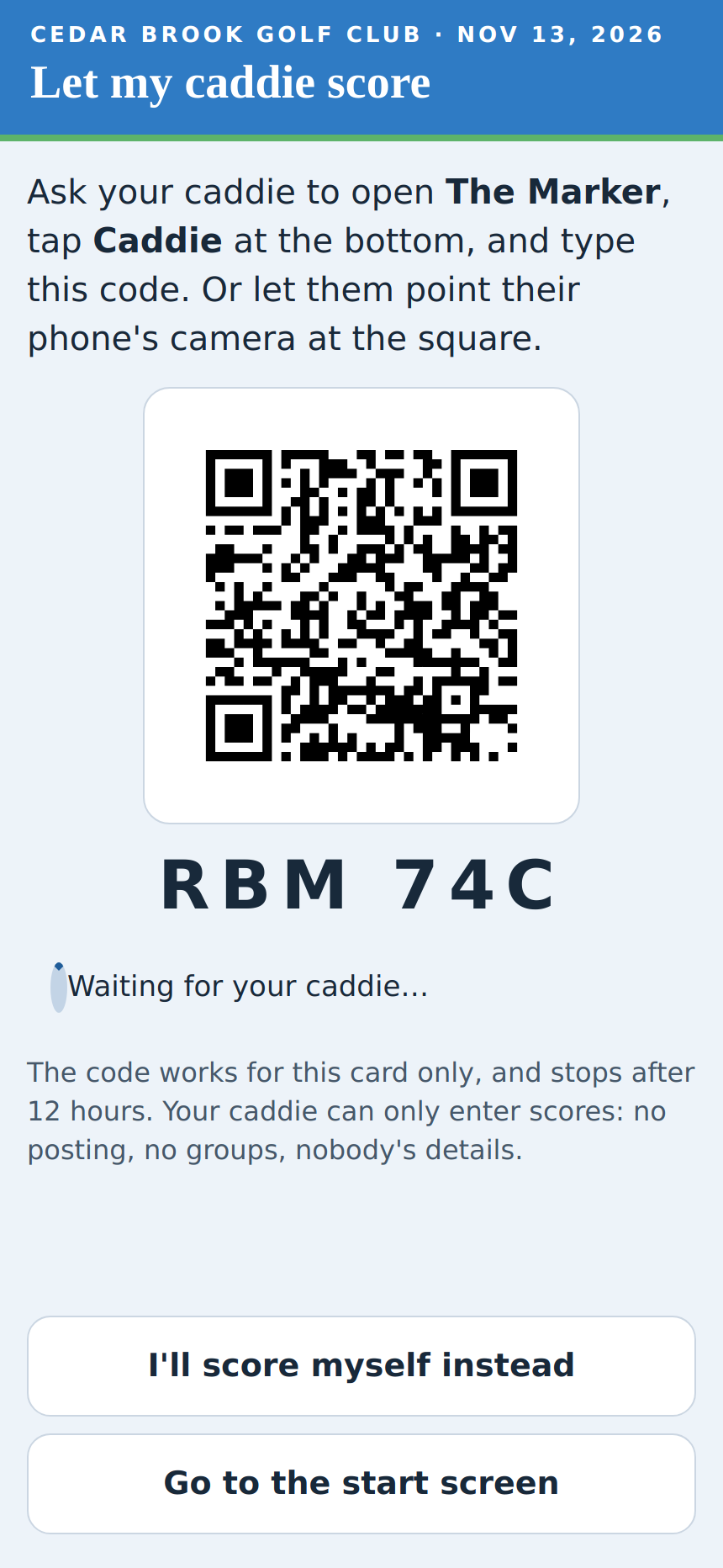
- On the player selection screen, tap Let my caddie score. The golfer's phone shows a six-character code of letters and numbers and displays a QR square. Starting the session requires internet access.
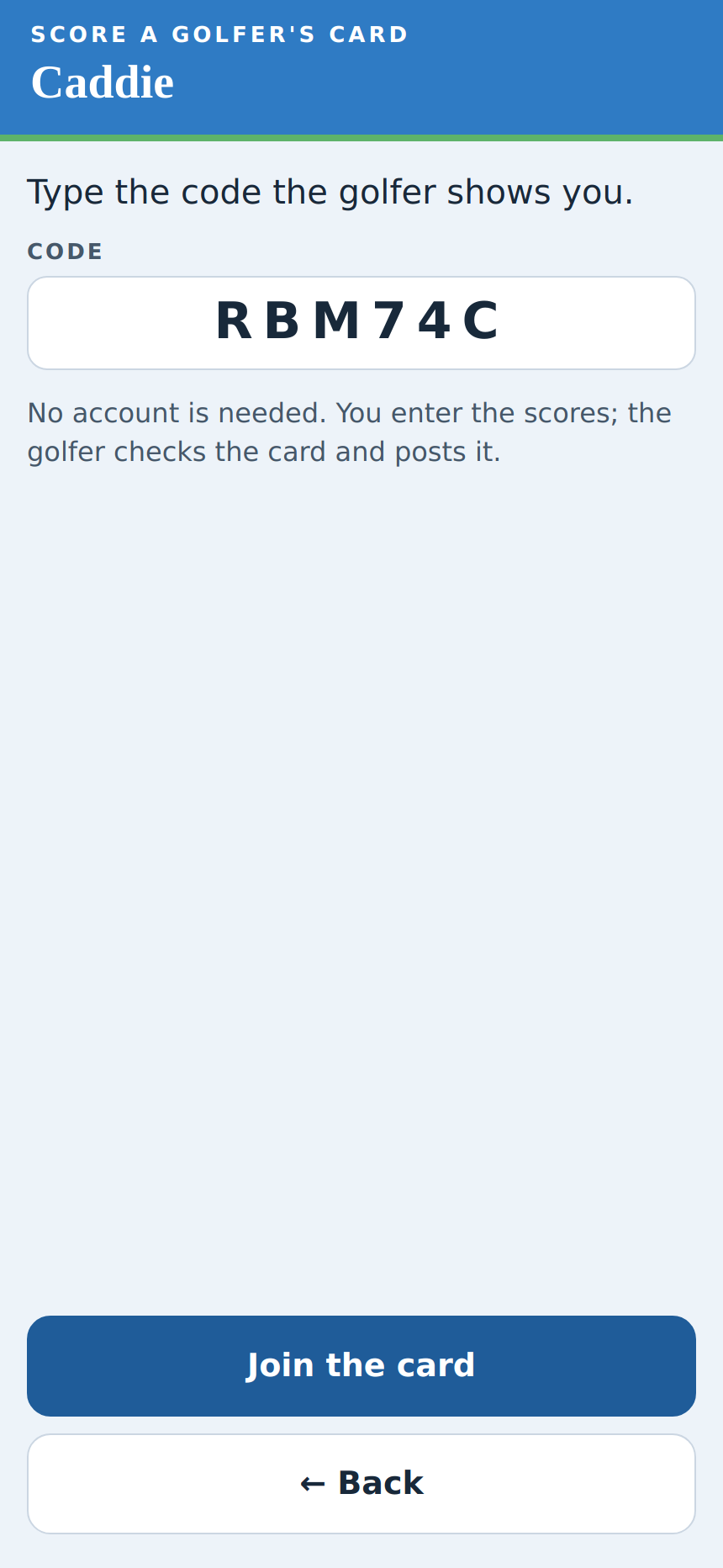
- Ask the caddie to open The Marker and tap Caddie at the bottom of the start screen, without signing in. Type the code and tap Join the card.
- Alternatively, scan the QR square with the caddie's phone camera. The link opens The Marker on a compatible installed iPhone or Android app, or the web app otherwise. The code is already in the Join field; tap Join the card.
23B. Score the round
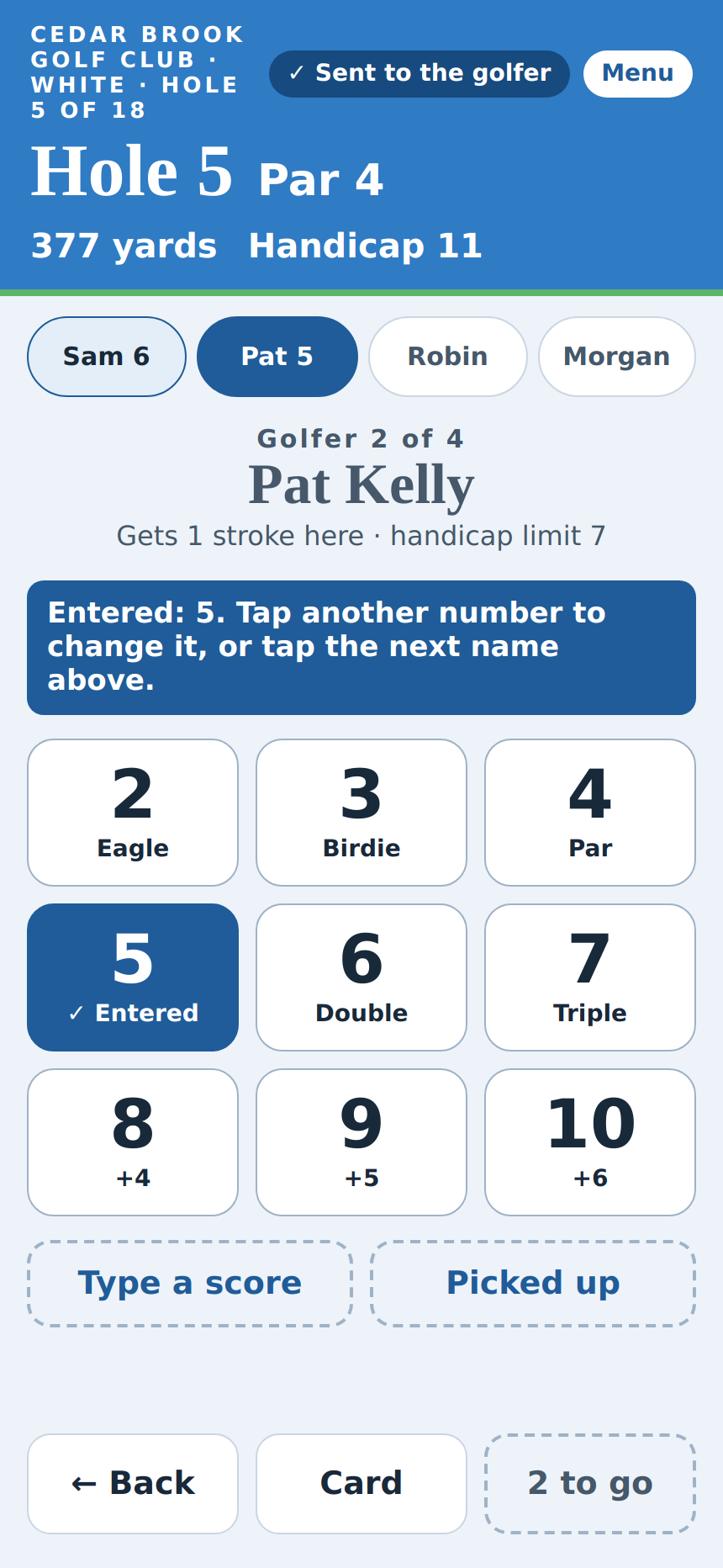
- The caddie sees only the information needed for scoring: the course, tee, holes, player names and course handicaps. The caddie can score one player at a time or all players together, and correct scores.
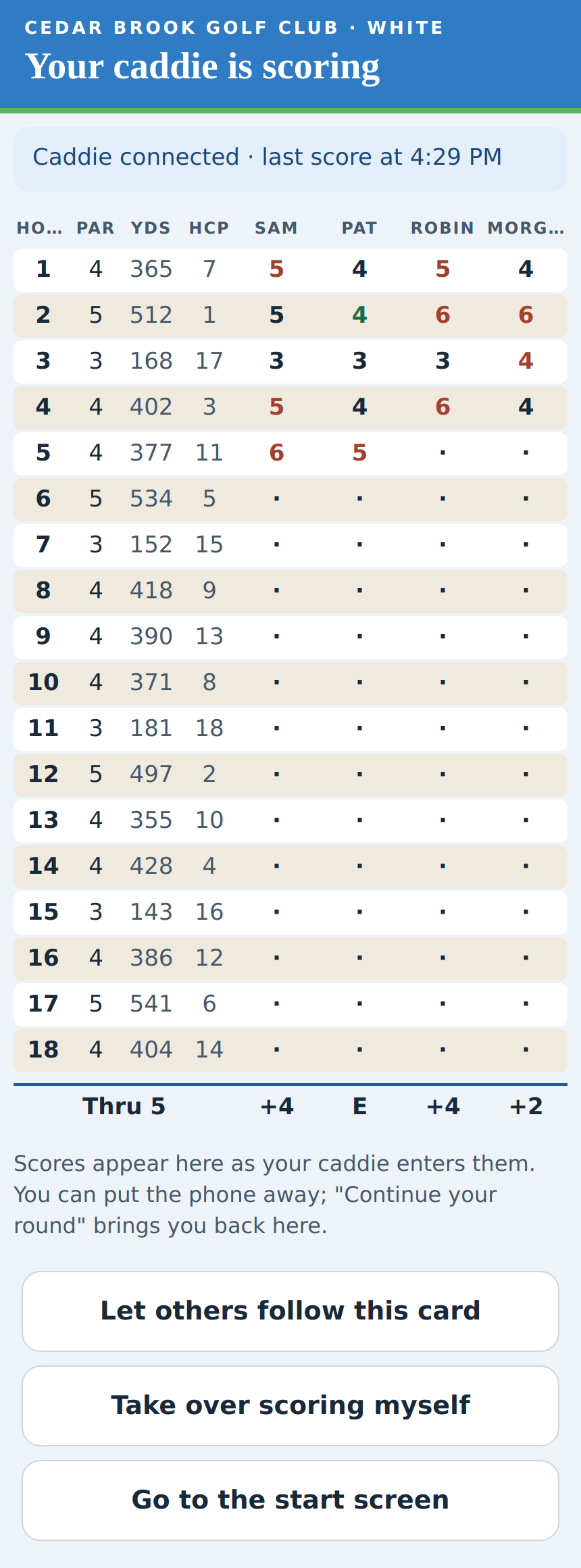
- As the caddie records scores, they are sent to the golfer's phone. The golfer's screen shows Your caddie is scoring, the card, and when it last received a score. Updates appear every few seconds while the screen is open.
- The golfer can put the phone away and return through Continue your round. If the golfer wants to score personally, select Take over scoring myself. The scores already transmitted remain. A connection is required so the caddie's access can be stopped first.
- One caddie can be active on each card. Codes stop working after the card is finished or taken over, or at most 12 hours after creation.
23C. Finish and hand back
- On the caddie's phone, complete the final hole and tap Finish. Review or fix the scores, then tap Hand the card back to the golfer.
- The golfer receives the finished card, reviews every hole, fixes any mistakes, and uses the usual Post … rounds to The Scorecard option for eligible 18-hole member rounds. Guest and nine-hole cards cannot be posted.
- The caddie cannot post to The Scorecard and cannot reuse the code after hand-back.
23D. Connection problems
- If connectivity drops, the caddie's entered scores remain on that phone. The app retries sending them when a signal returns.
- If hand-back says Not sent yet: no signal, keep The Marker open on the caddie's phone until sending succeeds. The golfer must check that the latest scores actually arrived before posting.
- Do not clear browser or app storage while unsent scores remain. If the golfer takes over, use a working connection so the app can stop the caddie first and preserve transmitted scores.
24. Follow a scorecard live
Follower is a read-only view designed for other golfers on the card who want to watch the score develop on their own phones. The owner still enters or delegates scores, checks the card, and posts eligible rounds to The Scorecard.
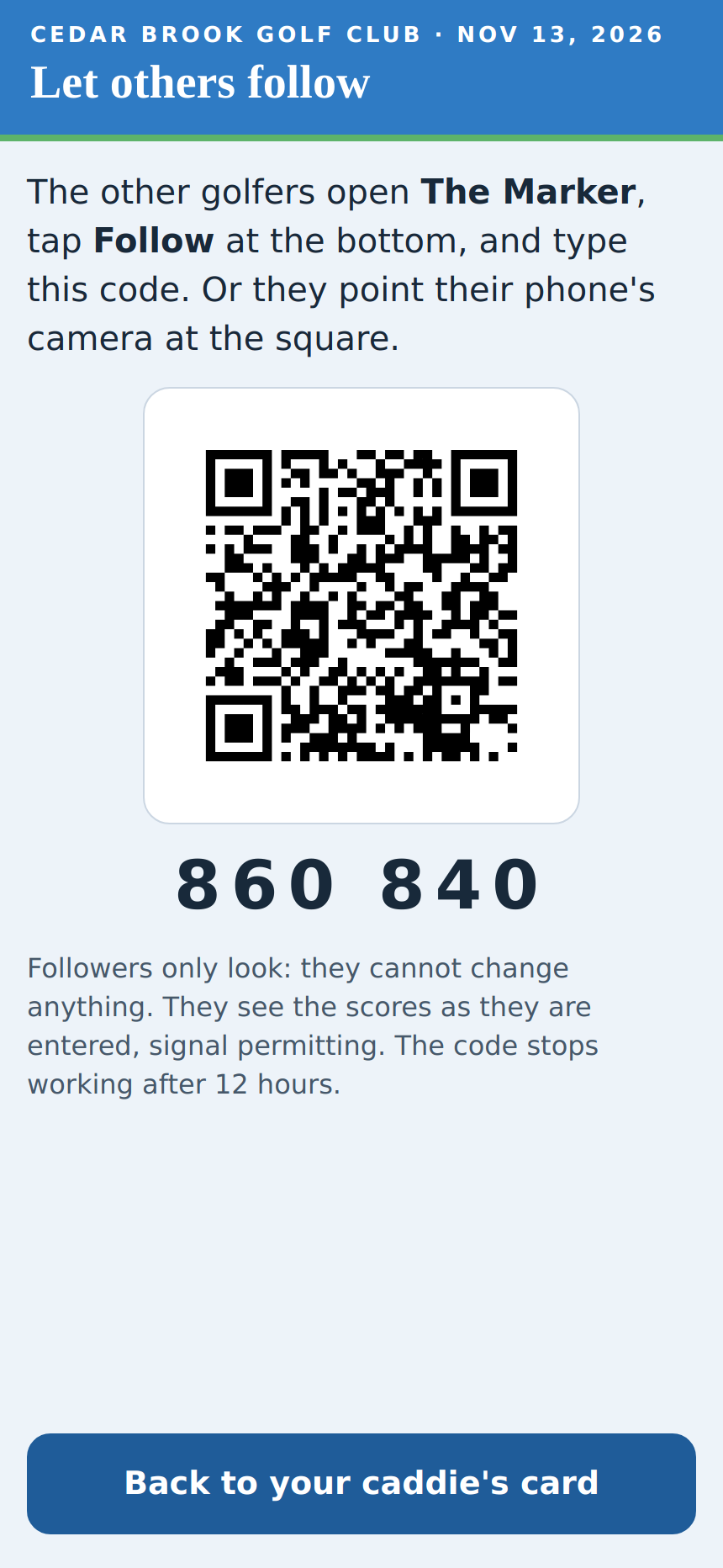
24A. The owner starts following
- Sign in with The Scorecard, start the round, and enter scores normally—or use Let my caddie score to delegate scoring to a caddie.
- During your own scoring, tap Menu → Let others follow this card. When a caddie is scoring, tap Let others follow this card on Your caddie is scoring.
- The Marker shows a six-number follow code and a QR square. To see it again, choose Show the follow code.
- Give the code or QR square to golfers who should be able to view the scorecard. A follow code is separate from the caddie's scoring code.
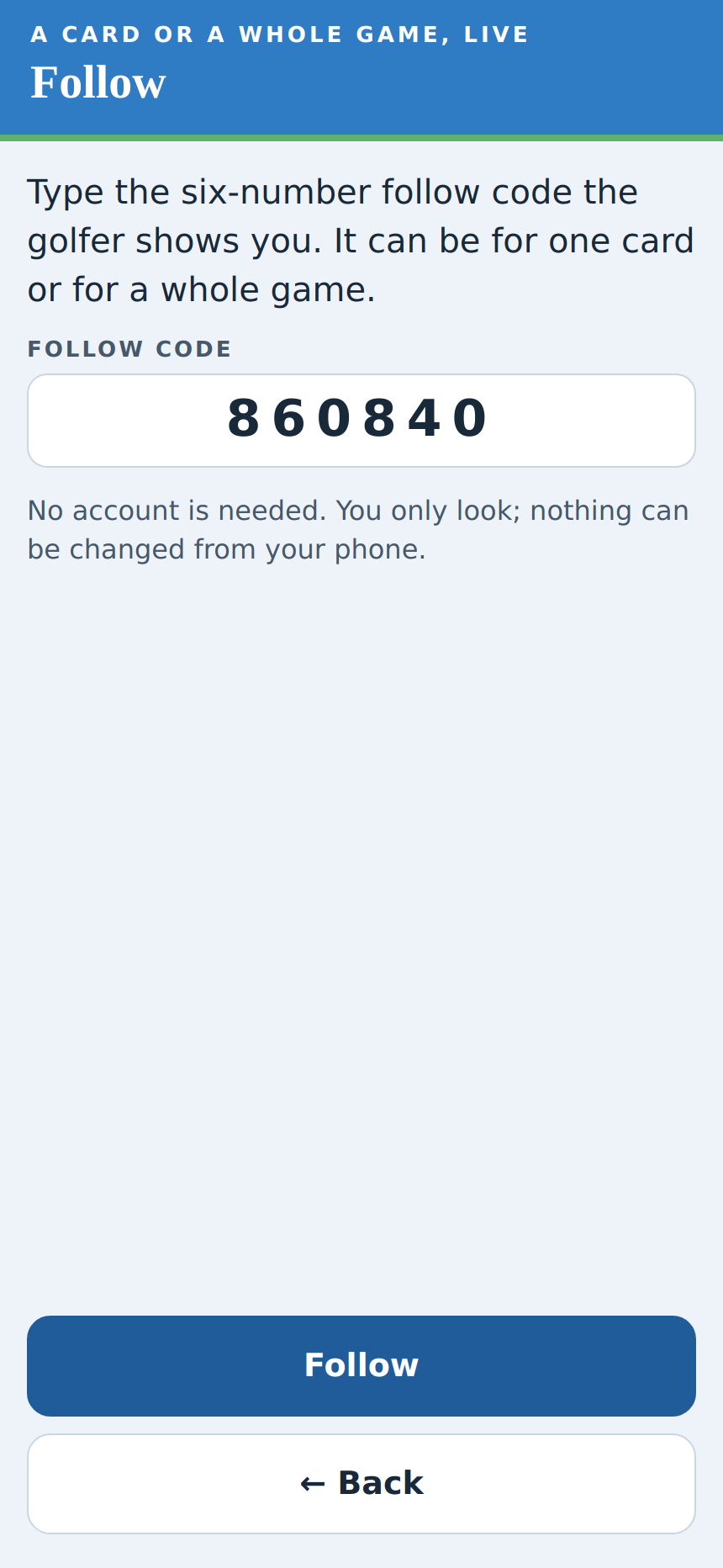
24B. A golfer joins as a Follower
- On another phone, open The Marker. Tap Follow at the bottom of the start screen.
- Type the six-number code in Follow code, then tap Follow the card. No Scorecard account is needed.
- Or scan the QR square using the phone's camera. The link uses the Cuberoot follow page and opens The Marker in a supported installed iPhone or Android app, or the web app otherwise. The code is supplied through the link.
- The Following screen shows the course, tee, golfer names, hole scores, and scorecard as the round progresses. Scores refresh automatically about every 12 seconds while this screen is open.
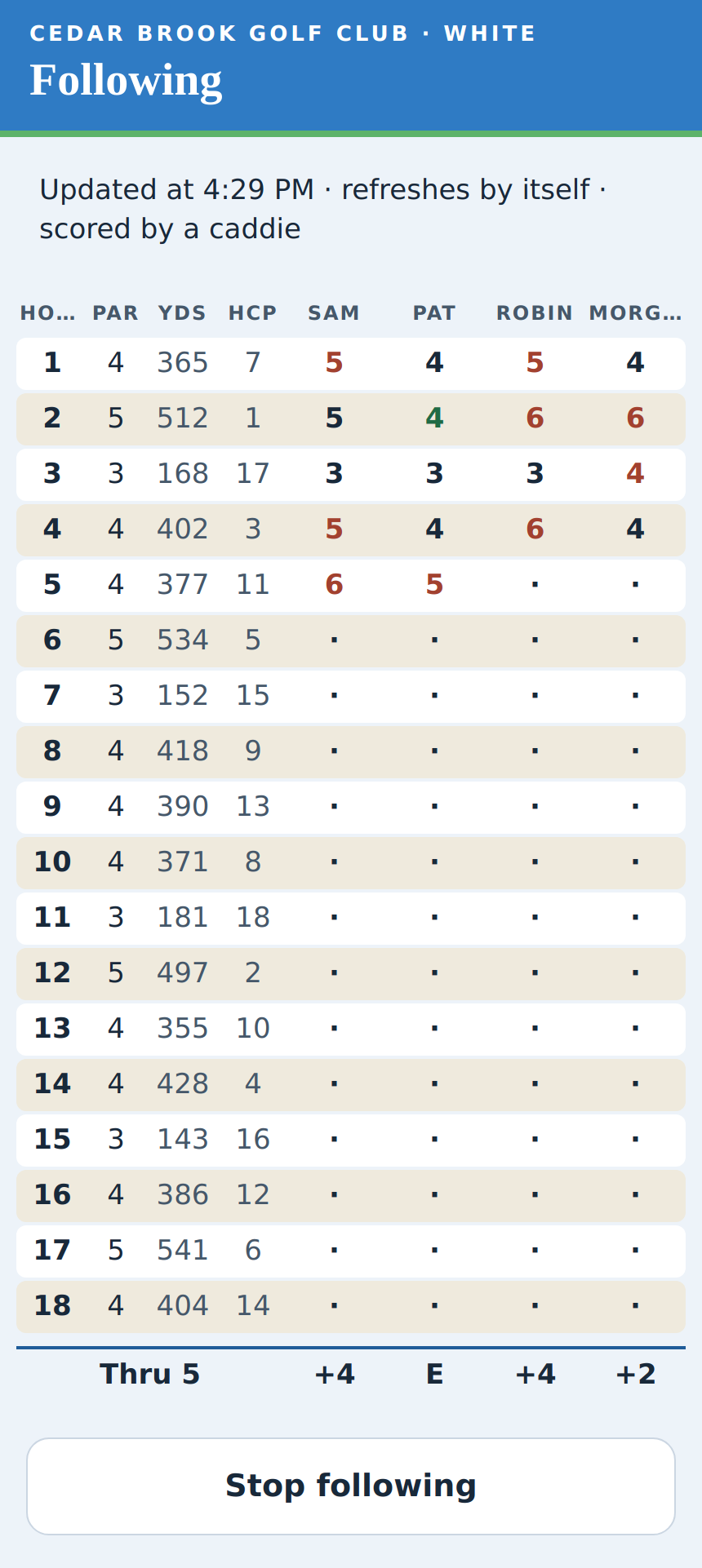
24C. While following
- The Follower cannot change, correct, delete or post any scores. Only the golfer or their caddie enters scores; the golfer remains responsible for the final review and posting.
- The Follower sees whichever scores the owner or caddie sends. When a caddie is scoring, the Follower can still watch the same live card.
- If the signal drops, the screen warns that it is showing older scores. Wait for the connection to return; do not mistake a stale scorecard for the latest card.
- The start screen may offer Follow: [course name] so the Follower can reopen the card. To leave, tap Stop following.
- Once the round finishes, the Follower can still see the completed card until the code expires. All follow codes stop working after at most 12 hours.
24D. Privacy and limitations
- Anyone with the follow code can view the card, even if they are not a golfer listed on it. The feature is designed for the playing group, but it does not enforce membership in that group. Share the code only with intended viewers.
- Followers can view the shared scorecard; they cannot inspect the owner's Scorecard groups, change a card, or submit rounds.
- Live updates require an internet connection on the scoring phone and the Follower's phone. The view refreshes while open, not by push notification.
25. The Marker on Apple Watch — full illustrated instructions
Applies to The Marker 1.1.0 and Apple Watch running a supported watchOS. The paired iPhone sends a read-only live card to the Watch app. On the watch you can follow the current hole, open any golfer in a group of up to four, review individual holes, and see Out/In/Total. You can also display a small card in Apple's Smart Stack or directly on a supported watch face.
Before you begin: Keep the scoring/caddie phone connected to the internet. Use a paired Apple Watch and The Marker iPhone app with the Watch app installed. Watch screenshots below use the actual Marker SwiftUI screen layouts and fictional player data. The Apple setup diagrams are instructional diagrams, not Apple screenshots.
25A. Check that The Marker is on Apple Watch
- On your iPhone, open Apple's Watch app, which manages the paired Apple Watch.
- Choose My Watch and look through the installed apps for The Marker.
- If absent, find The Marker under Available Apps and tap Install. Wait for installation to finish.
- On your Apple Watch, press the Digital Crown to show the app list and open The Marker. If it says No card yet, proceed to the next step on your iPhone.
25B. Send the current card to the Watch
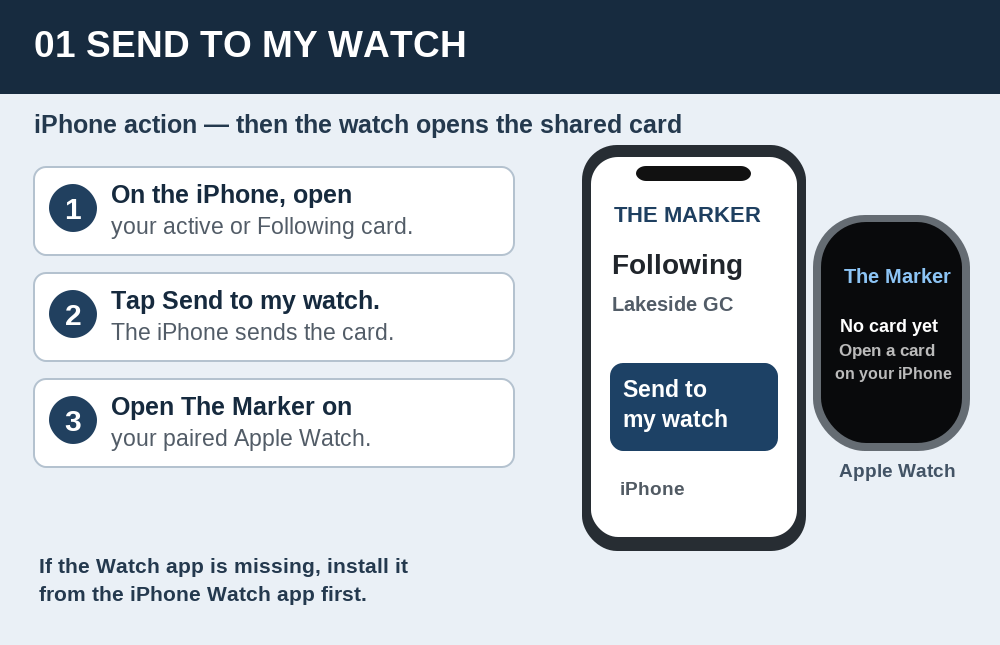
- On the iPhone, start or open the round you want to see. A Follower can tap Follow on the Marker start screen and enter the share code, or use the QR link.
- On the iPhone's Following screen, tap Send to my watch. When viewing your own card, this action is also available through the card's caddie/follow-sharing controls. The app can make a follow code as needed.
- Wait for the send confirmation. If the iPhone says a watch is not paired or The Marker is not installed, resolve that specific message using the steps in 25A.
- Open The Marker on the Apple Watch. A current group scorecard replaces the No card yet screen. Sending again switches the watch to another live card.
25C. Read the group's scores
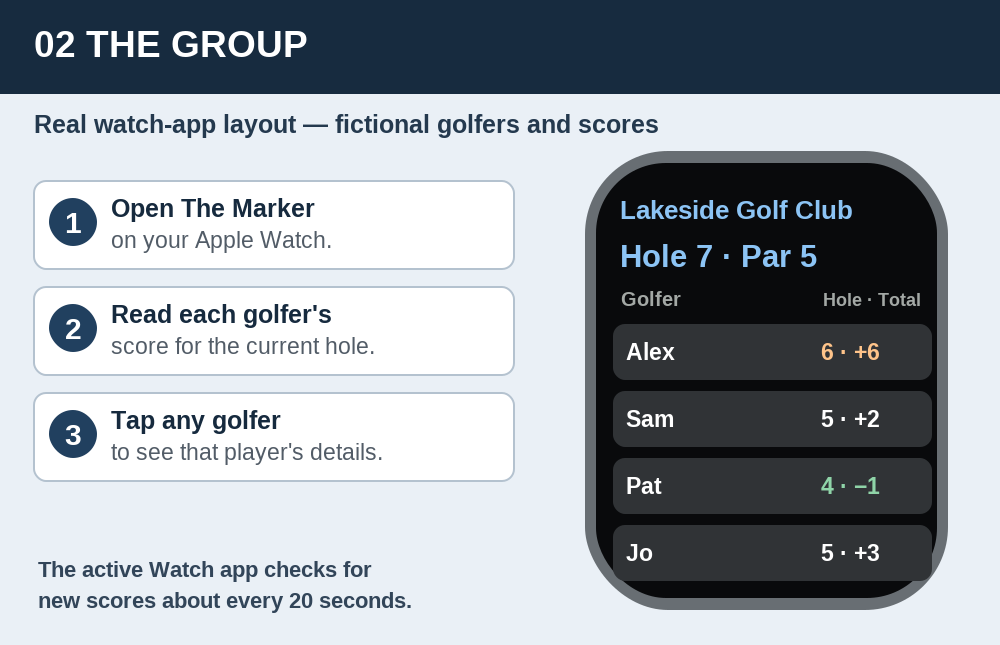
- The heading displays the current hole and par. Each golfer's row shows the hole's score alongside that player's running total relative to par.
- Tap any golfer's row to see that person's enlarged current-hole score.
- When the watch app is open and connected, it checks for changes about every 20 seconds. A weak connection can leave old scores visible, so check the last-updated status when in doubt.
25D. Use the golfer view and Digital Crown
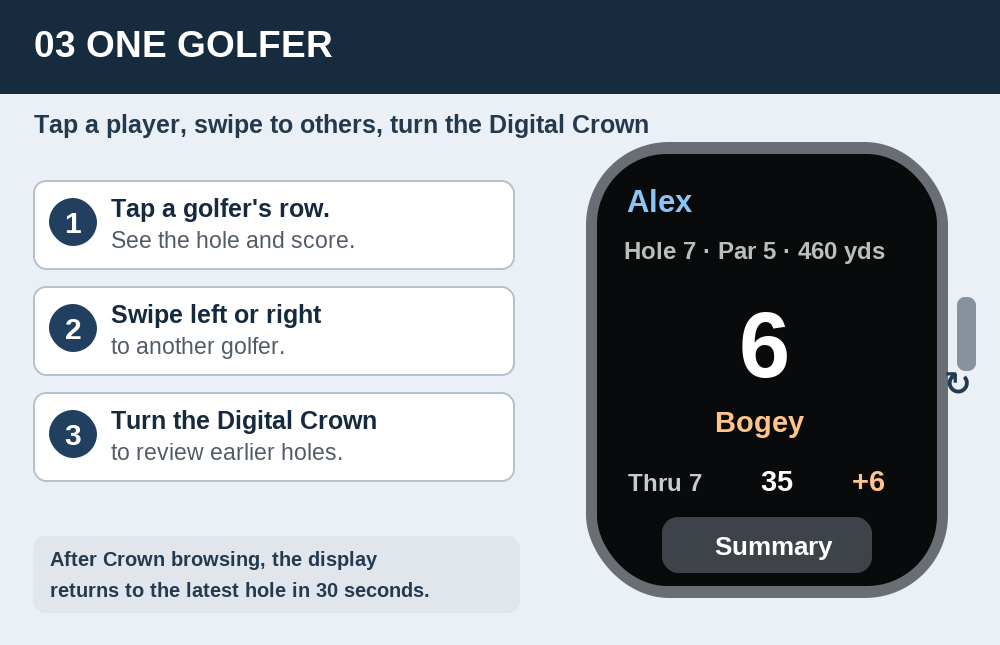
- Tap a golfer on the group screen. The player view displays the golfer's name, Hole number · Par · Yardage when available, a large hole score, and a score name such as Bogey.
- At the bottom, Thru is how many holes have scores; the next number is the running stroke total; the colored value shows strokes relative to par.
- Swipe sideways to another golfer in the same card.
- Turn the Digital Crown to scroll through previous holes. After Crown navigation stops, the player screen returns to the latest hole in about 30 seconds.
25E. Review Out, In and Total
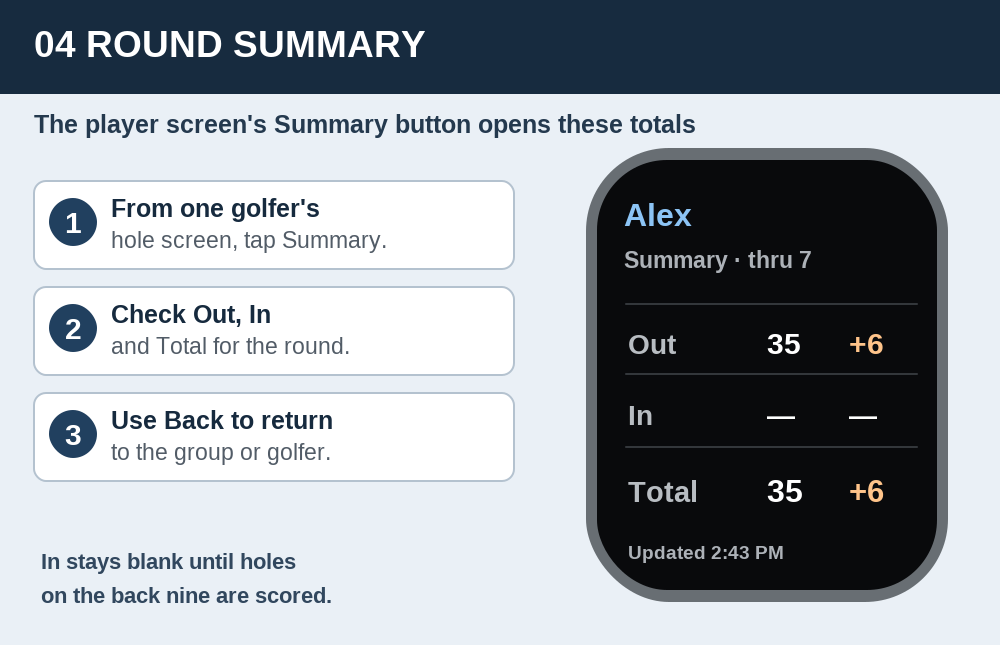
- On the golfer screen tap Summary.
- Read Out for the front nine, In for the back nine, and Total for all scored holes. Each value is shown alongside its relative-to-par total.
- Unplayed holes are not counted, so In can show a dash until back-nine holes have been scored.
25F. Understand My score and The group widgets
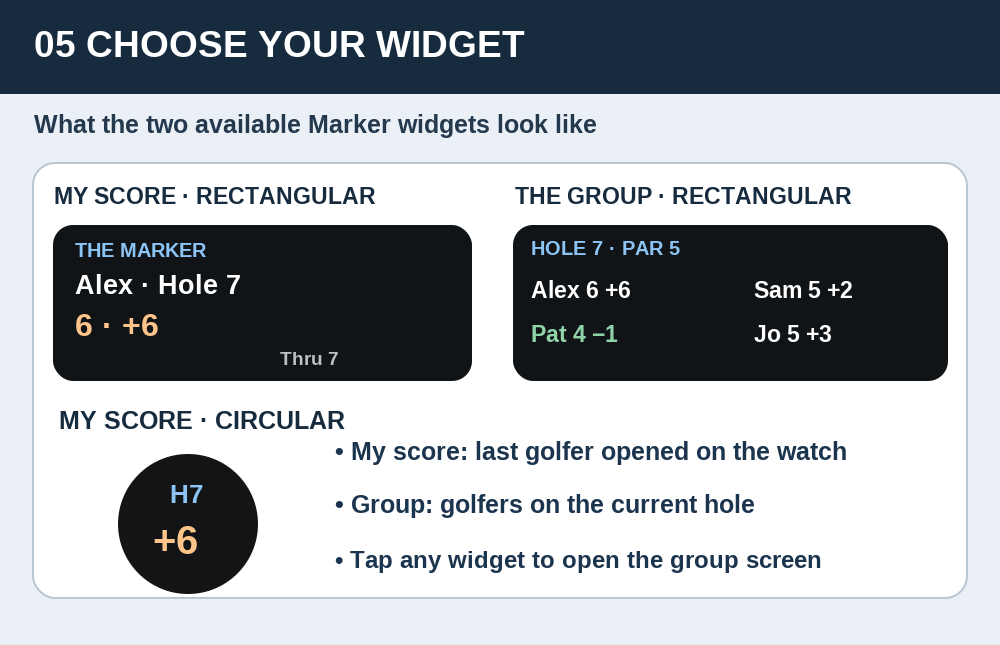
- The Marker: my score shows the golfer last opened on the Watch, the hole, and the running score relative to par. The rectangular widget can show more detail.
- The Marker: the group shows all golfers' names, scores and totals on the current hole. It is a rectangular widget.
- The Marker: my score also has a circular style: a large relative-to-par value with a hole indicator (H7, for example). This is suitable for circular watch-face slots.
- Tap either widget to go to The Marker's full group screen. The app can refresh soon after opening, but widget updates themselves are scheduled by watchOS.
25G. Step by step: add The group to Smart Stack
Best choice if you want to keep your existing date or other favorite watch face.
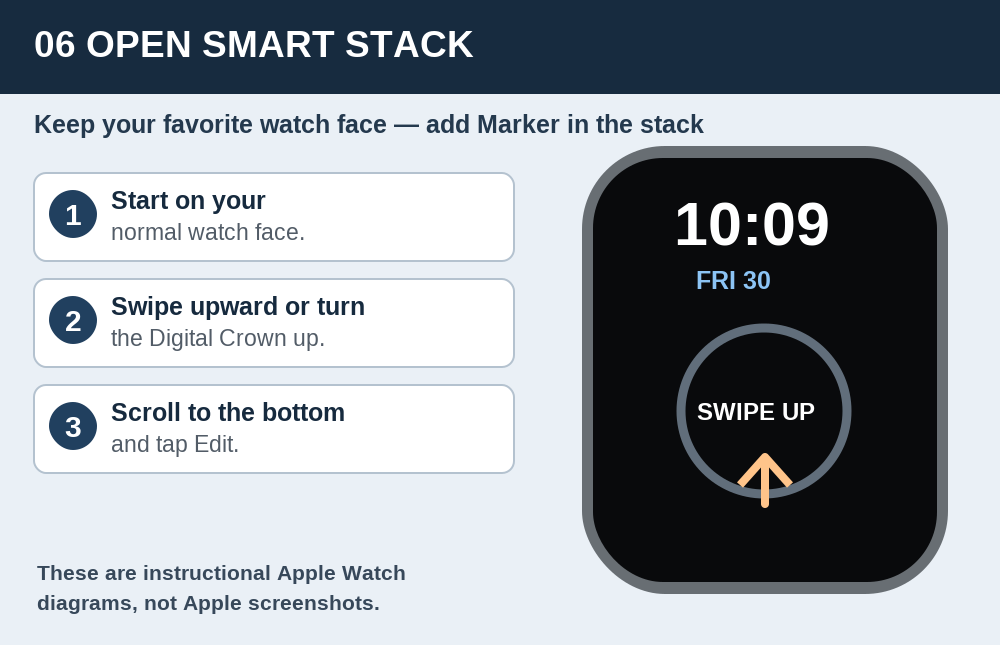
- Return to the regular watch face.
- Swipe upward on the watch face or turn the Digital Crown upward. The Smart Stack appears.
- Scroll down to the bottom of the widgets and tap Edit.
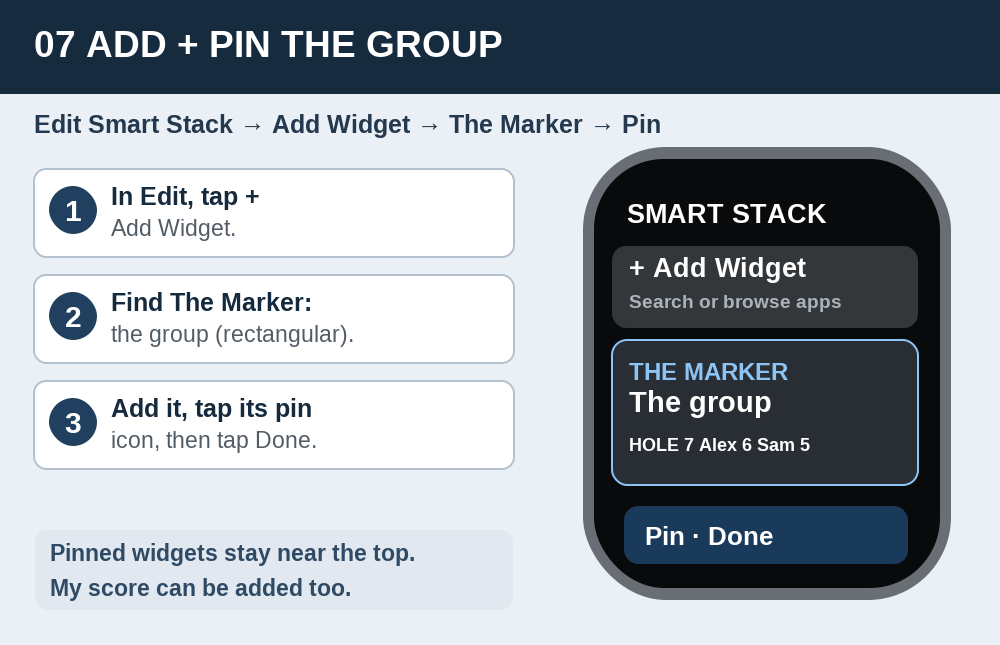
- Tap the + Add Widget control.
- Browse or search for The Marker, then select The Marker: the group.
- Add the rectangular group widget. To keep it easy to find, tap the pin symbol by its card.
- Optionally add The Marker: my score as another card.
- Tap Done. Next time, swipe up from your watch face and look near the top of Smart Stack for the pinned Marker group card. Pinned widgets can be dragged to reorder while editing.
25H. Step by step: display The Marker on a watch face
Not every watch face supports every complication shape. The Marker provides rectangular widgets for My score and The group, and a circular widget for My score only.
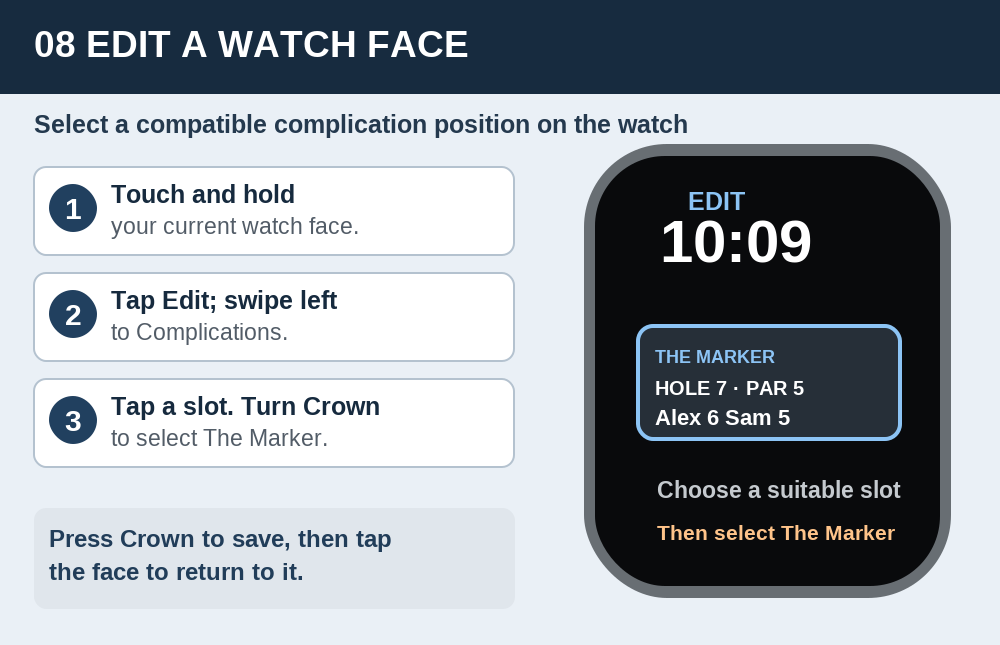
- Show the watch face that you want to customize. Touch and hold it until editing controls appear.
- Tap Edit. Swipe left until you reach the Complications screen. If the face has no complications, choose a different face.
- Tap a rectangular slot if you want The Marker: the group. Tap either a suitable rectangular or circular slot for The Marker: my score.
- Turn the Digital Crown to browse available complications and select the applicable The Marker option.
- Press the Digital Crown to save your choices, then tap the face to return to it.
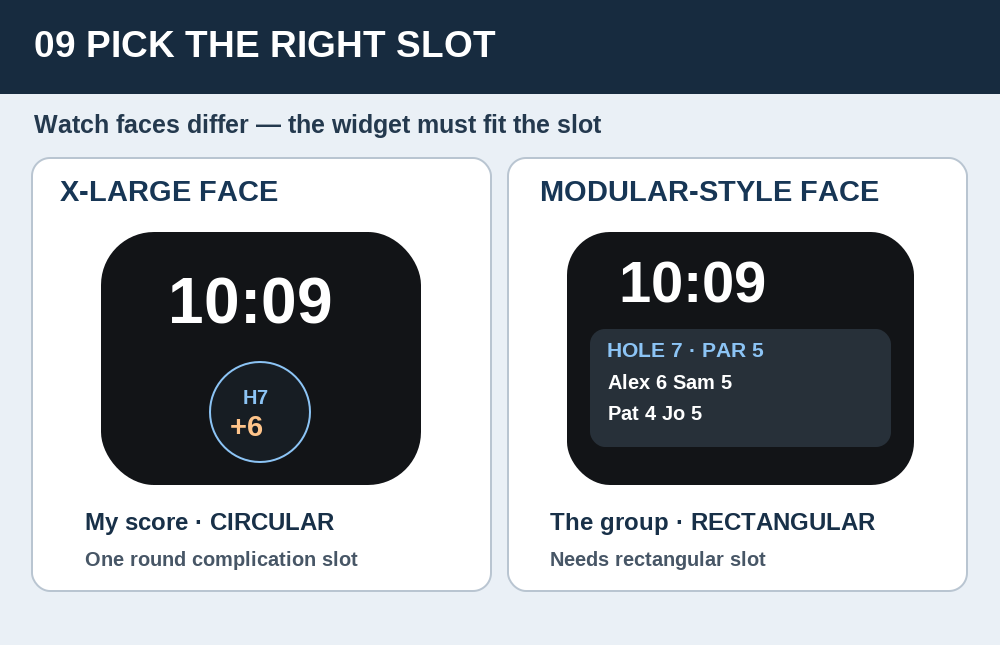
X-Large watch face: Choose its round complication slot and select The Marker: my score. In Marker 0.9.8 this round widget shows the hole and the golfer's relative-to-par score in large type. The group is not a circular widget, so it cannot fill X-Large's round slot.
Modular-style watch face: Use a face with a suitable rectangular complication for The Marker: the group. If you prefer to keep the watch's date face without modification, pin The group to Smart Stack instead.
25I. Alternative: use Face Gallery on the iPhone
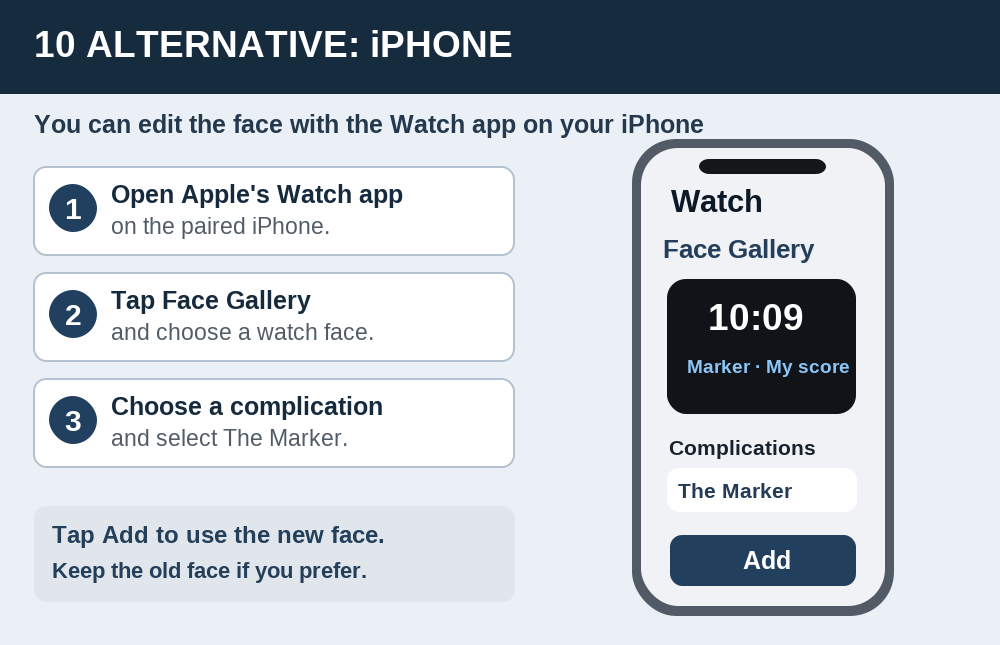
- On the paired iPhone open Apple's Watch app.
- Tap Face Gallery and choose a face you like. Check that it supports the right complication position and shape.
- Open that face's Complications options, pick a compatible location, and choose The Marker widget.
- Tap Add to add the watch face. You may keep more than one face and switch between them on your watch.
25J. Timing, privacy, and troubleshooting
- Watch app vs widget refresh: The open Watch app checks for new scorecard data about every 20 seconds. Smart Stack and watch-face widgets are refreshed under watchOS's budget, often around 10–20 minutes. Their display can therefore be older; tap the widget to open the group screen for fresher scores.
- My score is another golfer: My score is the last golfer whose page you opened on the watch. Open the person whose score you want to follow.
- No card yet: Send a card from the native iPhone Marker app. Simply installing the Watch app does not connect a scorecard. Open the watch again after sending.
- The Marker does not appear in Add Widget / complications: Make sure The Marker Watch app is installed, the companion iPhone app is current, and the chosen face or slot supports the requested shape.
- Not paired / Not installed error on iPhone: Confirm that Apple Watch is paired, then use the iPhone Watch → My Watch → Available Apps list to install The Marker. Tap Send to my watch again.
- No signal or stale scores: The scoring/caddie phone and watch need connectivity for updates; a temporary interruption does not authorize score changes on the watch. Return to the Watch app's group view after the connection returns.
- The card has ended: Following on the watch ends after the round is posted or when the follow link reaches 12 hours. A posted card may remain briefly visible until the watch next opens or its local end period has passed; send a new active card for another round.
- Security: The watch's card is read-only. A follow code can be used by someone outside your playing group, so share it only with intended followers.
Illustration provenance: The group, player, summary, and widget designs are matched to The Marker's watchOS SwiftUI and WidgetKit source at version 0.9.8. Fictional names and scores protect real golfers. Apple Watch Smart Stack, face-editing and iPhone Face Gallery steps are original instructional diagrams based on Apple's watchOS 27 guidance; they are not literal captures of Apple's screens. Official instructions: Apple Smart Stack · Apple face complications · Apple Face Gallery.