CUBEROOT · GOLF TOGETHER
The Marker
Illustrated Quick Starter Guide
Your hole-by-hole golf companion.
With The Scorecard, or on its own.
Keep scores for one to four players. Score yourself, ask a caddie to score, follow live on another phone, or view the group on Apple Watch. Sign in to post eligible rounds to The Scorecard, or play without an account and keep and share your card.
Instructions updated 13 November 2026 for The Marker 1.1.0 · Large-print edition. Every picture is a real screen of the app, in its Lake blue look, with made-up golfers. The Apple Watch pictures are diagrams.
Download this illustrated guide as PDF
The pictures below are real screens of The Marker 1.1.0, taken with made-up golfers, groups and courses. No real account or card is shown. Tap a picture, or View this screen larger, to see it full size.
1. Choose how to play
The Marker is a companion to The Scorecard and a complete standalone scorecard for one to four players.
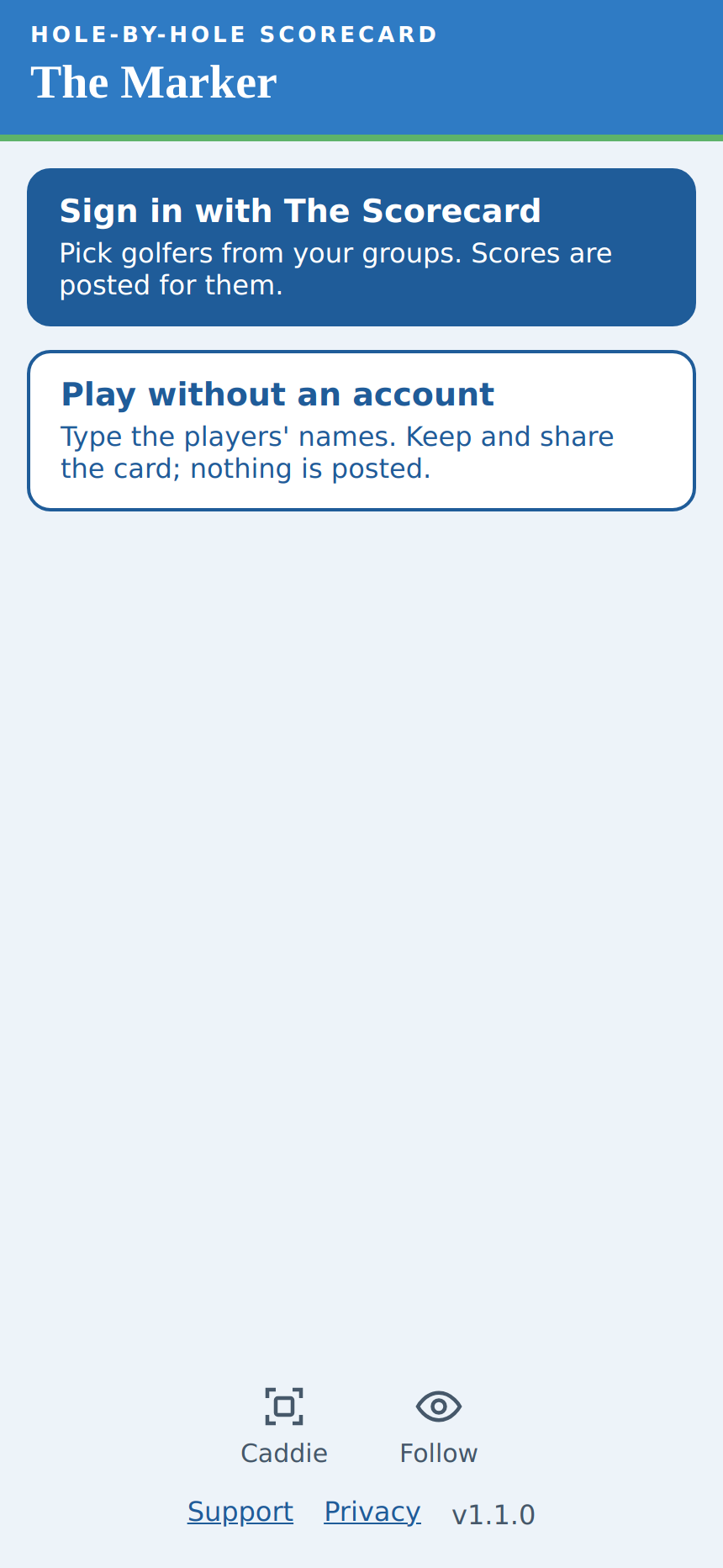
1. Choose how to play: steps
- Choose Sign in with The Scorecard to use your existing account and pick golfers from your groups. Eligible finished rounds can be posted for those golfers.
- Choose Play without an account to type player names, keep the card on this device and share it. No Scorecard account is required.
- Continue your round appears when a round is already saved. A saved correction or re-post instead shows Continue your correction or Continue your re-post. Open the web app while connected before leaving for the course.
2. Set up the round
Check these choices before you tee off.
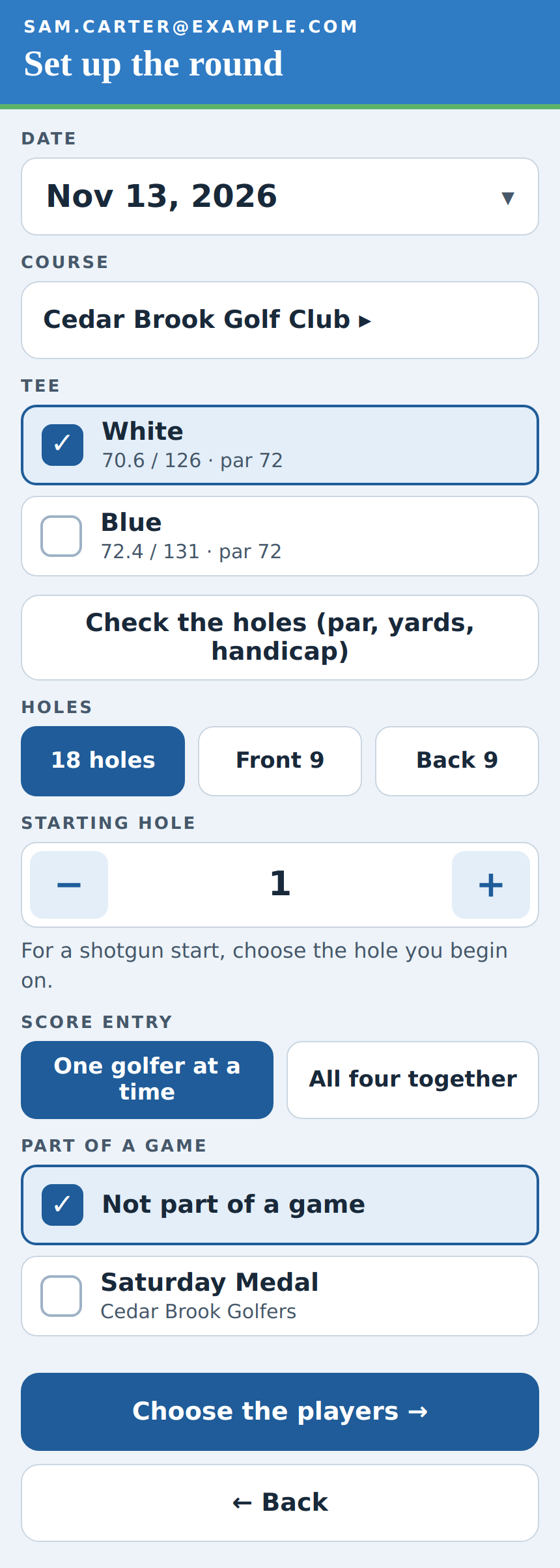
2. Set up the round: steps
- Tap the date to open the calendar. Select the month, year and day played, or type the date as year, month, day. Future dates are blocked. Choose the course and the tee actually used.
- Choose 18 holes, Front 9 or Back 9. A nine-hole card can be shared but cannot be posted to The Scorecard.
- Set the Starting hole for a shotgun start. An 18-hole round starting on 10 goes through 18, then 1 through 9.
- Choose your score-entry layout. The selected course and tee apply to everyone on this card; use separate cards for different tees.
- Need to add or photograph a course? Follow Find and check a course in the complete guide.
3. Choose the round date
Use the app’s calendar to select a past date or today.
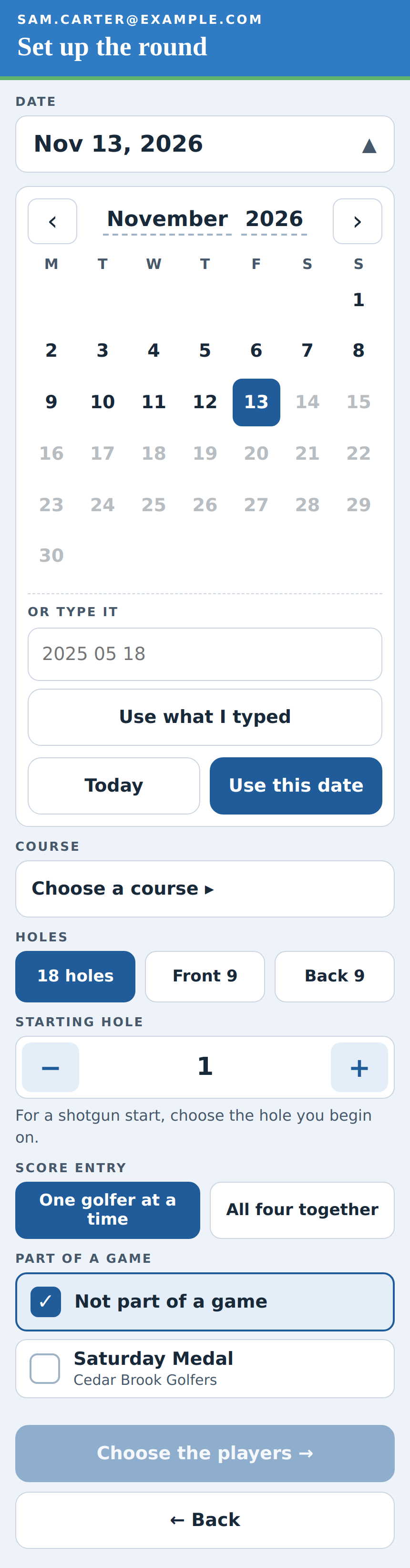
3. Choose the round date: steps
- Tap the date in Set up the round to open the calendar. Use the arrows for the previous or next month. Tap the month name or year to choose it directly.
- Tap the day you played. The calendar closes with that date selected. Future days cannot be selected.
- For another date, use Or type it: enter year, month, day, for example 2025 05 18 or 20250518, then tap Use what I typed. Invalid or future dates show an error.
- Today selects today. Use this date closes the calendar keeping the selected date. Changing the date clears the chosen game; check Part of a game again.
4. Choose one to four players
Group golfers can be posted; typed guests are scored and shared only.
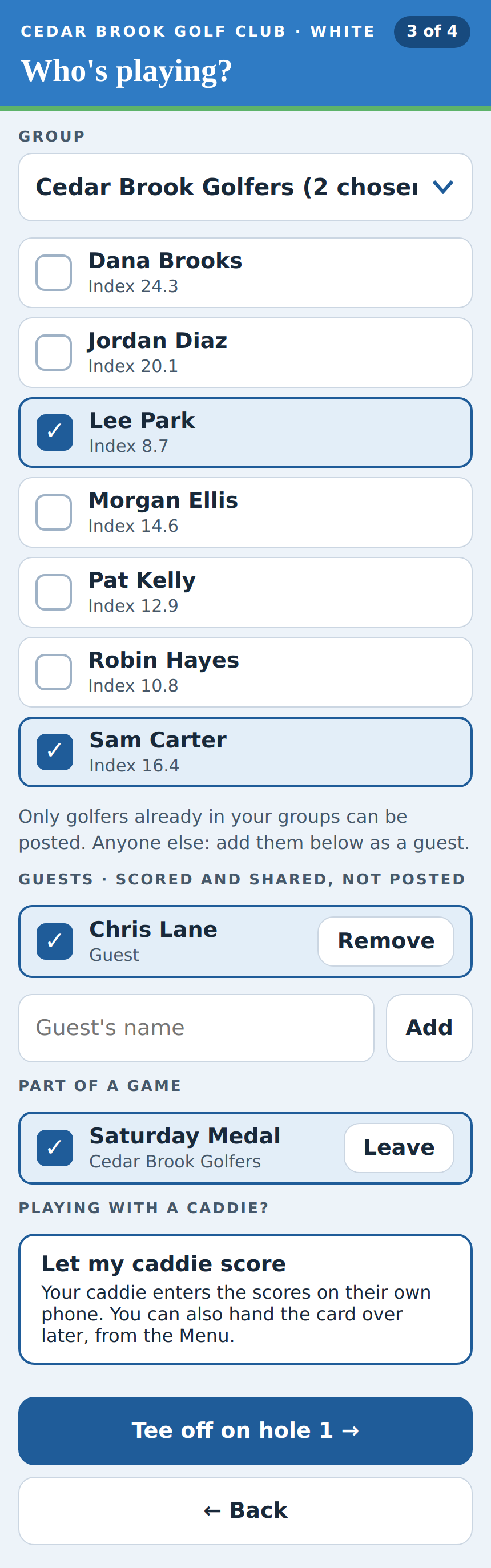
4. Choose one to four players: steps
- Tap Choose the players. Signed-in users select a group and tap existing golfers. You may select golfers from your own groups, up to four total.
- Add other people by typing a name and tapping Add. Without an account, enter each player this way. Typed names are guests, even if they resemble a member’s name.
- Tap a selected member again to deselect; use Remove for a typed player. Check the names, then tap Tee off on hole ….
4A. Start or join a game
A game puts several cards on one leaderboard.
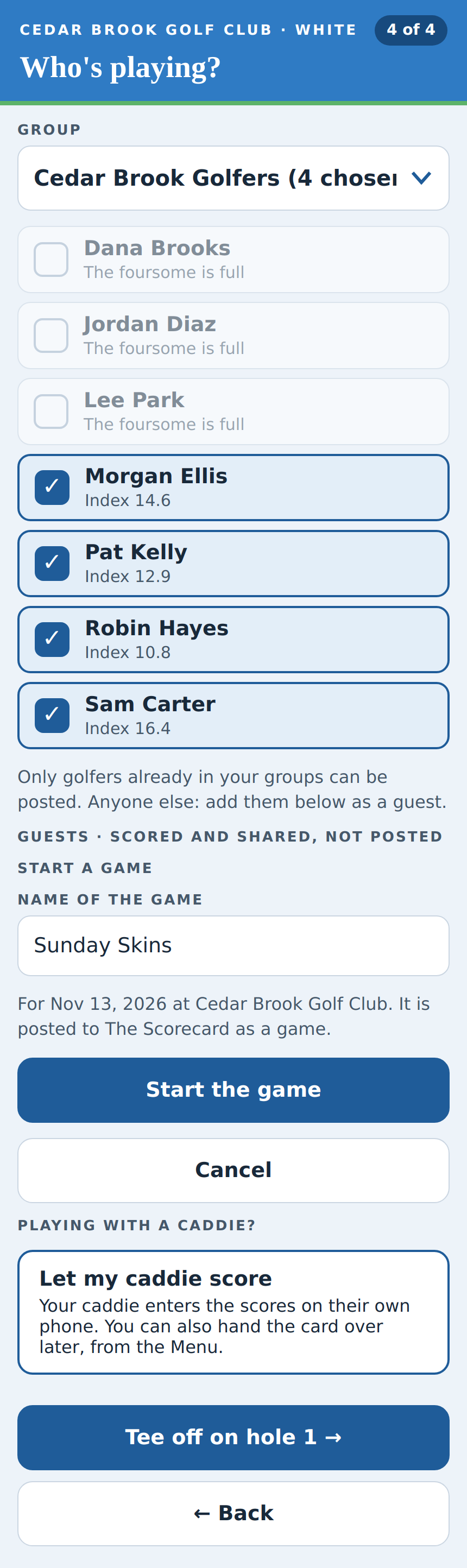
4A. Start or join a game: steps
- On Who's playing?, under Part of a game?, tap Start a game and type its name. The Marker shows the game's six-number code.
- The other scorers tap Join a game and type that code. Forgot? Tap No game at the top of any hole to join or start one during the round.
- During play, tap the game's name at the top of a hole for the code and See the leaderboard.
- A golfer arriving late? Tap + Add beside the names at the top of the hole. See the complete guide.
5. Enter scores, one golfer at a time
Enter the strokes actually taken. The app calculates its handicap adjustment separately.
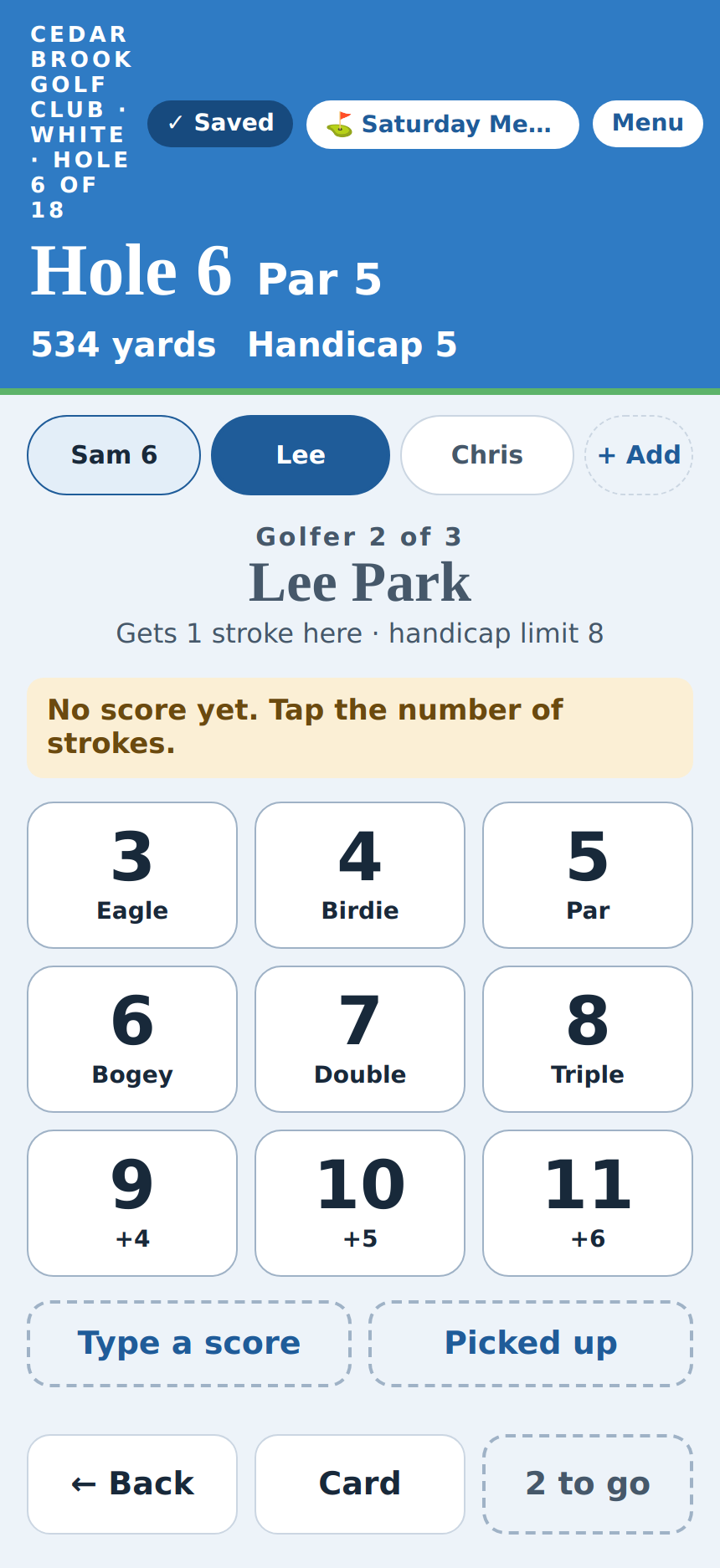
5. Enter scores, one golfer at a time: steps
- Tap the golfer’s name, then tap their score tile. The entered value is highlighted. Tap another value to correct it.
- Tap the next golfer’s name and enter that score. Use Type a score for a whole number from 1 to 20.
- Use Picked up when the player did not finish the hole. This records X; it is not a zero.
- When everyone has an entry, tap the next-hole button. After the final hole, tap Finish. Watch for save errors before continuing.
6. Enter all players together
This is a different scoring layout, not a different game. It works for two, three or four golfers.
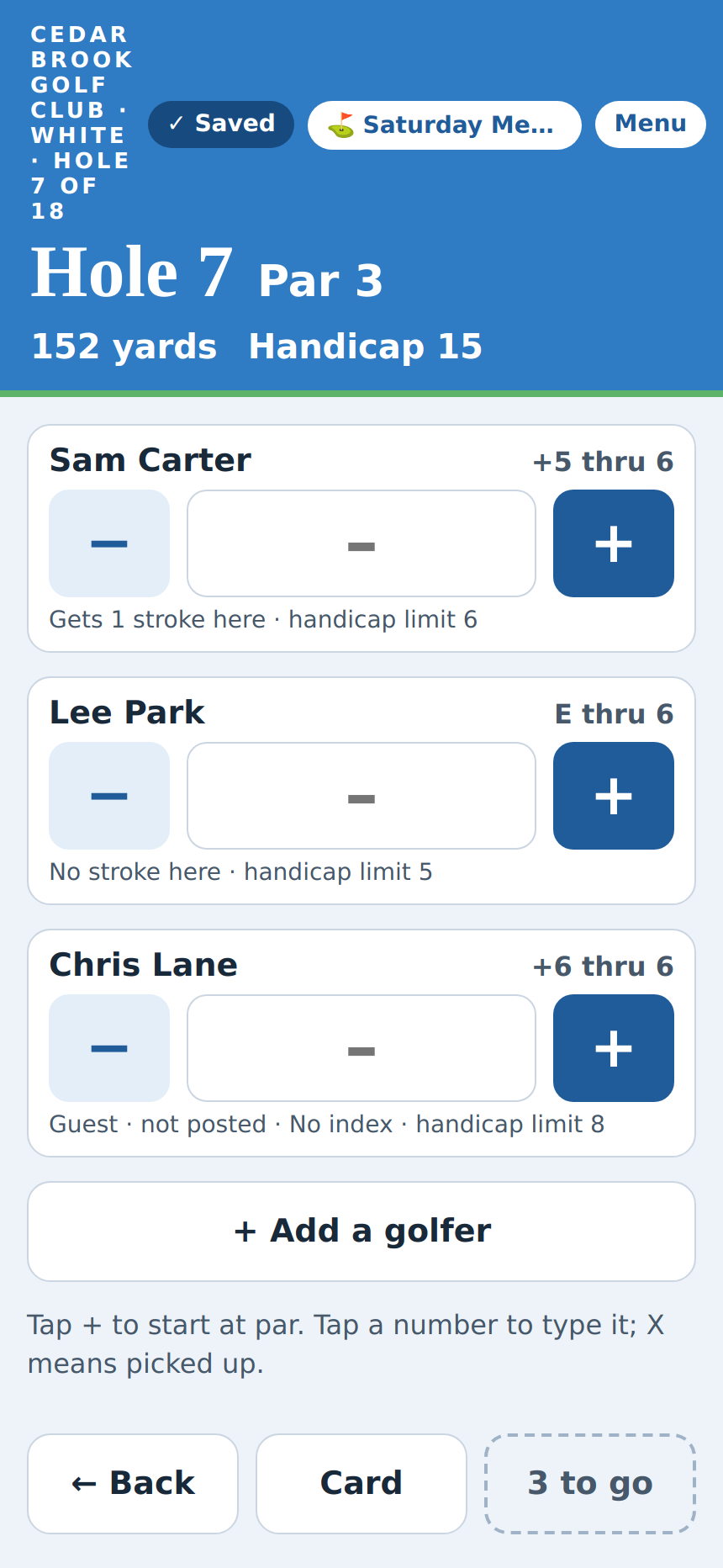
6. Enter all players together: steps
- During round setup, choose All four together. Or open Menu → Switch to all four together during play.
- Each golfer has a separate score row. Tap + to begin at par; adjust with − or +, or tap the score to type 1–20.
- Enter each player’s strokes on the same hole before moving on. A blank score is not a par.
- To return to individual entry, tap Menu → Switch to one golfer at a time; existing scores remain intact.
7. Finish, check and post or keep
After the final hole, tap Finish and review the totals.
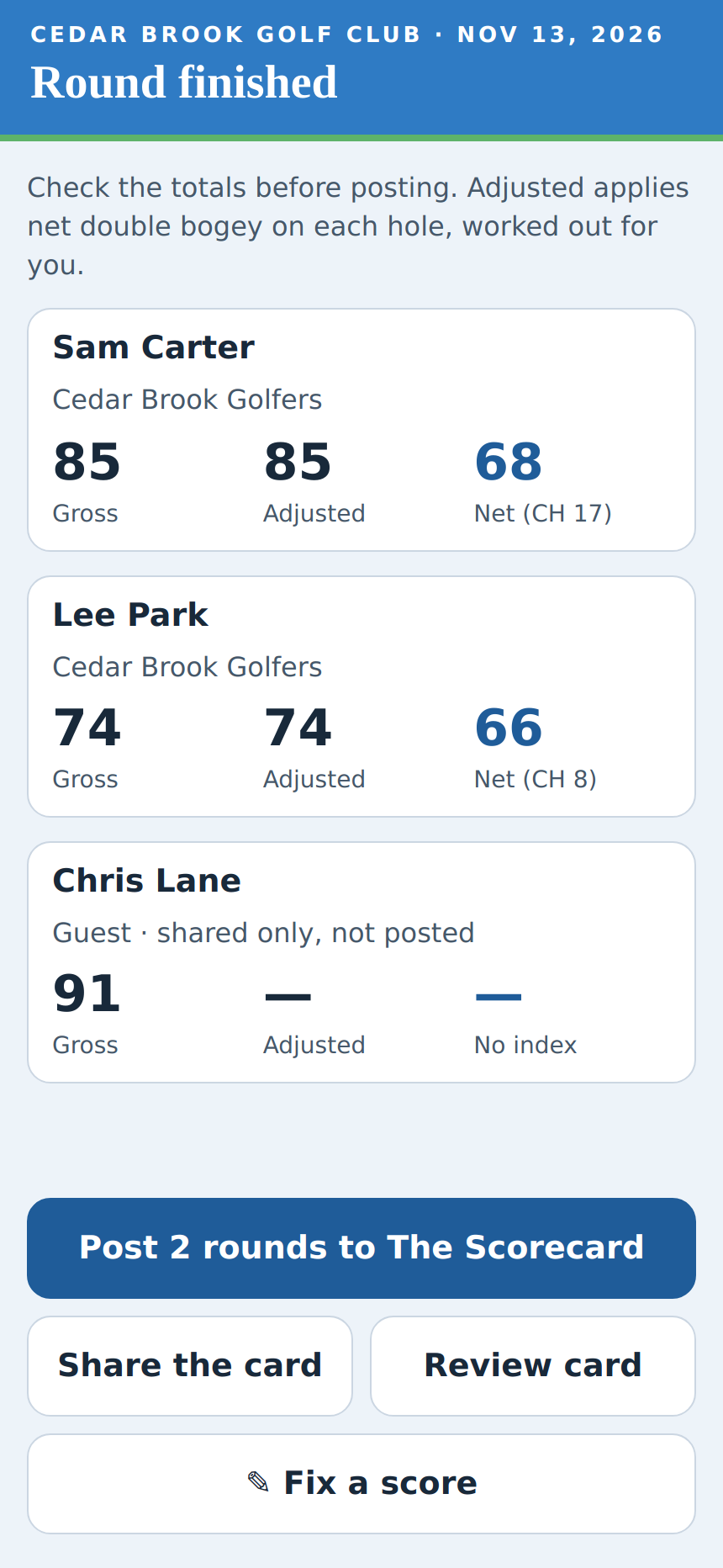
7. Finish, check and post or keep: steps
- Tap Fix a score or Review card, then tap the hole’s row. Change the score and tap Done fixing — back to the totals. Signed-in eligible 18-hole cards show Post … rounds to The Scorecard. Typed guests are not posted.
- After posting, wait for Posted ✓. Waiting and Checking are not final confirmation. Reopen the app online to check delayed submissions.
- Without an account, or for nine holes, choose Share the card, then Done to keep it under Your cards. If a signed-in round cannot be posted, read the displayed reason.
- During play, use Menu → Go to the start screen, then Continue your round to return. Local cards stay in the same browser; do not clear its data.
8. Correct a posted card
The Marker can now correct hole scores on an eligible posted card. A connection is required.
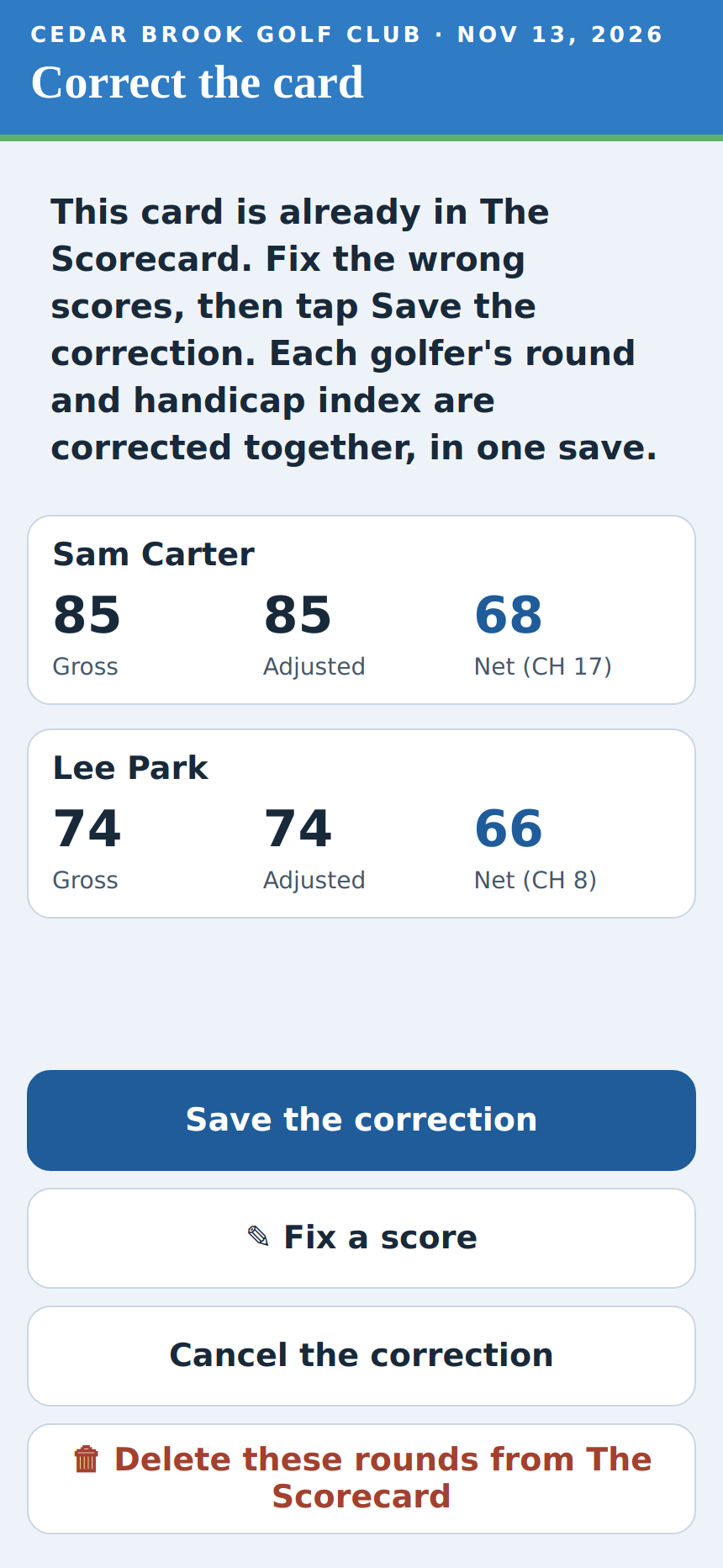
8. Correct a posted card: steps
- Sign in and open Your cards → Correct a posted card, then select a card. You can also open a posted card saved on this device and tap Correct this card. Finish or end another active round first.
- The original scorer can correct the card for 24 hours after posting. An owner or admin of every group represented on the card can correct it at any time. The service checks your access.
- Tap Fix a score, tap the hole’s row, choose the golfer and change the strokes. Tap Done fixing — back to the totals to return directly. Repeat for other errors.
- Review the totals and tap Save the correction. Wait for Corrected in The Scorecard. The affected rounds and handicap indexes are updated together. If no score changed, the app says nothing was saved.
- A correction changes hole scores only. It keeps the original players, date, course, tee and game. If someone has changed a round directly in Scorecard, read the refusal and ask an owner/admin to resolve it there.
- Cancel the correction discards the current correction after confirmation. Menu offers the same cancel action while correcting. If the connection fails, keep the screen and try again online.
9. Re-post after rounds were deleted
Use Re-post only for the cards the app identifies under Deleted in The Scorecard.
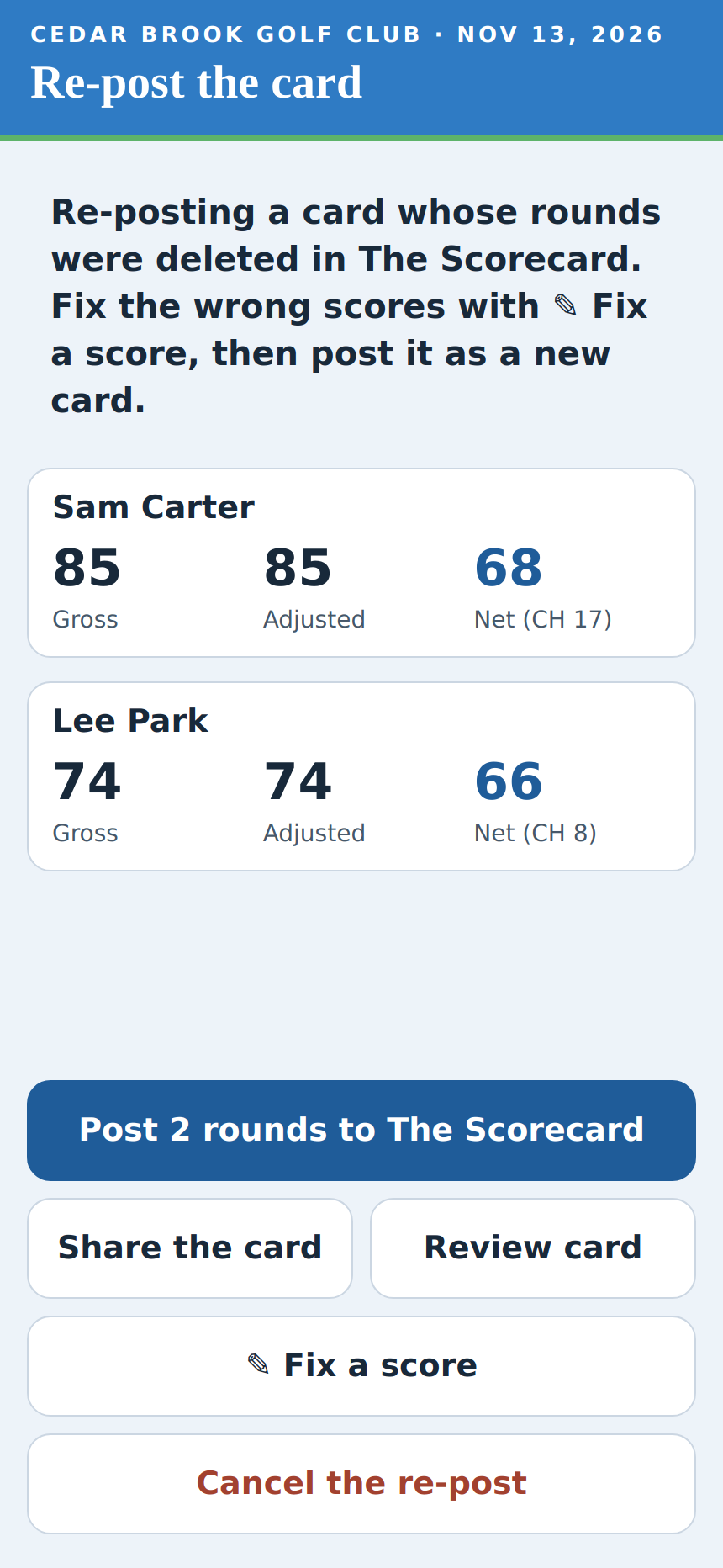
9. Re-post after rounds were deleted: steps
- Open Your cards. Under Deleted in The Scorecard, the app names the golfers whose rounds were deleted. Tap Re-post. Opening a saved original card may instead offer Edit and re-post.
- The scorer, or an owner/admin of every group on the original card, may re-post. Finish or end another active round first. Only golfers with deleted rounds are put on the new card; surviving rounds are kept.
- Use Fix a score, select the hole, change the strokes, then tap Done fixing — back to the totals. Check the date, golfers and totals shown.
- Tap Post … rounds to The Scorecard. This creates a new card for the deleted rounds. Wait for Posted ✓. Once accepted, the new card replaces the original copy in this device’s card history.
- Hide takes the deleted-round reminder off that list after confirmation; it changes no Scorecard round. If the original card remains on this device, opening it still offers Edit and re-post.
- Cancel the re-post discards the current re-post without sending it. If the service says a round still exists or the card was already re-posted, check the current records before proceeding.
10. The Menu bubble during play
The Menu control appears at the top of the hole screen beside the saved indicator. Tap it without leaving your round.
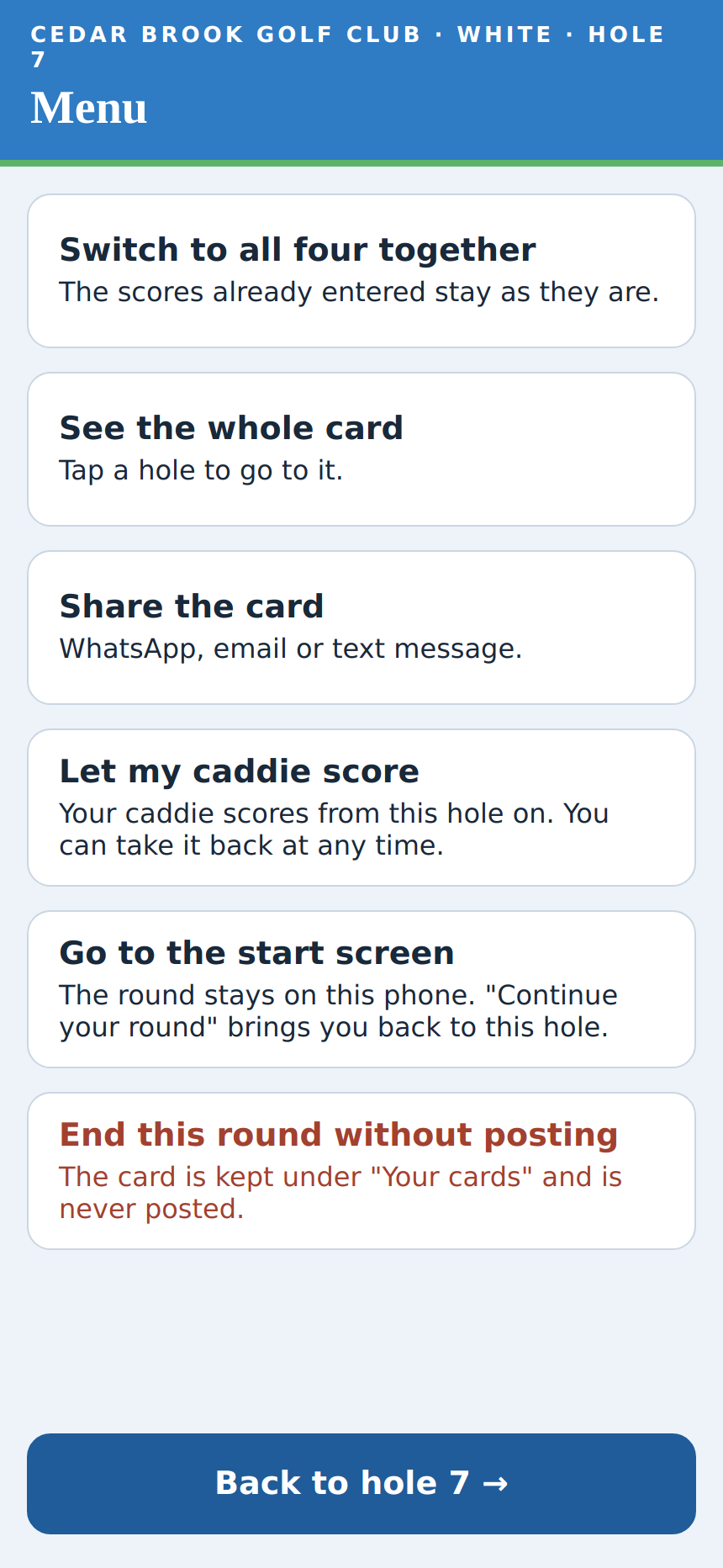
10. The Menu bubble during play: steps
- Tap Menu at the top right while entering scores.
- Choose Switch to change the score-entry view. Your entered scores stay saved.
- Let my caddie score hands the card to a caddie from this hole on. You can take it back at any time.
- See the whole card lets you review holes; Share the card sends a score summary. Let others follow this card shows a QR link or code for live, read-only viewing.
- Go to the start screen keeps the active round for Continue your round. End this round without posting is different: it ends the round and keeps a historical card without posting.
- While correcting a posted card, Cancel the correction replaces End this round without posting. It abandons the correction after confirmation. Tap Back to hole to return to scoring.
11. Share a card
Share during play, after finishing or from Your cards.
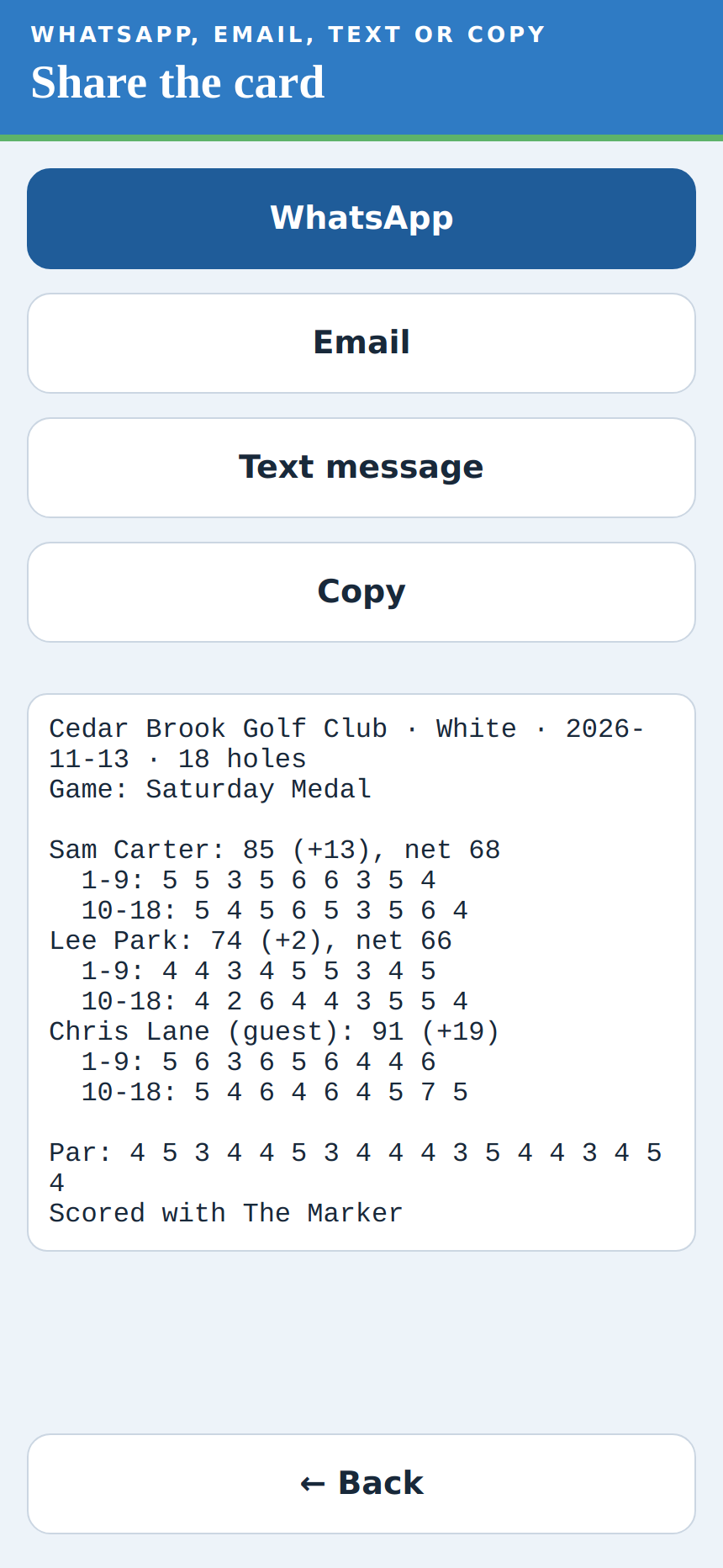
11. Share a card: steps
- Tap Share the card. Your device may show its native share sheet; otherwise choose WhatsApp, Email, Text message or Copy.
- Choose the recipients in your messaging app and send when ready. Sharing sends a text summary with hole scores; it does not post rounds to The Scorecard.
- If Copy is blocked, press and hold the displayed text and copy it manually. An unfinished card can also be shared; missing holes appear as dashes.
12. Let a caddie score
The golfer keeps control of the card while a caddie enters hole scores on another phone. The caddie does not need an account.
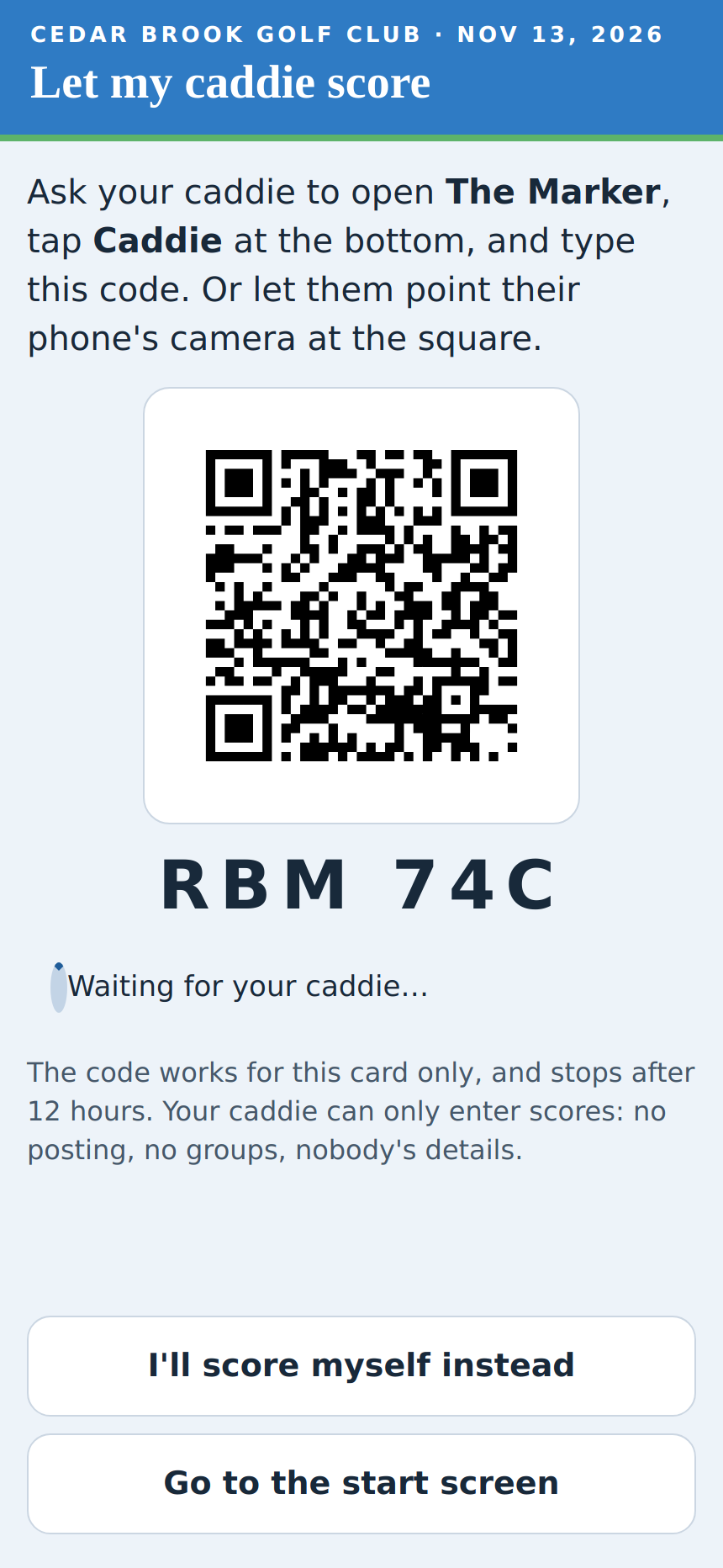
- Sign in, set up the round, and choose the players. Tap Let my caddie score before teeing off.
- Show the caddie the six-character code or QR square. Keep The Marker available to see scores arrive.
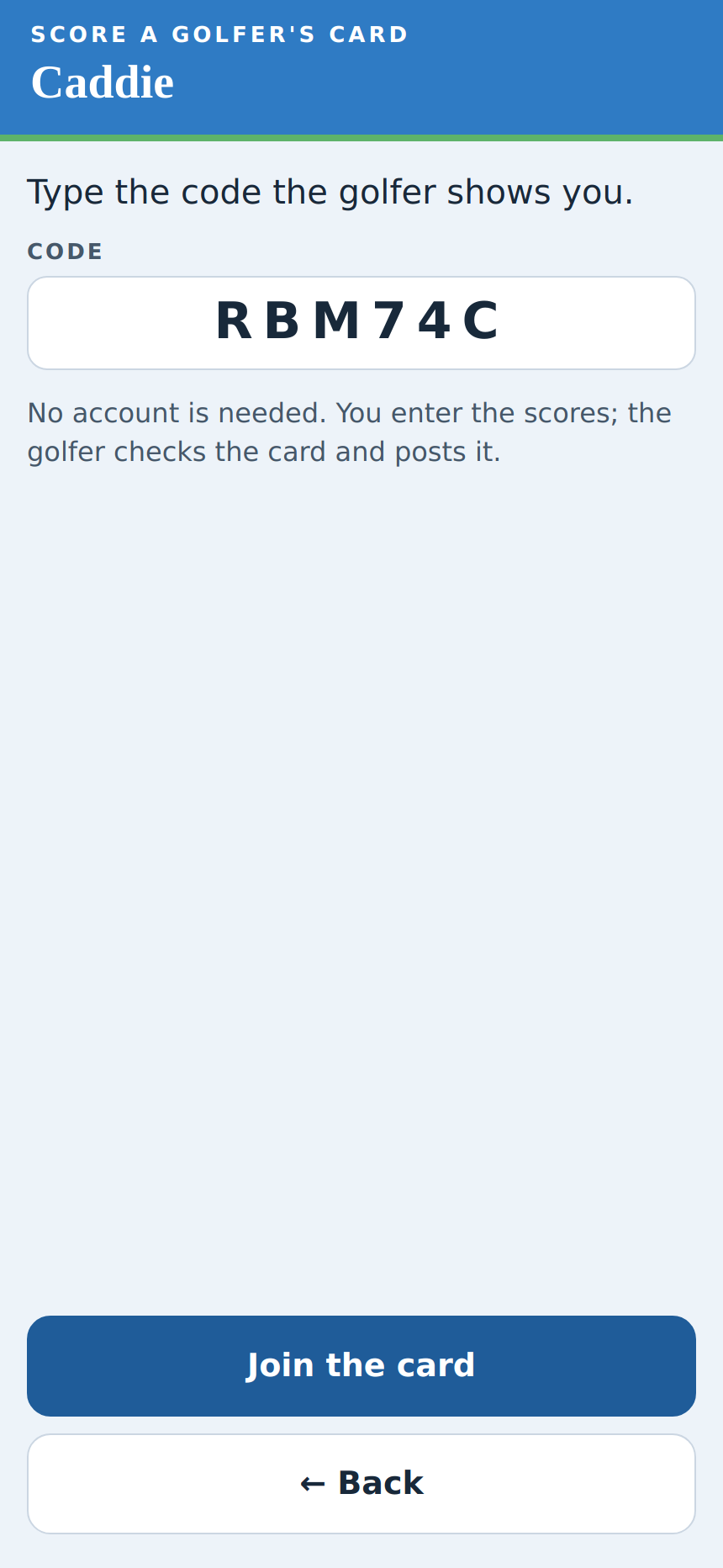
- Open The Marker without signing in and tap Caddie at the bottom. Type the code and tap Join the card. Or scan the QR square using the phone's camera; the Join screen opens with the code filled in.
- Enter scores for each hole. When finished, tap Hand the card back to the golfer.
Back with the golfer: Review and correct the received scores. The golfer—not the caddie—posts eligible 18-hole member rounds to The Scorecard. The golfer can take over scoring at any time. Only one caddie may join a card; the code expires on take-over, completion, or after 12 hours. Both phones need an internet connection to exchange scores.
See the complete caddie instructions for weak-signal recovery and access limitations.
13. Follow a card live
A golfer playing on the card can watch the scores on their own phone as the round progresses. This is read-only: a Follower can watch but cannot enter, correct or post scores.
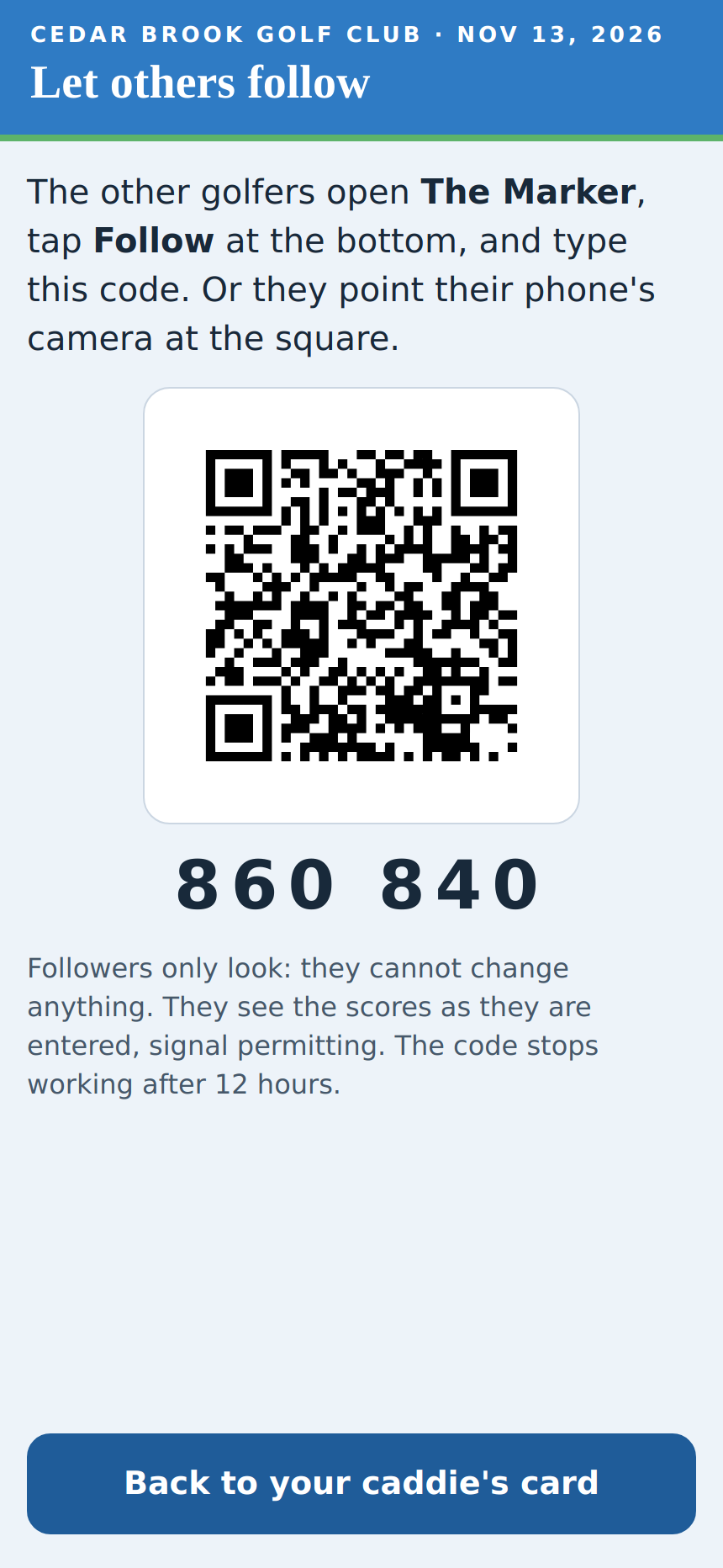
- Sign in and start the round. During play, open Menu → Let others follow this card. If a caddie is scoring, use Let others follow this card on the caddie-status screen.
- Show the six-number follow code or the QR square to the golfers who want to watch.
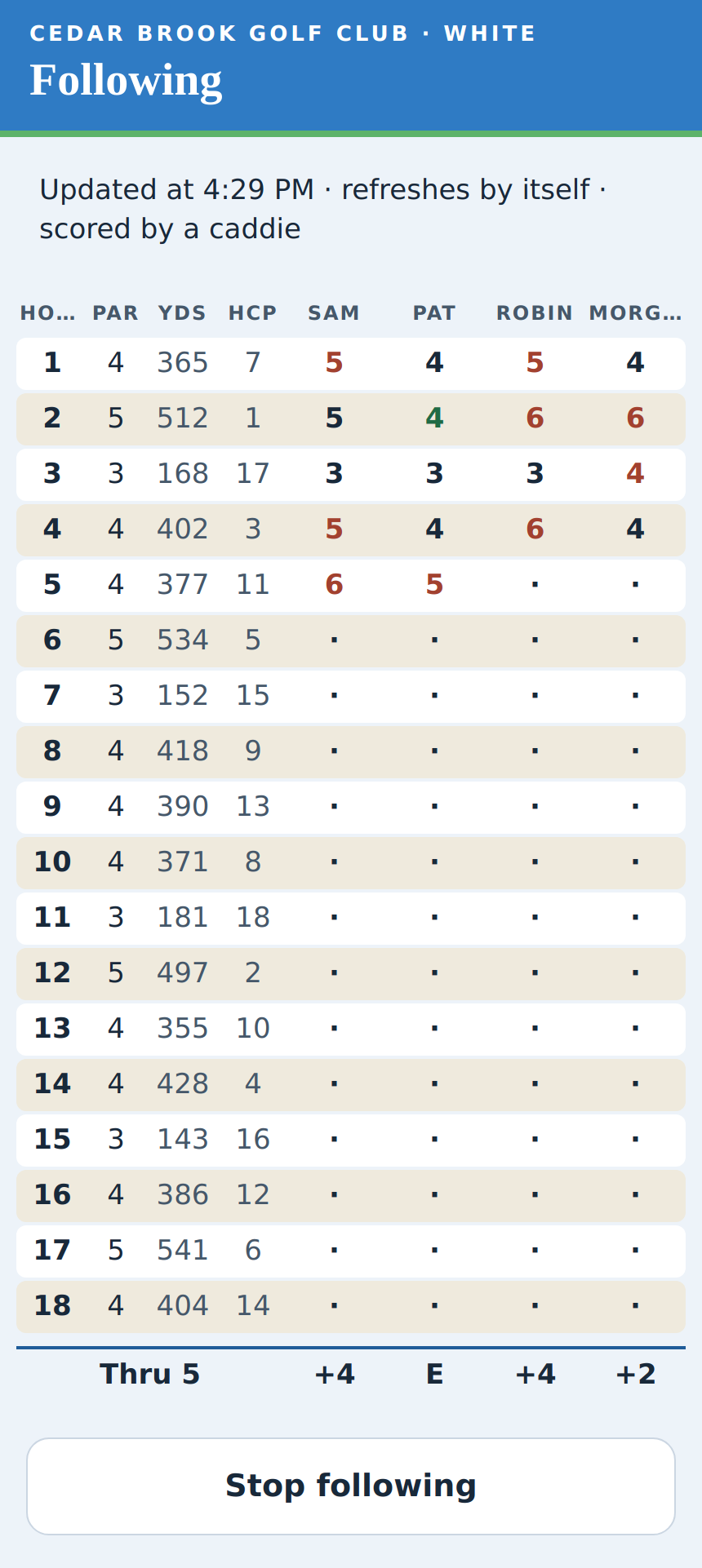
- Open The Marker and tap Follow at the bottom of the start screen. Type the code and tap Follow the card. Or scan the QR square with the camera; it opens The Marker using the link.
- See the golfers' hole scores and totals as they come in. The screen refreshes itself about every 12 seconds while open; no Scorecard account is required.
- Tap Stop following to leave. The start screen can also offer Follow: [course] to resume.
Important: Anyone given the follow code can read the card, even if they are not a listed golfer. Share it only with people who should see the scores. The code expires after 12 hours; a finished card can still be viewed until expiry. A weak signal may delay updates.
See the Complete User Guide's Follower chapter for details.
14. Follow the game on Apple Watch
New in The Marker 0.9.8: Send an active scorecard from the iPhone to a paired Apple Watch. Read the whole group's scores, open a golfer's hole and summary, and add The Marker to the Smart Stack or a watch face. The watch is for viewing scores; scoring and posting stay on the phone.
14A. Install the Watch app and send a card
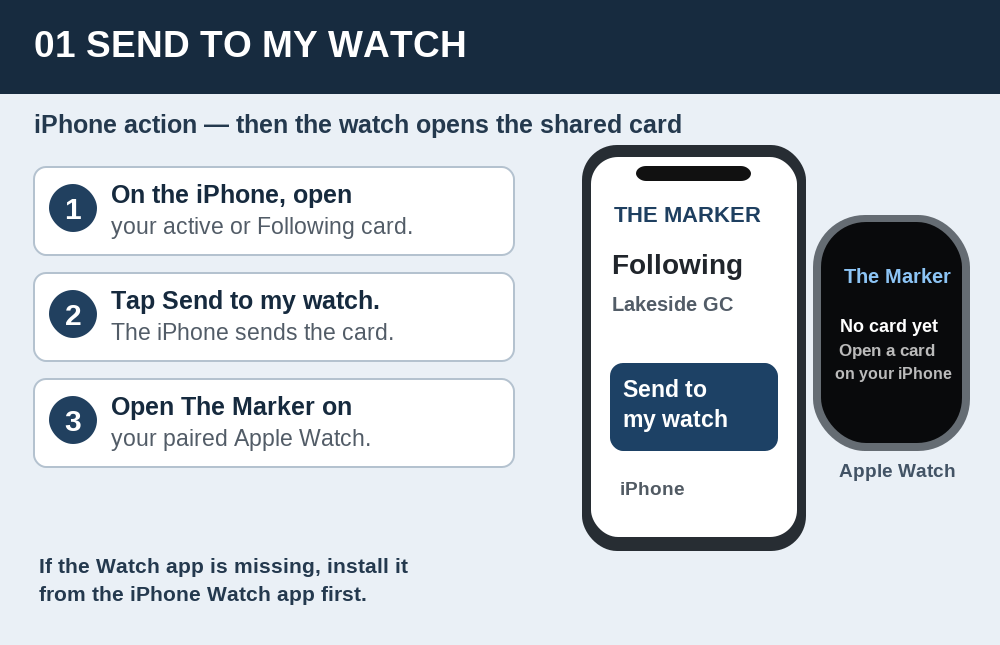
- Make sure your Apple Watch is paired with the iPhone. If The Marker is not on the watch, open Apple's Watch app on the iPhone → My Watch → Available Apps → The Marker → Install.
- On the iPhone, open The Marker and either Follow the card or open the active card's caddie/follow-sharing area. Tap Send to my watch.
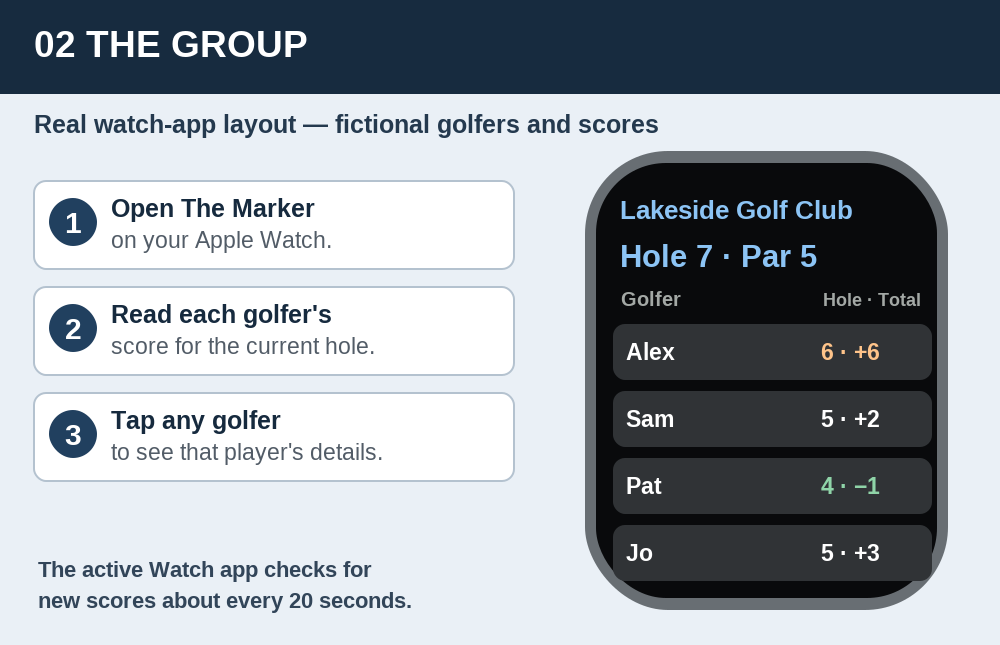
- On Apple Watch, open The Marker. The group's hole scores appear. Tap a golfer for details; use Summary for totals.
14B. Add The Marker to Smart Stack
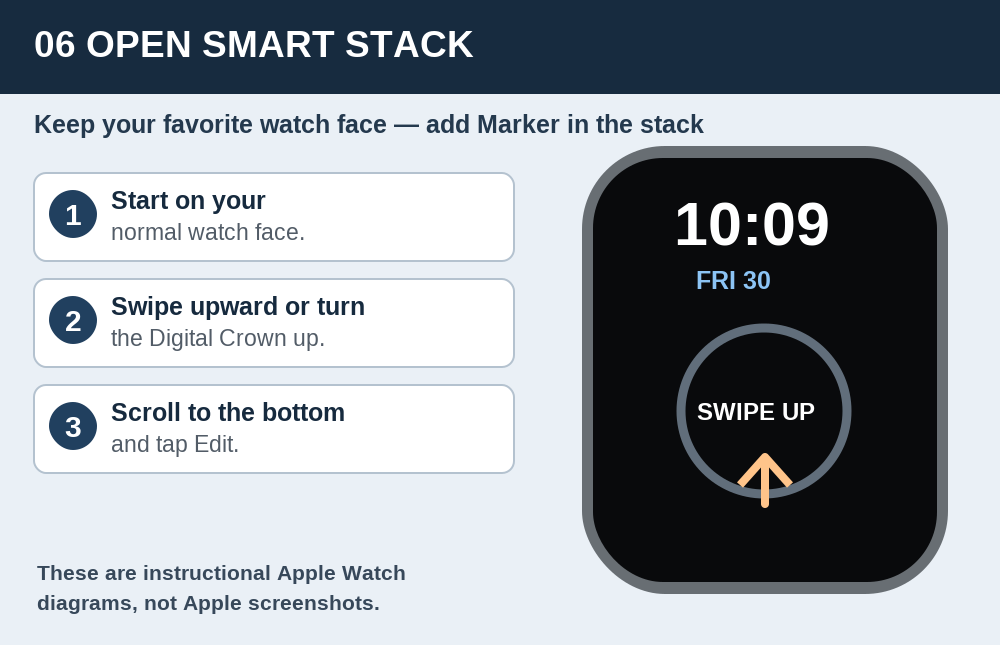
- With your usual watch face visible, swipe up or turn the Digital Crown upward to open Smart Stack.
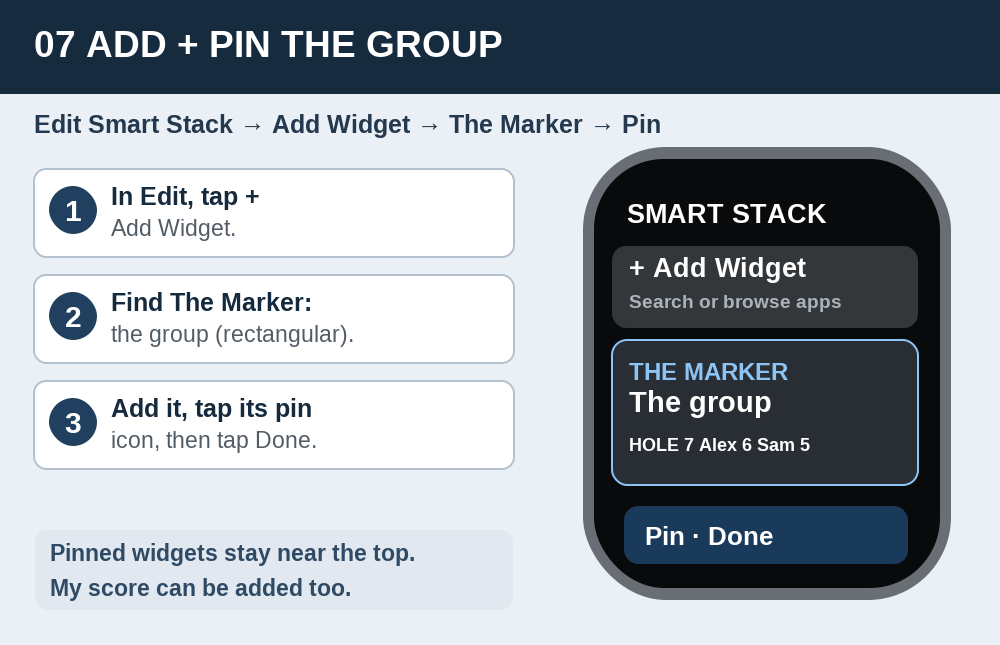
- Scroll to the bottom and tap Edit, then + Add Widget.
- Find The Marker: the group and add it. Tap the pin on its card so it stays near the top, then Done.
14C. Put a Marker score on the watch face
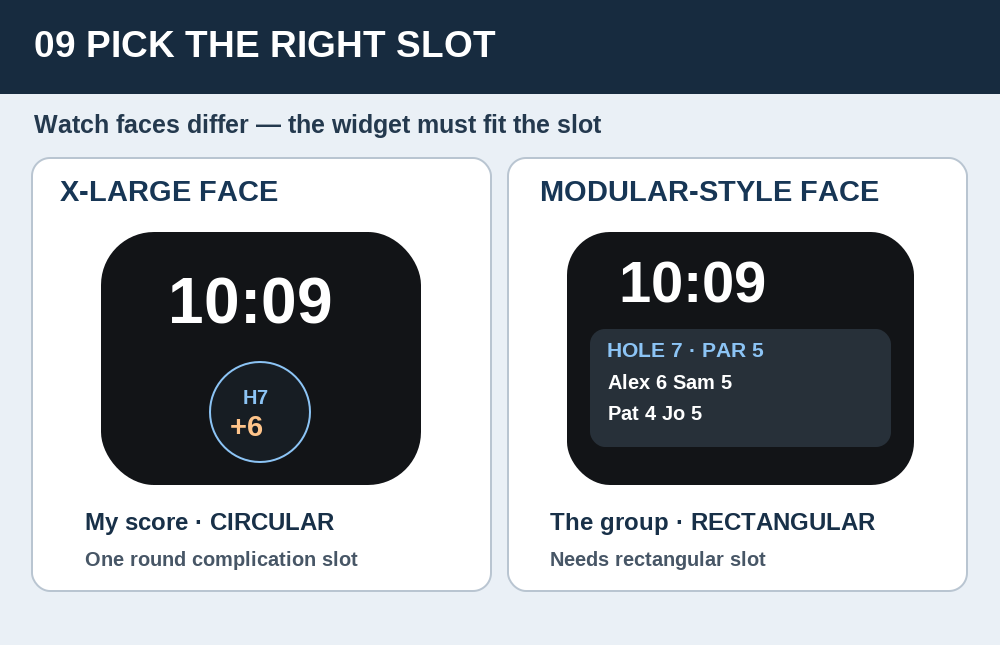
- Touch and hold the watch face → Edit → swipe left to its complication settings → tap a slot.
- Choose The Marker: my score for a circular slot, including the X-Large face's round slot; choose The Marker: the group for a compatible rectangular slot, such as on a Modular-style face.
- Press the Digital Crown to save. Tapping a Marker widget opens the Watch app's group scores.
Important: A Smart Stack or face widget does not update every 20 seconds. Apple controls widget refreshes (often around 10–20 minutes). Open the Watch app to see fresher scores; while active it checks roughly every 20 seconds. My score means the most recently selected golfer on the watch.
For the illustrated player screen, Summary, iPhone Face Gallery method, detailed setup, troubleshooting and other options, see Chapter 25 in the Complete User Guide.