The Scorecard
Full Illustrated User Guide
A visual, step-by-step manual for regular members and administrators on iPhone and iPad.
About the pictures: every picture is a real screen of The Scorecard 2.31.4, in its Lake blue look, taken with made-up golfers, groups and courses. No real account is shown. Tap a picture to see it larger. Updated 13 November 2026.
1. Open the app and sign in2. Become a member or request a group3. Apply to the public group4. Join with a group code5. Join with a personal invitation6. Enter a round, one step at a time7. Your rounds, and the Marker card8. Your handicap and the group ranking9. Games and standings10. Admin: enter a round for any golfer11. Admin: find a course that isn't in the list12. Admin: correct or delete a round13. Admin: season, index and sharing14. Admin: create a game15. Admin: golfers and invitations16. Admin: courses, tees and scorecard photos17. Admin: the Cockpit18. Admin: group members19. Owner: rename, tidy or delete the group20. Switch between groups21. Public group: applications22. Delete your account23. What is removed — and what stays24. If deletion stops or displays an error25. Troubleshooting and account help
Who can do what?
Regular user View your rounds, post your own rounds, follow your handicap and join groups to which you have access.
Administrator Manage the group roster, invite golfers, create games, post or correct group scores and review members. Some controls depend on the group's permissions.
1. Open the app and sign in
Regular userMembers sign in with their email and Scorecard password.
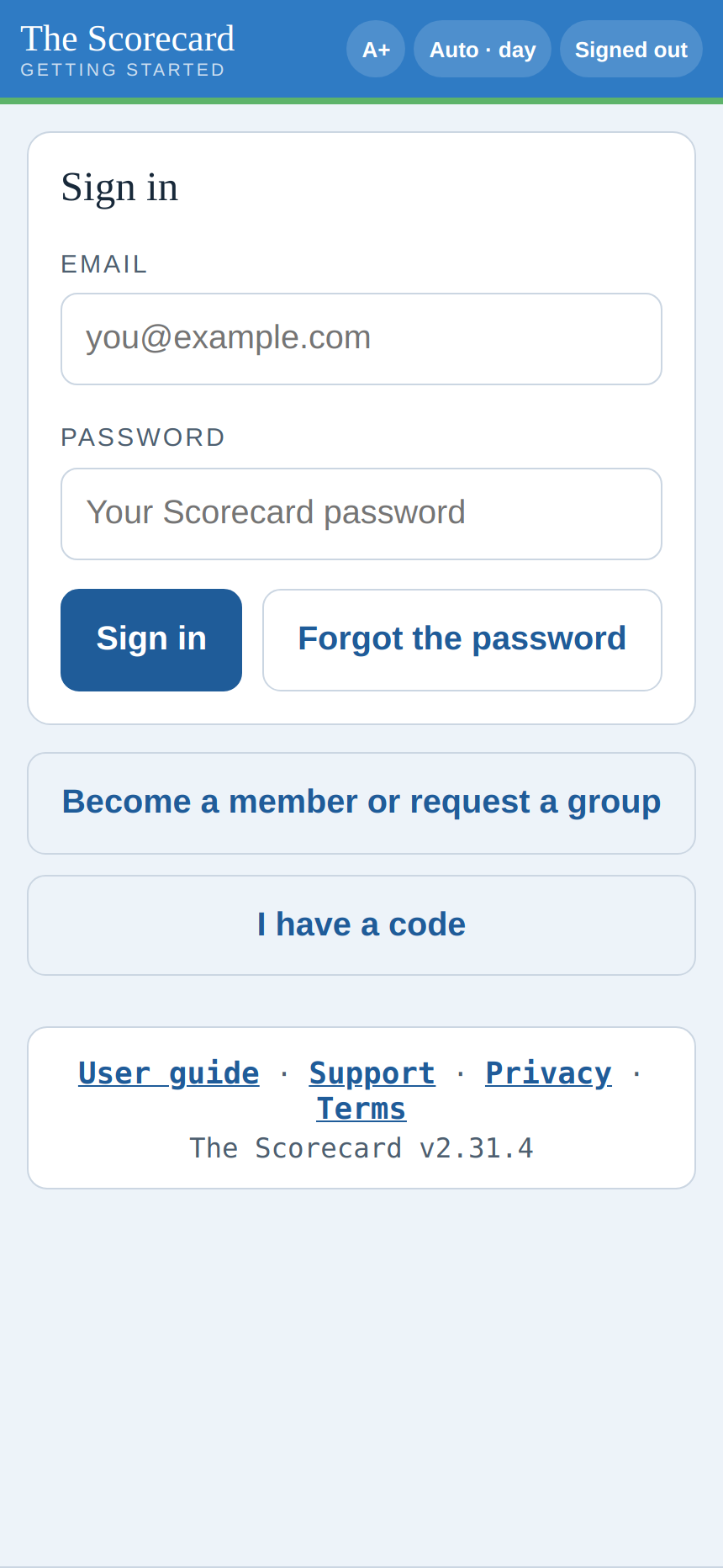
- Type your email and your Scorecard password, then tap Sign in.
- Forgot it? Type your email and tap Forgot the password. Open the email and tap its link: The Scorecard opens and asks you to choose a new password.
- Today the email is titled Sign in to The Scorecard, and the link opens a Firebase web page for a moment before The Scorecard. Both are normal and safe.
- New to The Scorecard? Tap Become a member or request a group. Given a group code? Tap I have a code.
2. Become a member or request a group
Regular userTwo ways in for people who were not invited.
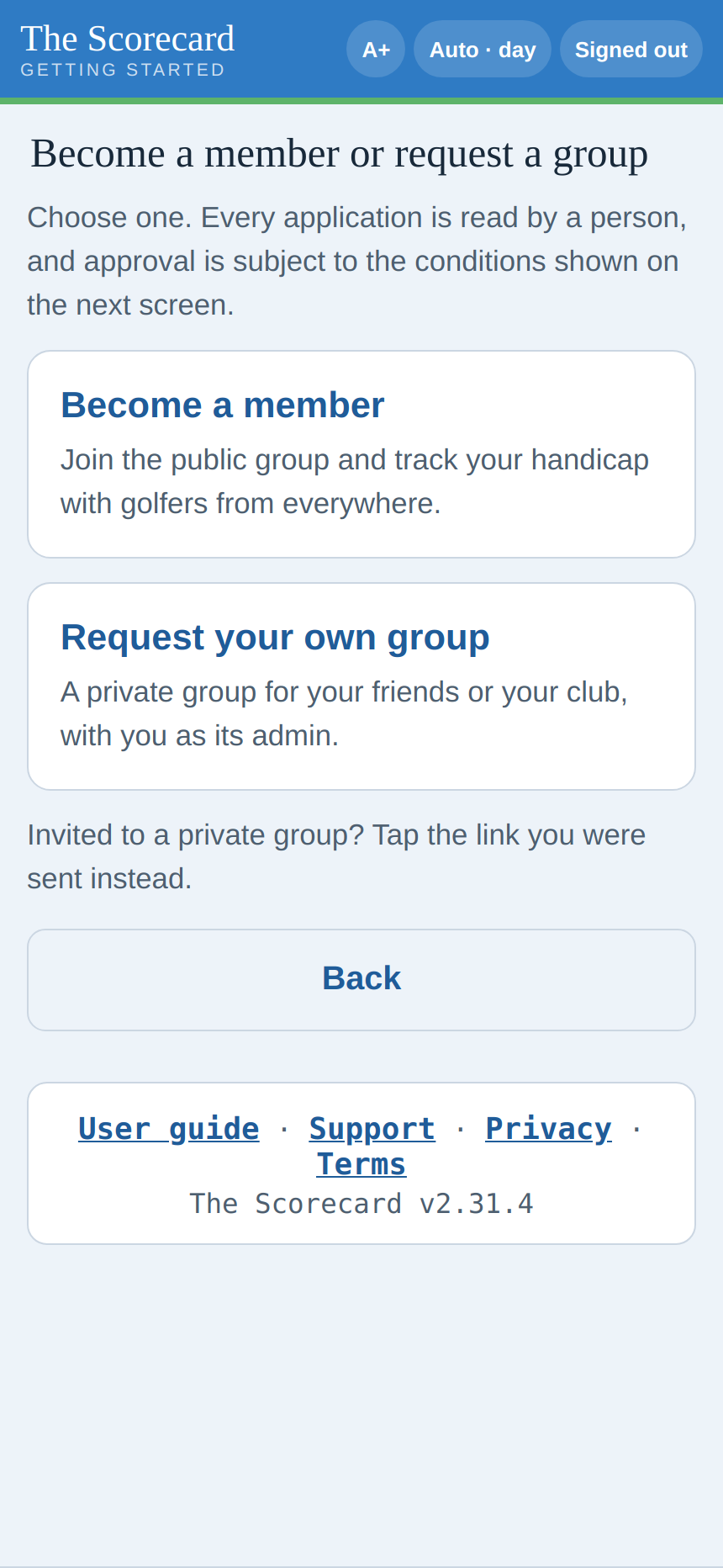
- Become a member: join the public group and track your handicap with golfers from everywhere.
- Request your own group: a private group for your friends or club, with you as its admin. Every request is read by a person.
- Invited to a private group? Tap the link you were sent instead.
3. Apply to the public group
Regular userNo password is asked at this step.
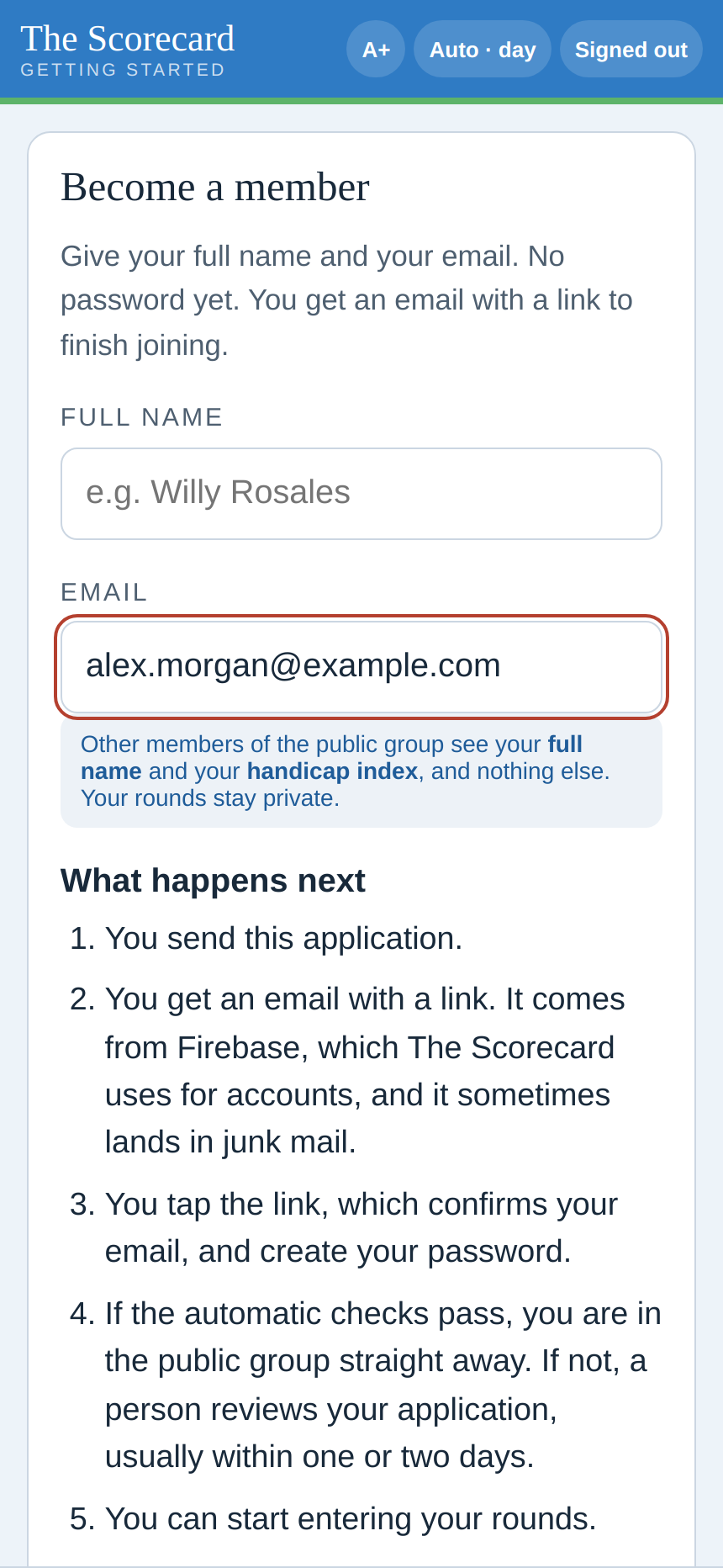
- Type your full name and your email, read the conditions, and send the application.
- You get an email with a link. Tapping it confirms your email, and you create your password.
- If the automatic checks pass, you are in the public group straight away. If not, a person reviews your application.
- Other members of the public group see only your full name and your handicap index.
4. Join with a group code
Regular userSome groups hand out a six-character code.
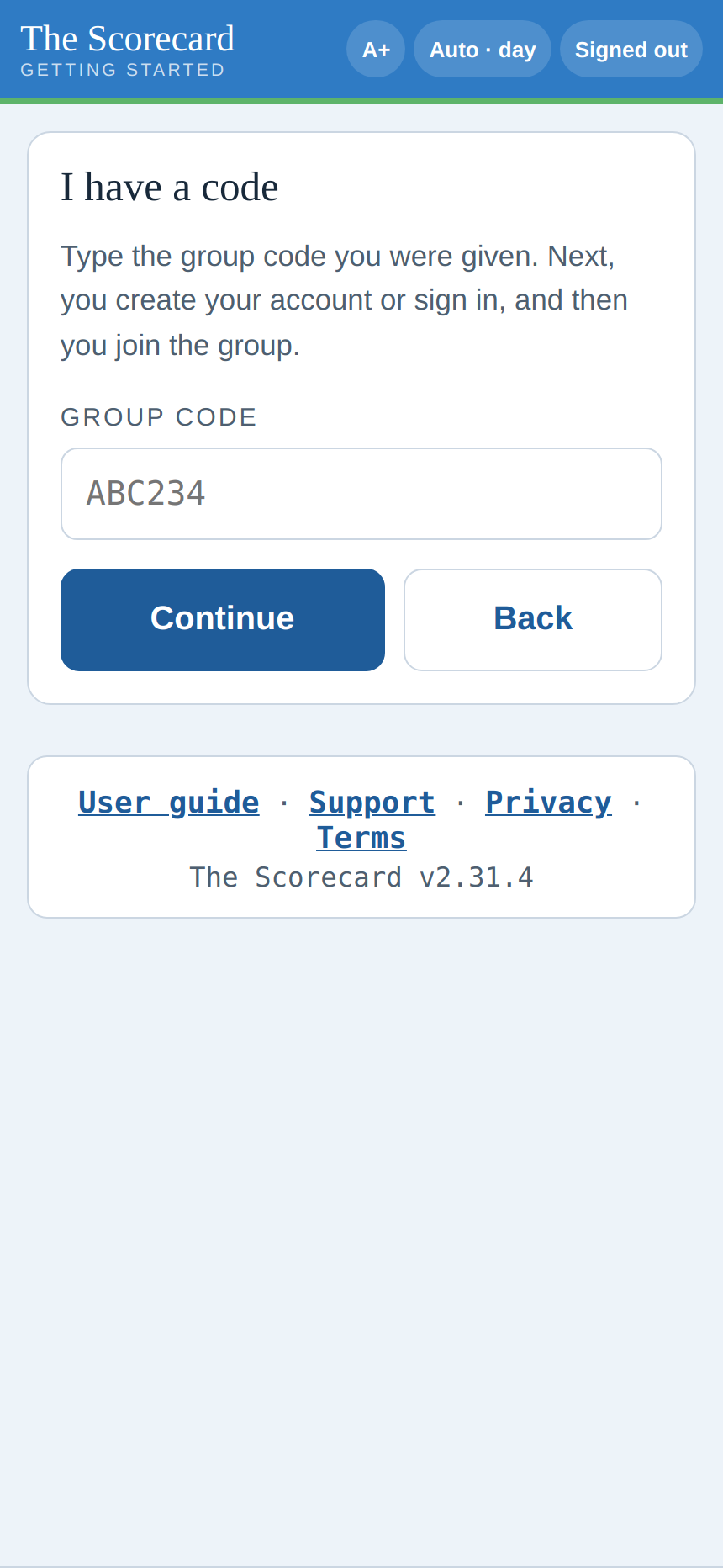
- Tap I have a code, type the code and tap Continue.
- Then create your account, or sign in if you already have one, and you join the group.
5. Join with a personal invitation
Regular userA private group's admin can send you a link with your name on it.
- Open the invitation link you were sent. It names you, so there is nothing to type.
- New to The Scorecard? Create your account. Already have one? Sign in, and you join the group.
- Check your golfer name and group before posting a round. Never make a second golfer for yourself.
6. Enter a round, one step at a time
Regular userMembers post their own rounds in three short steps.
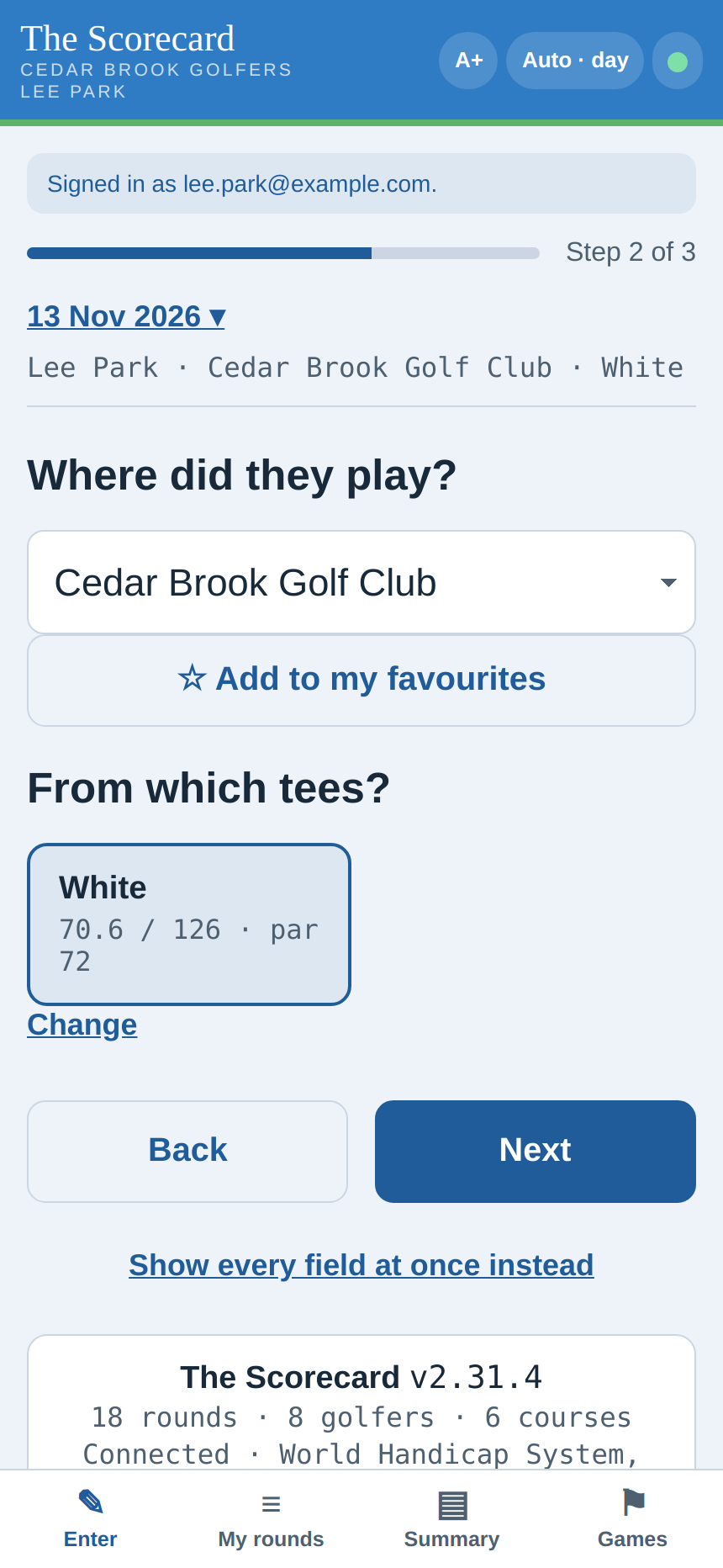
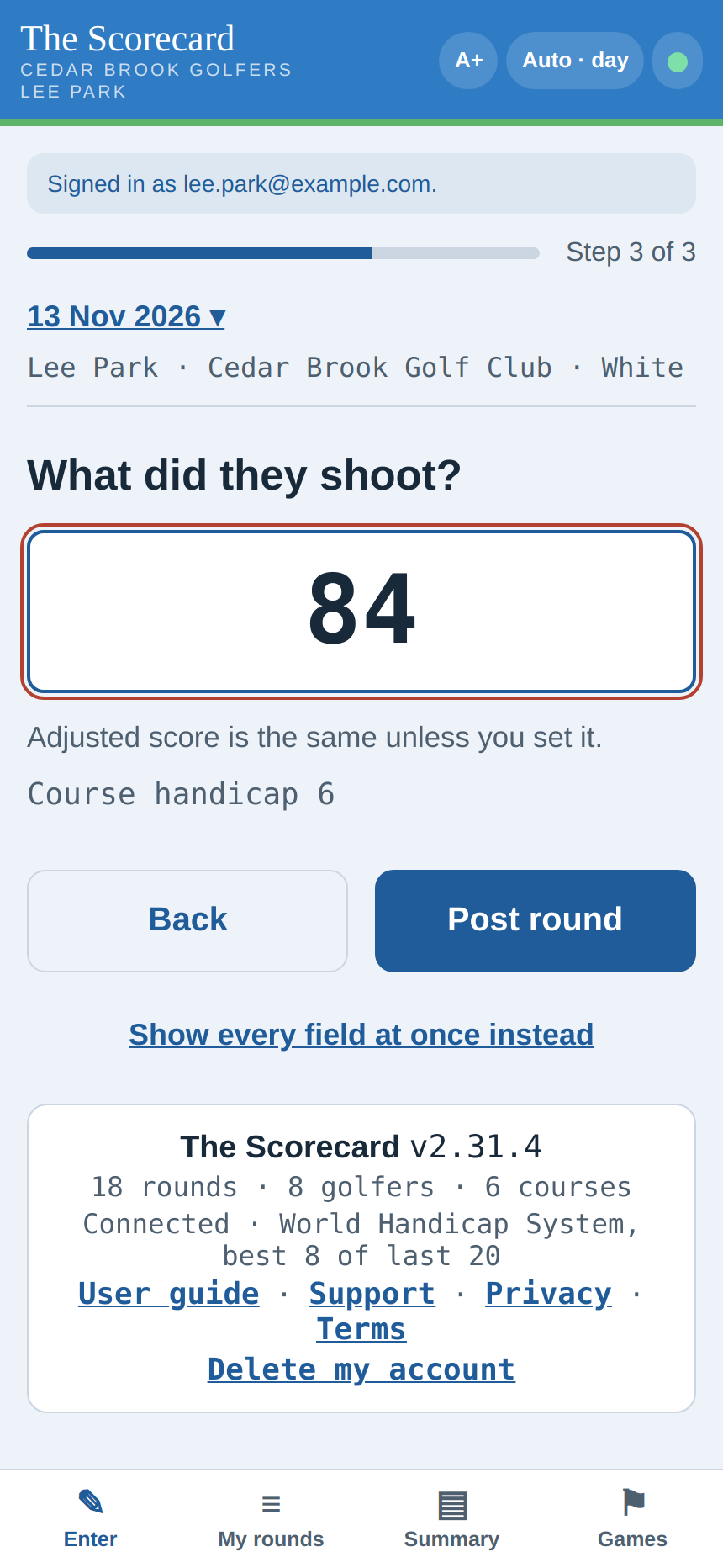
- Tap the Enter tab. Your own golfer is chosen for you.
- The date is at the top; tap it to pick another day. Choose the course, tap the tees you played, then tap Next.
- Type your score. The course handicap shows below it. If the round was part of a game, choose the game.
- Tap Post round once. If the signal is weak, wait: the round is sent when the connection returns.
7. Your rounds, and the Marker card
Regular userMy rounds lists every round, with your handicap trend.
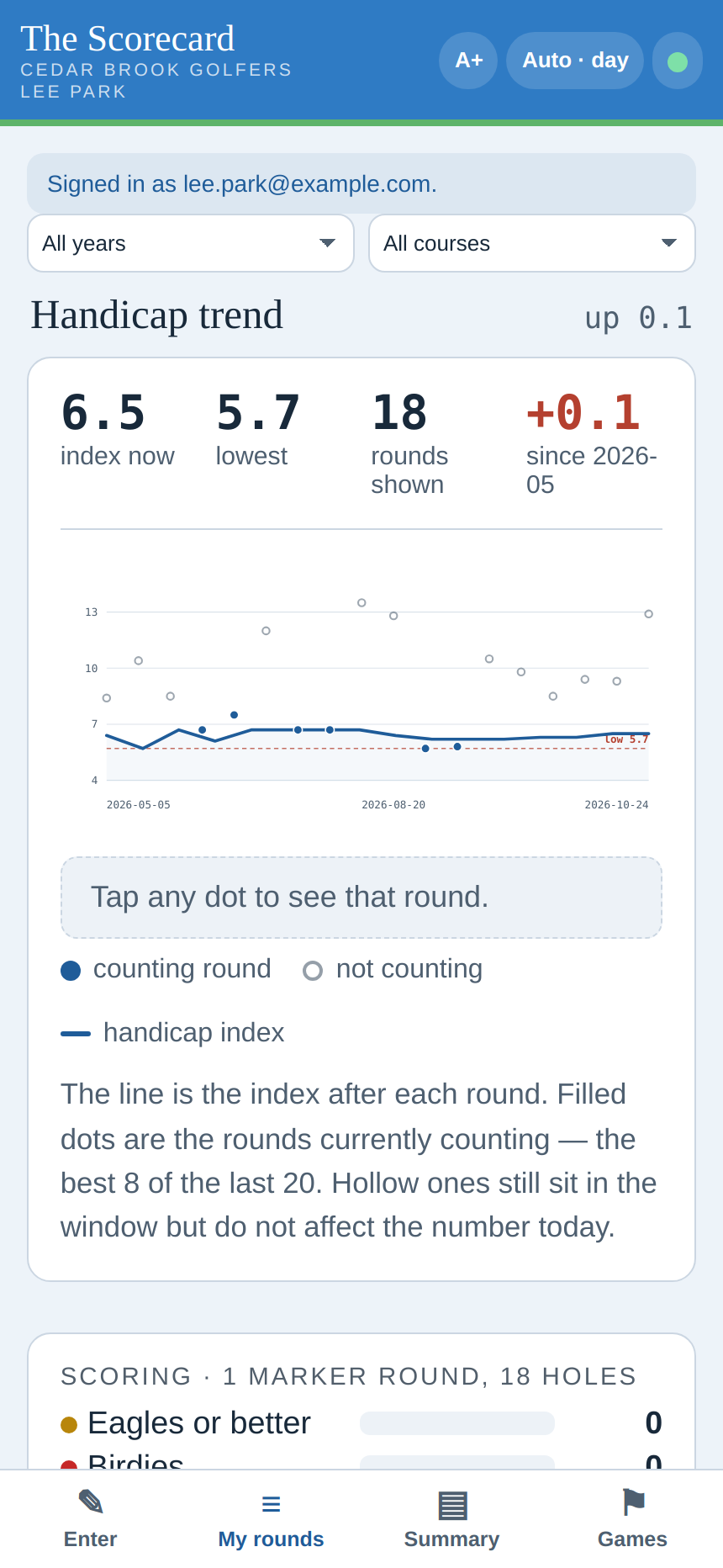
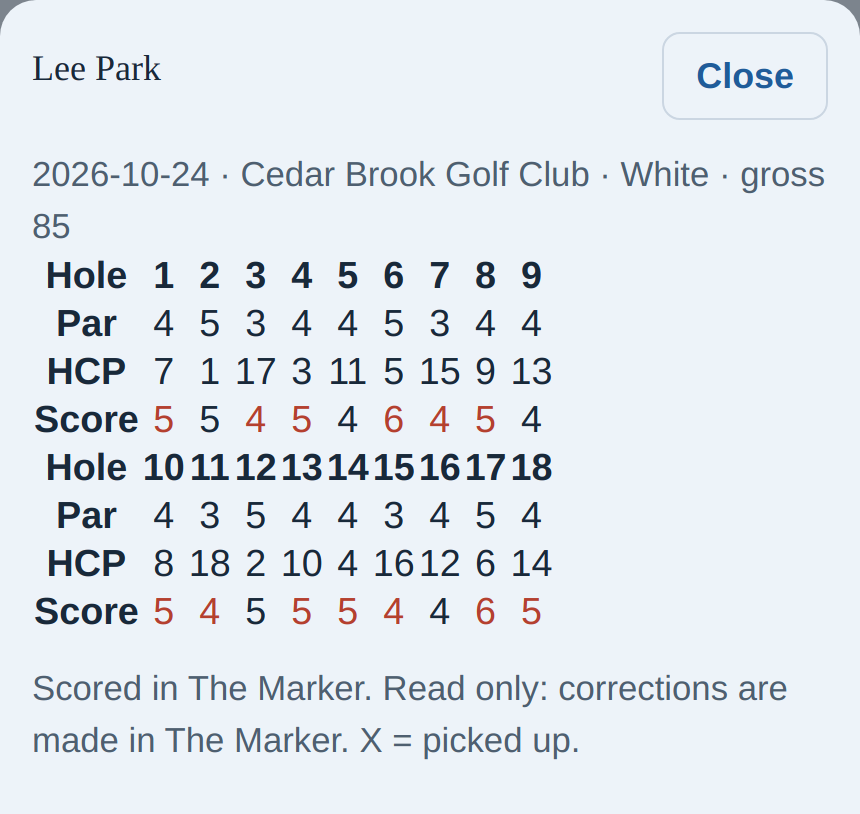
- Tap My rounds. The chart shows your handicap index after each round. Tap any dot to see that round.
- Rounds scored in The Marker show ▦ Card. Tap it to see every hole: par, handicap and score.
- Marker rounds are locked here. They are corrected in The Marker, so the card and the round always agree.
- Below the chart, Scoring counts your birdies, pars and bogeys from your Marker rounds.
8. Your handicap and the group ranking
Regular userSummary shows where everyone stands.
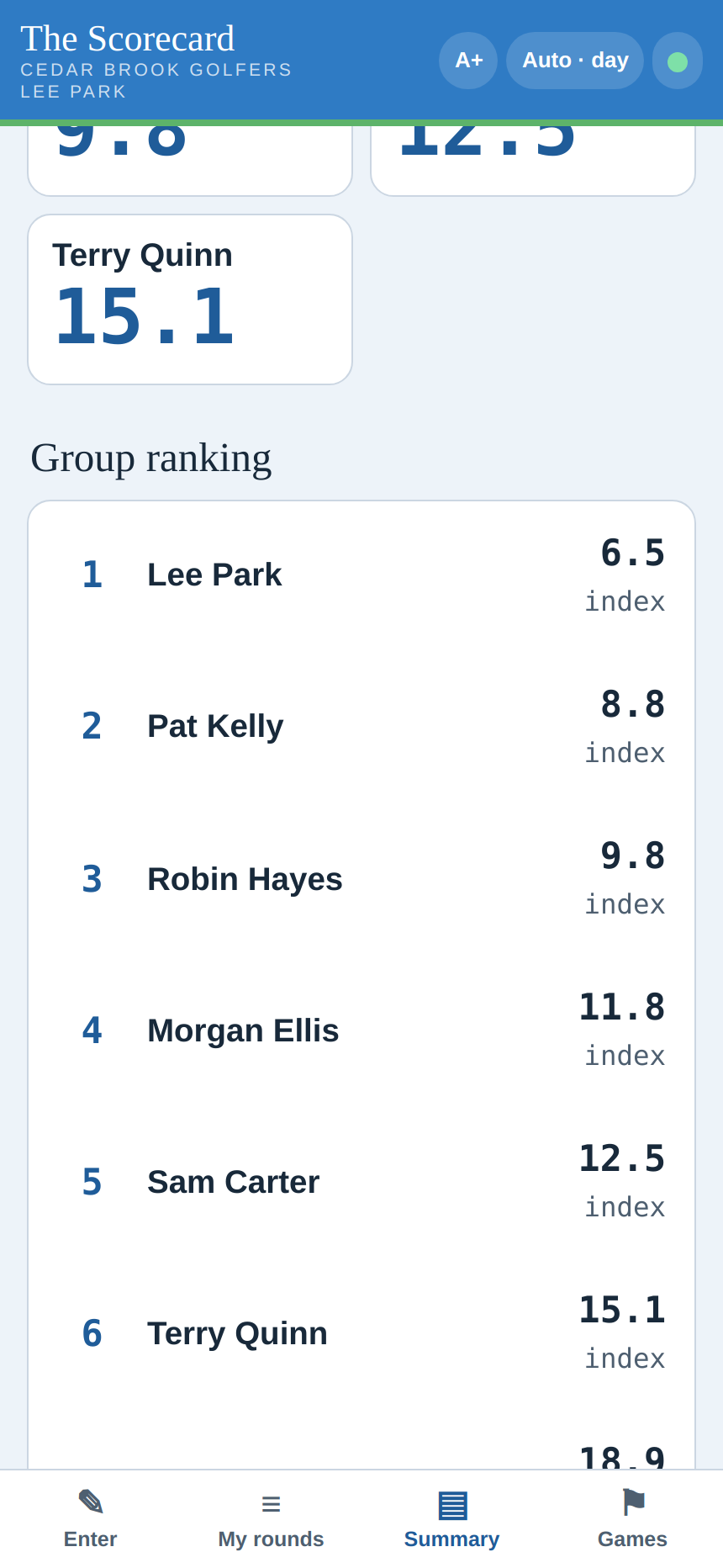
- Tap Summary. The group ranking lists everyone by handicap index, lowest first.
- A new golfer needs at least three rounds for a first index.
9. Games and standings
Regular userGames tab: every game of the group and its standing.
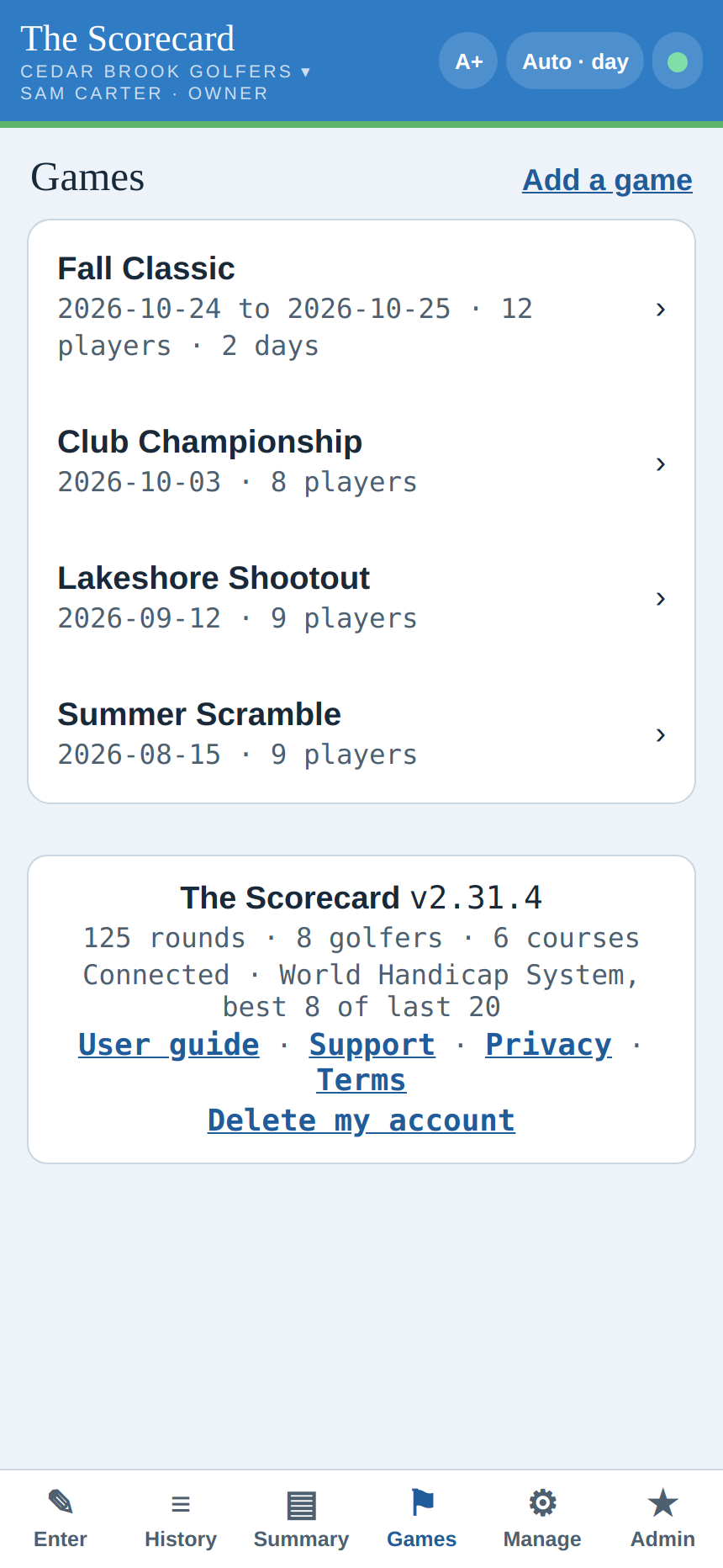
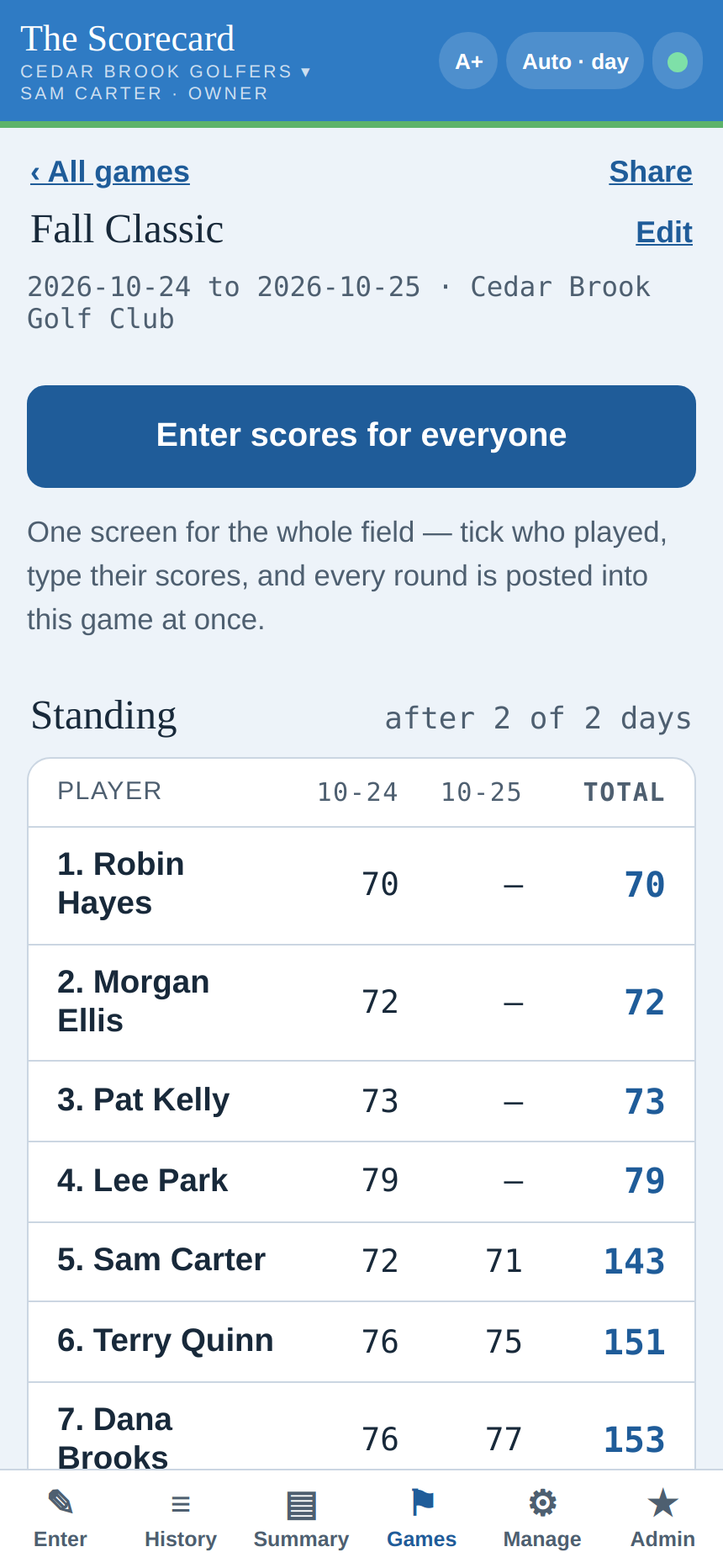
- Tap Games, then tap a game.
- The standing shows each golfer's score for every day of the game, and the total. Share sends it as a message.
- Admins also see Enter scores for everyone: one screen for the whole field.
10. Admin: enter a round for any golfer
AdministratorAdmins see every field at once.
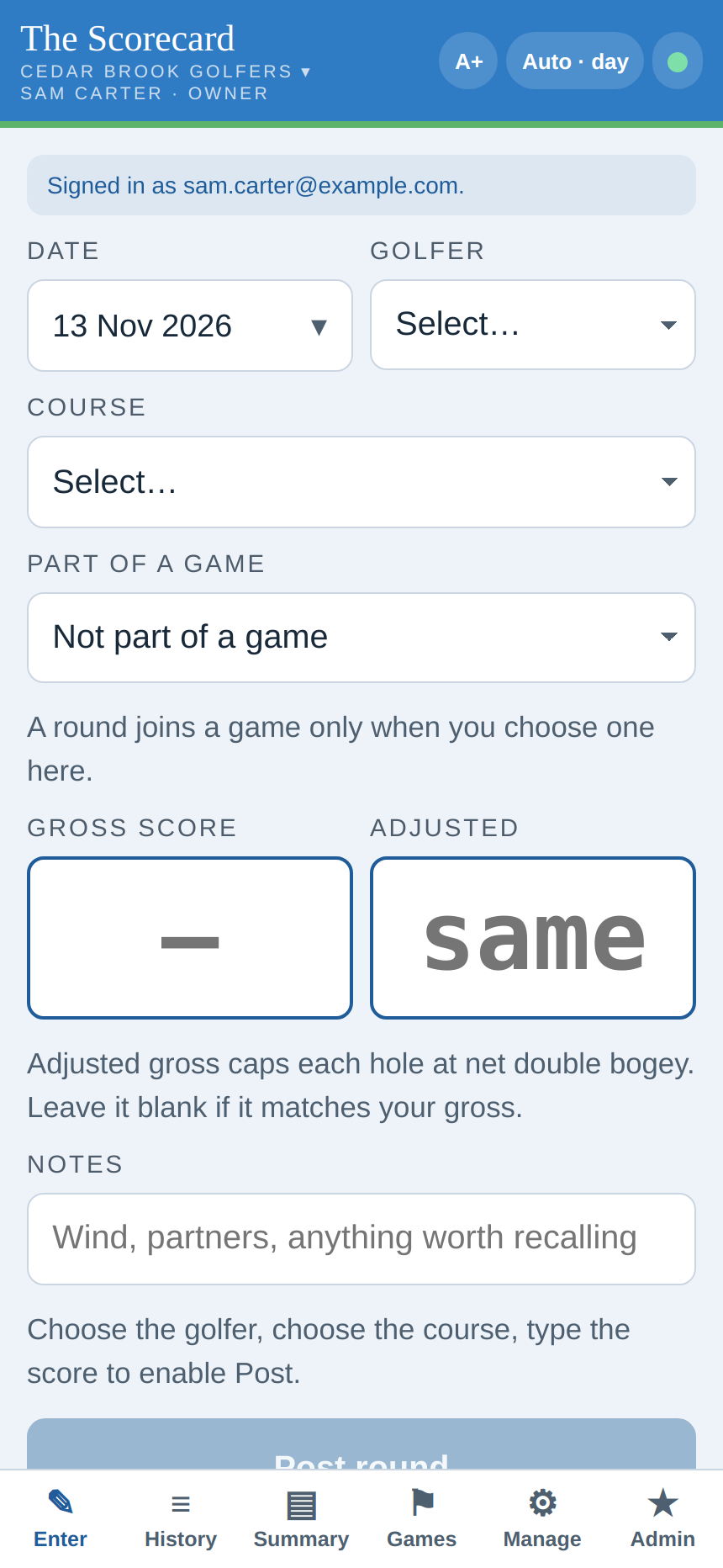
- Tap Enter. Choose the date, the golfer and the course, then the tees.
- If the round was part of a game, choose it under Part of a game.
- Type the gross score. Leave Adjusted as same unless a hole needs capping at net double bogey.
- Tap Post. Prefer one step at a time? Tap Switch to one step at a time.
11. Admin: find a course that isn't in the list
AdministratorCourse search finds courses from the golf course database.
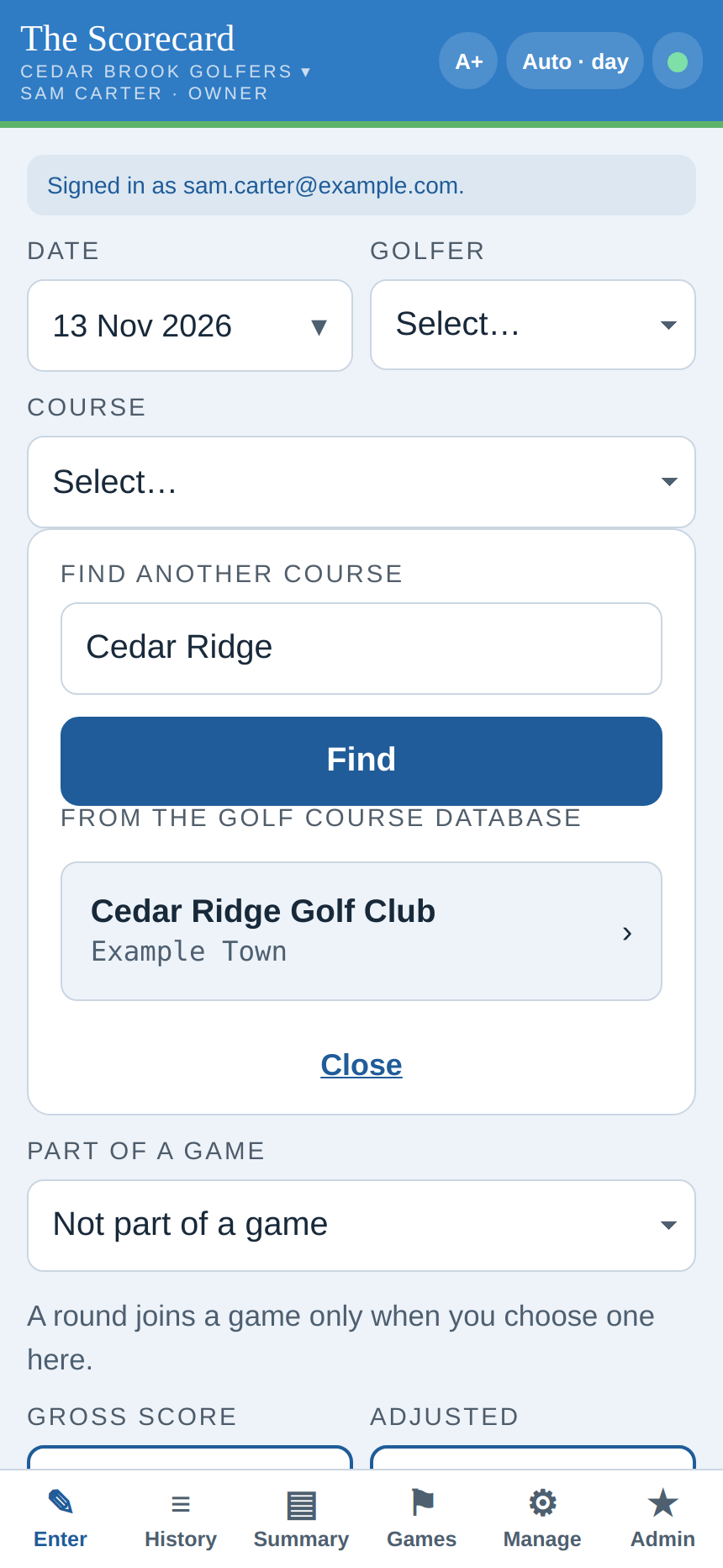
- In the Course list, choose the first line: 🔍 Find another course….
- Type the course name or town and tap Find. Tap the right course, check its tees, and tap Use this course.
- Course details from the database may have mistakes. A club's own scorecard, read from pictures, corrects them (section 16).
12. Admin: correct or delete a round
AdministratorHistory lists every round of the group.
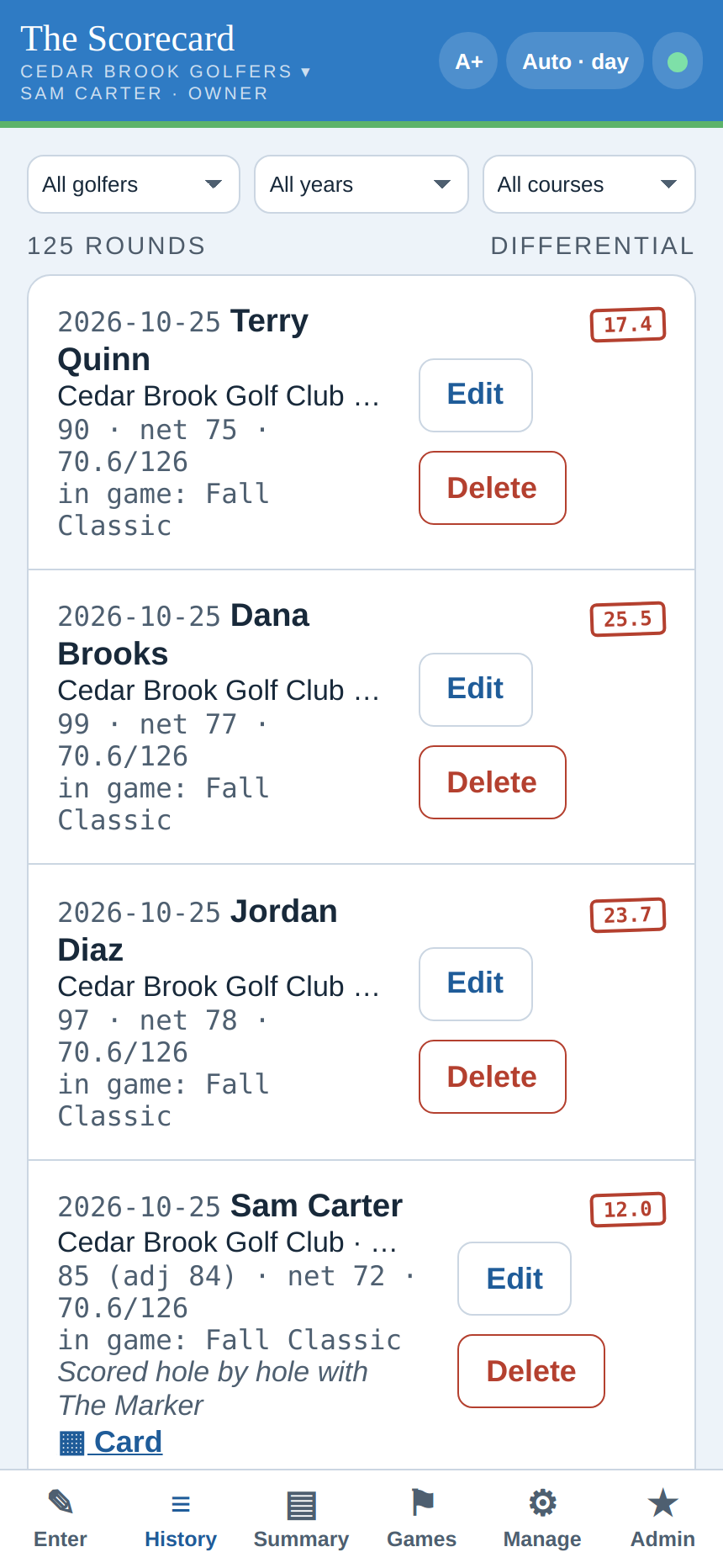
- Tap History. Narrow the list with the golfer, year and course filters.
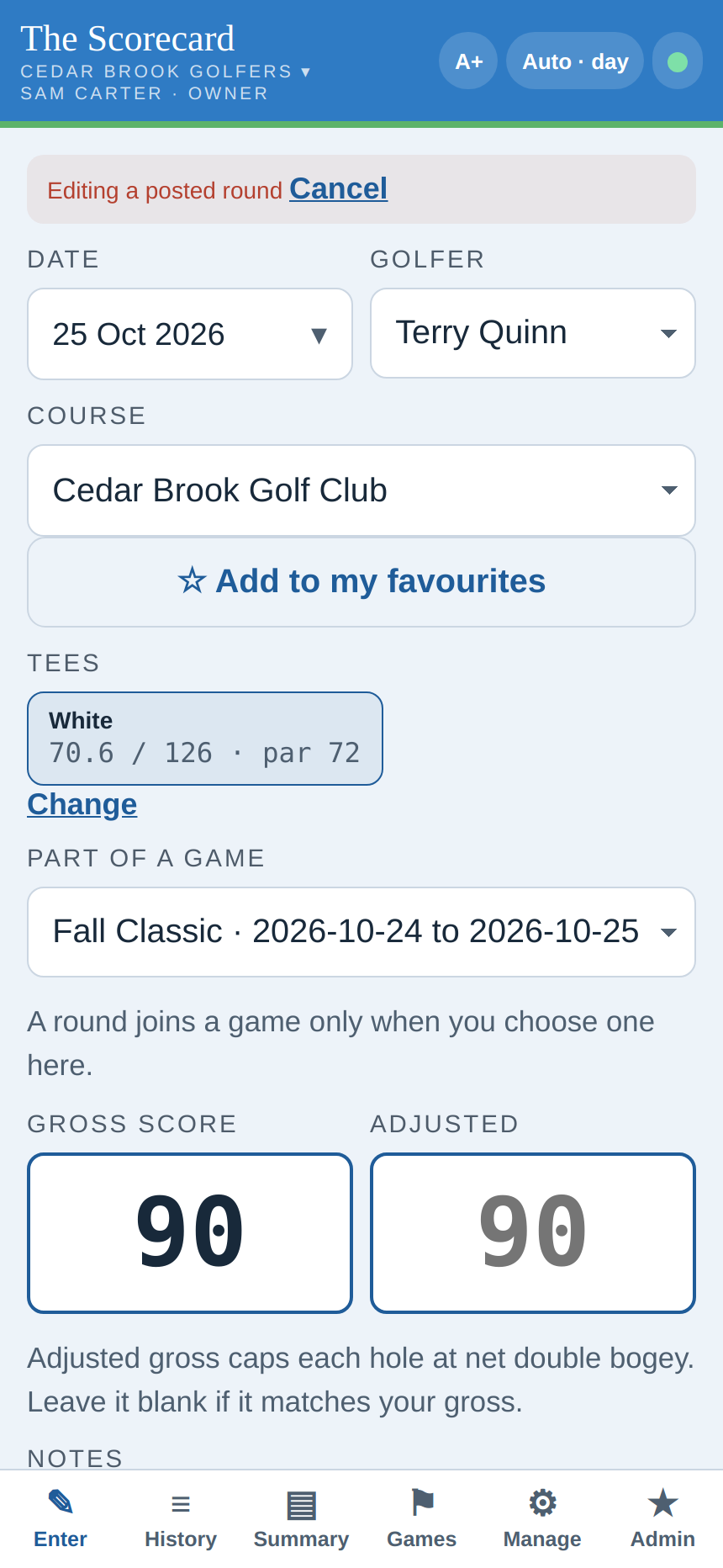
- Tap Edit beside a round. The round opens with Editing a posted round at the top. Change what is wrong and save.
- Tap Delete only for a round that should not exist. You are asked to confirm.
- Rounds scored in The Marker say so, and are corrected in The Marker instead.
13. Admin: season, index and sharing
AdministratorSummary for admins adds the whole group's numbers.
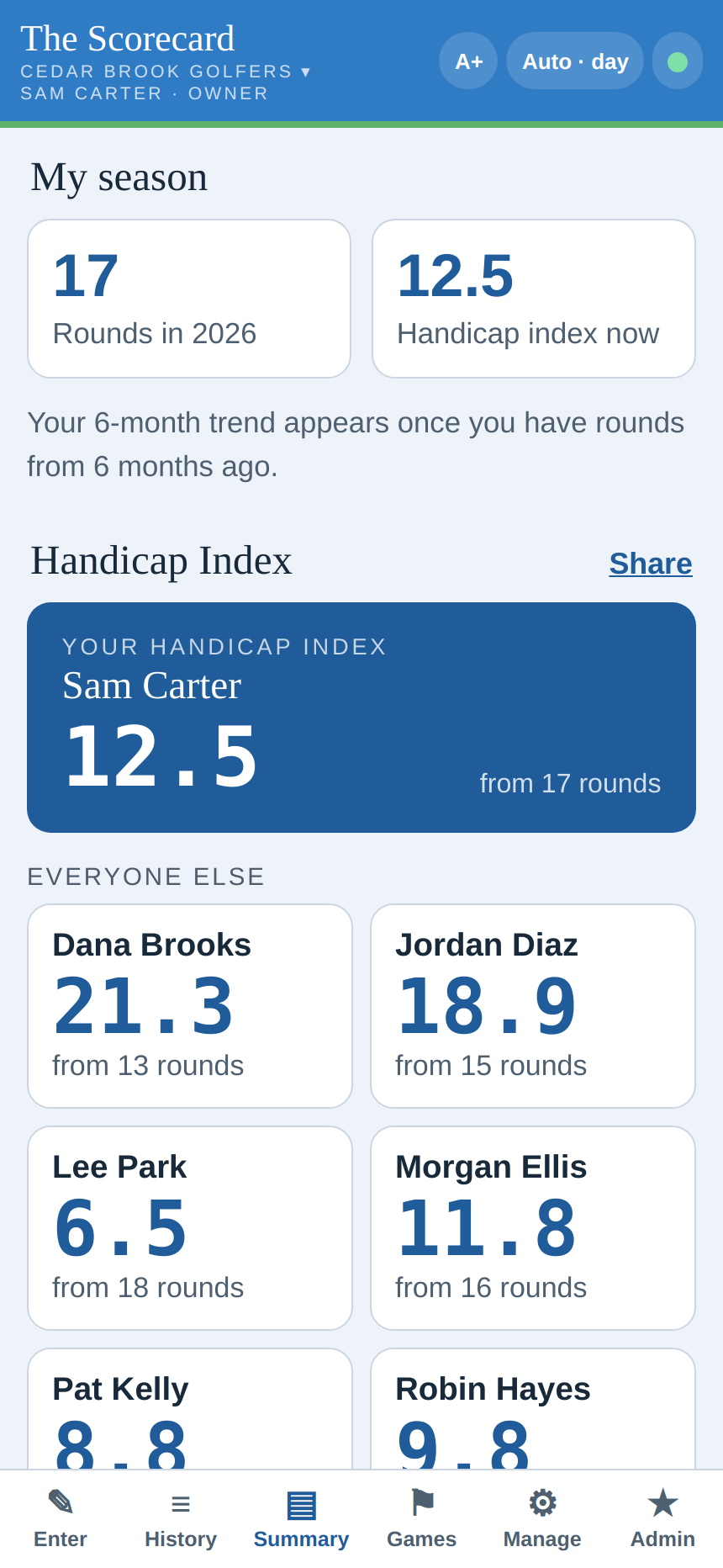
- My season shows your rounds this year and your index now.
- Under Handicap Index, tap Share to send everyone's index as a message.
14. Admin: create a game
AdministratorA game groups the rounds played on a day, or over several days.
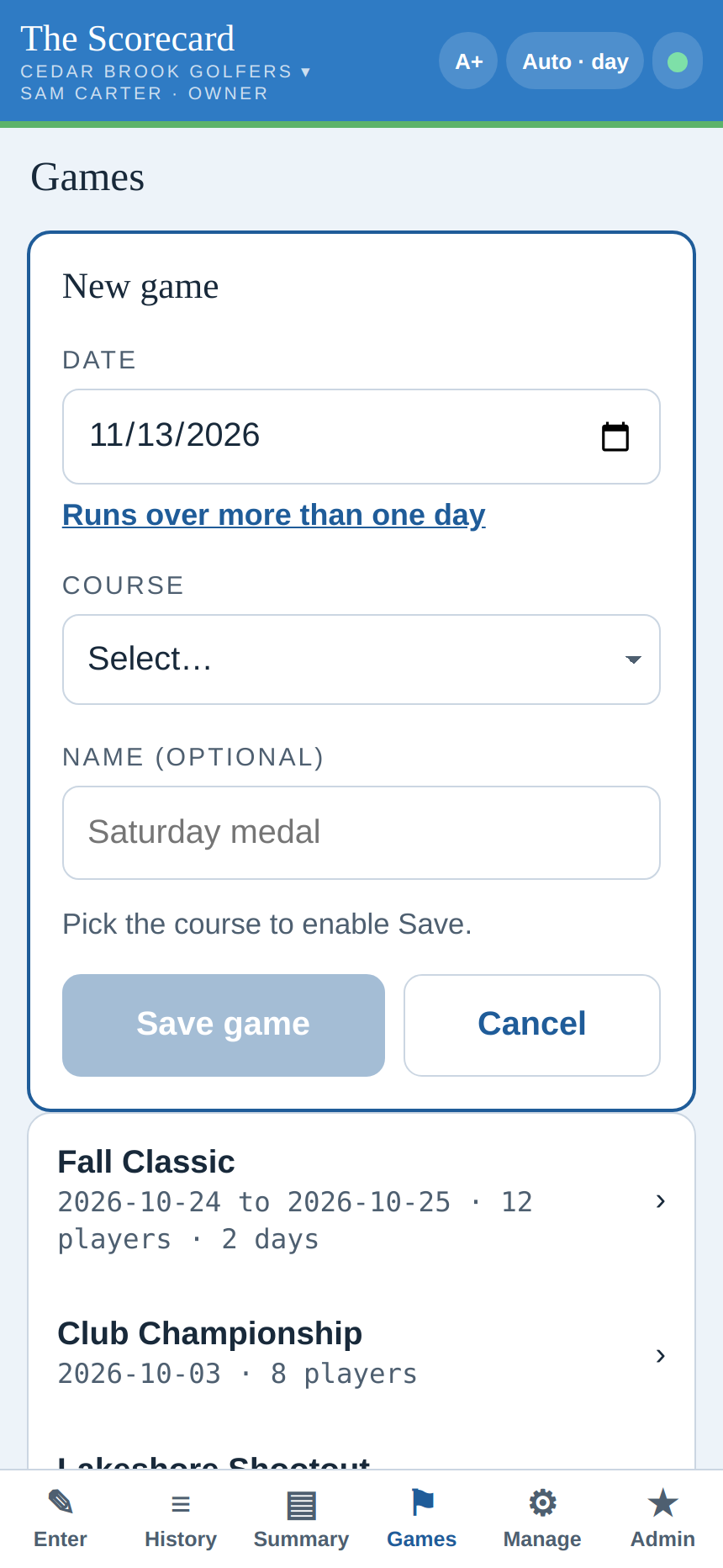
- Tap Games, then Add a game.
- Choose the date. For a game over several days, tap Runs over more than one day.
- Choose the course, give it a name if you like, and tap Save game.
- Scorers in The Marker can also start or join a game themselves, with a six-number code.
15. Admin: golfers and invitations
AdministratorThe Manage tab holds the group's golfers and courses.
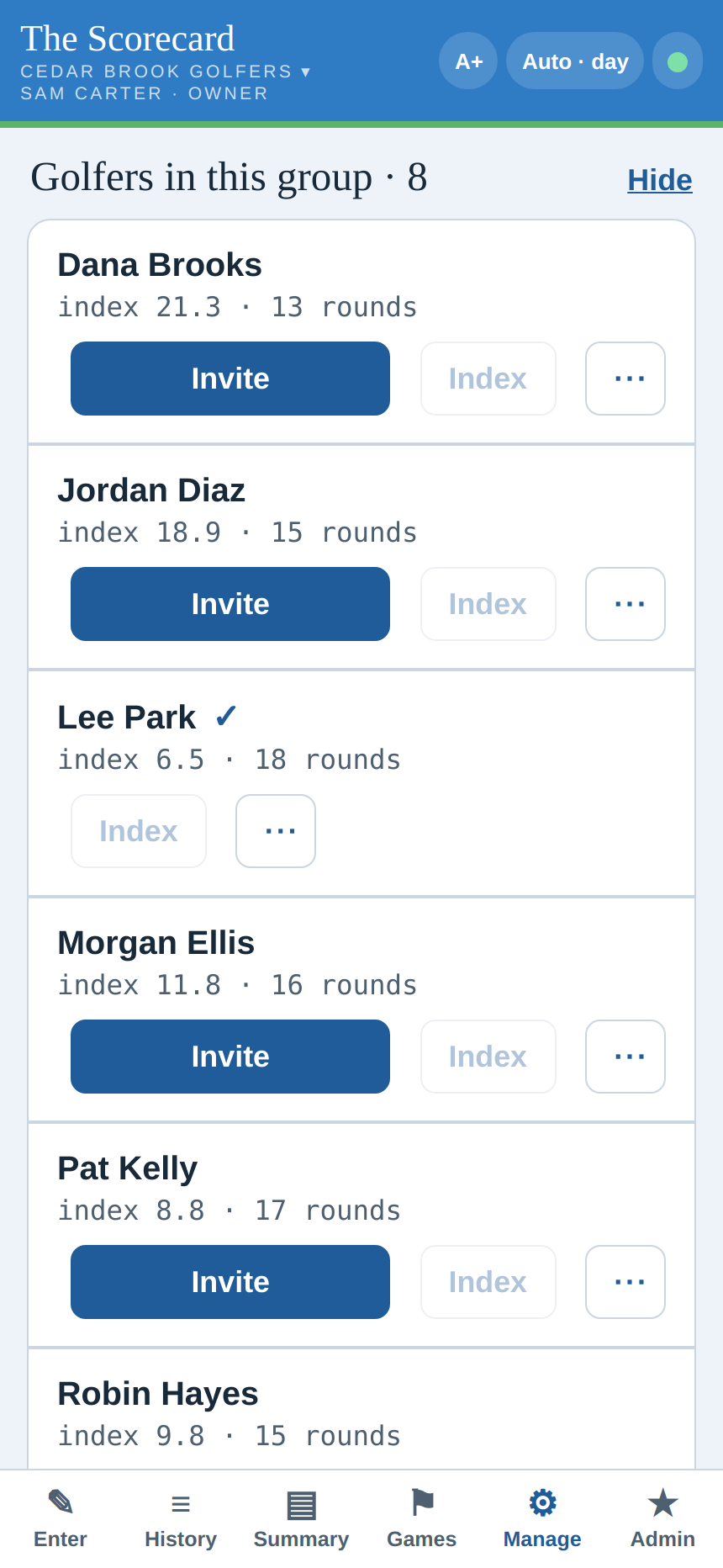
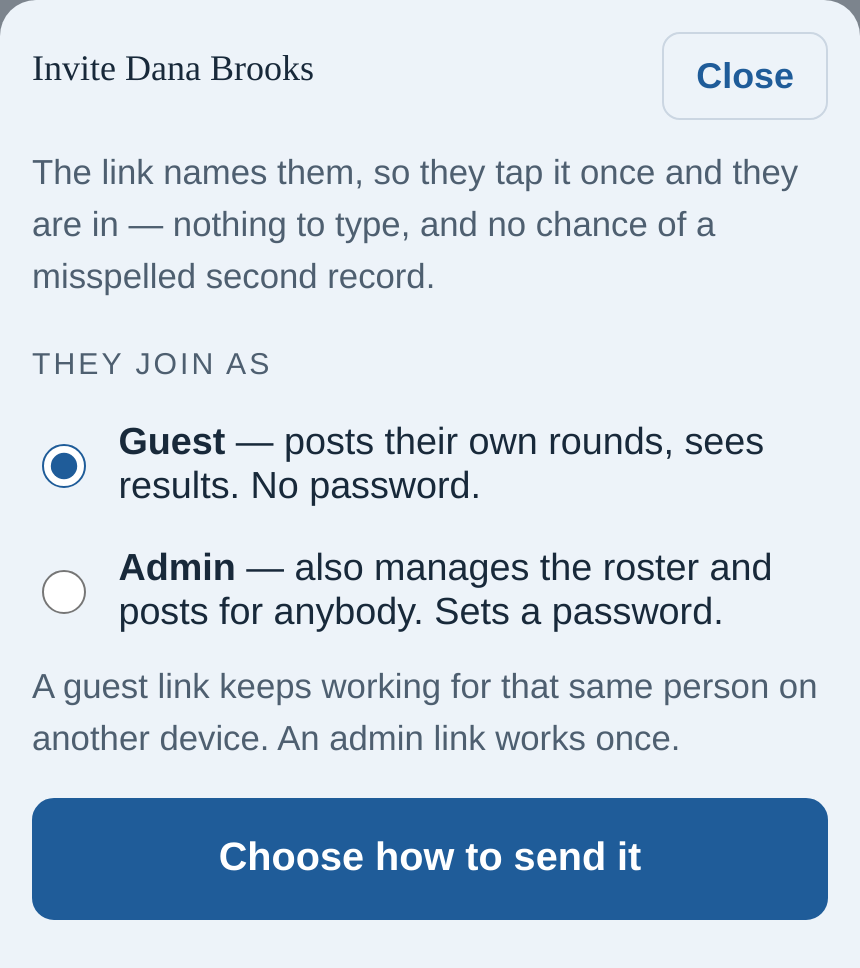
- Tap Manage, then Show beside Golfers in this group. A tick ✓ beside a name means that golfer has joined.
- To add someone, type the name and tap Add golfer, or Add from my other groups.
- Tap Invite beside a golfer. Choose Guest (posts their own rounds) or, for owners, Admin. Tap Choose how to send it.
- Index sets a starting handicap for someone with fewer than three rounds. ··· holds Rename and Remove.
16. Admin: courses, tees and scorecard photos
AdministratorCourses can be found by name or read from a picture of the club's scorecard.
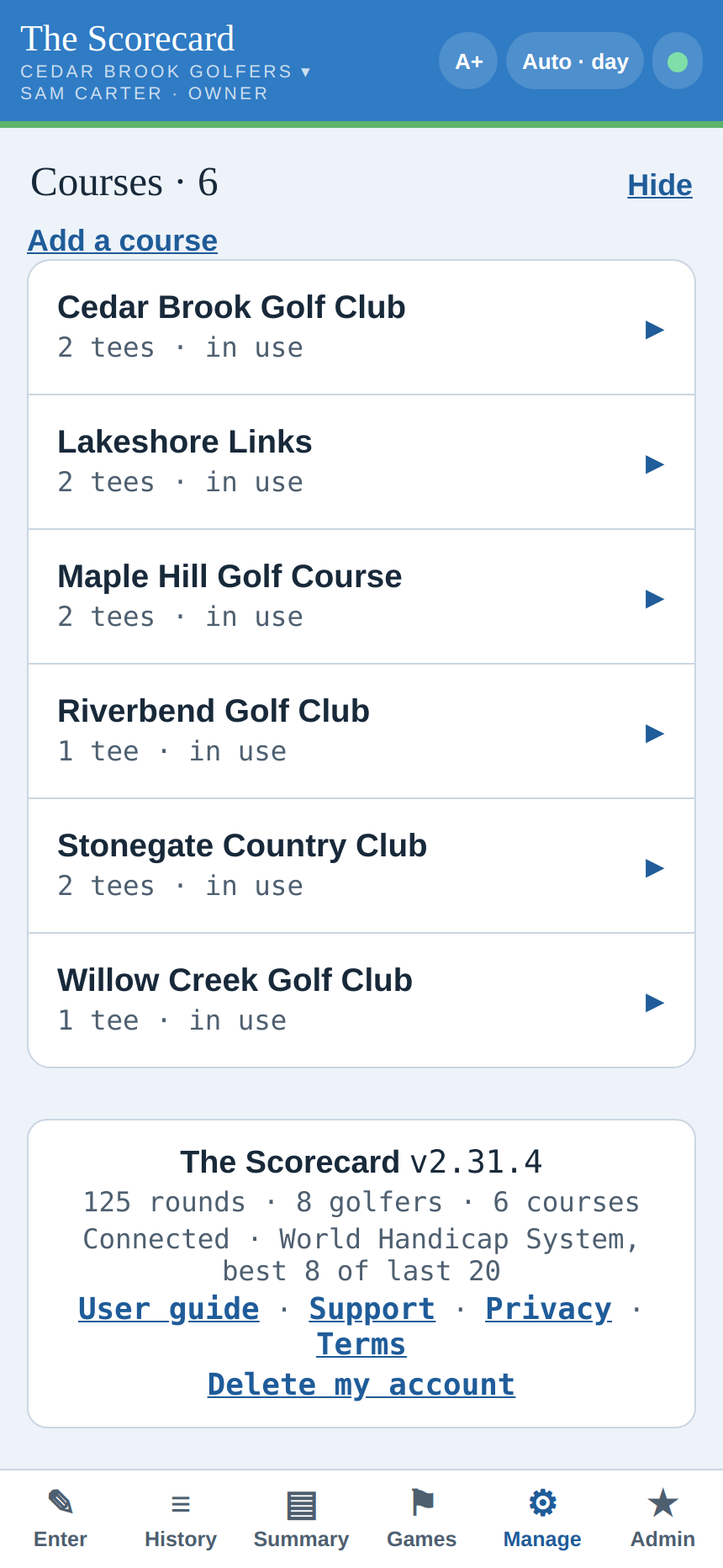
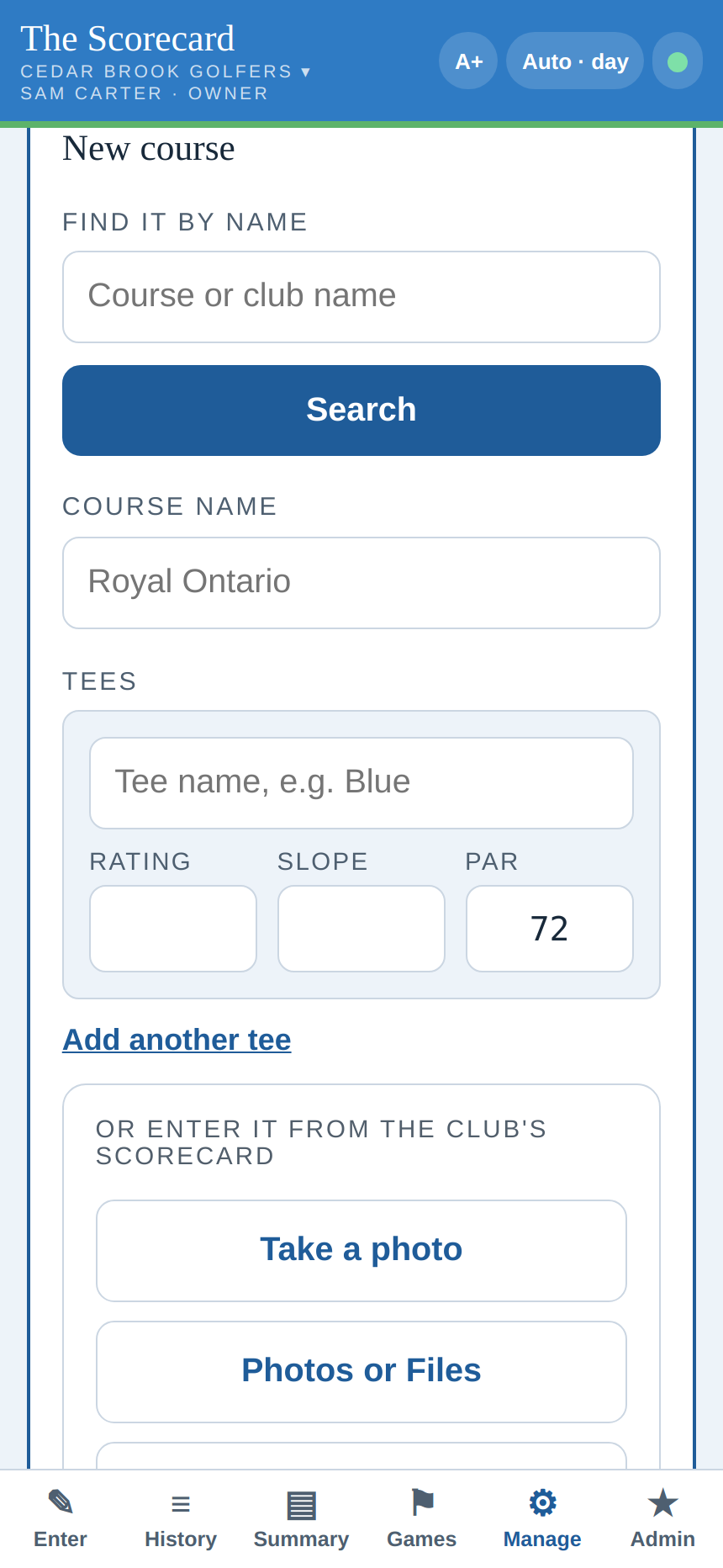
- On Manage, tap Show beside Courses. Tap a course to check or change its tees.
- Tap Add a course. Find it by name and tap Search, or type it in: name, tees, rating, slope and par.
- Or tap Take a photo or Photos or Files under Or enter it from the club's scorecard. A large spinner and Reading your scorecard show until it is read.
- Check every number against the card, then save. Reading needs a connection.
17. Admin: the Cockpit
AdministratorThe Cockpit is the first page of the Admin tab.
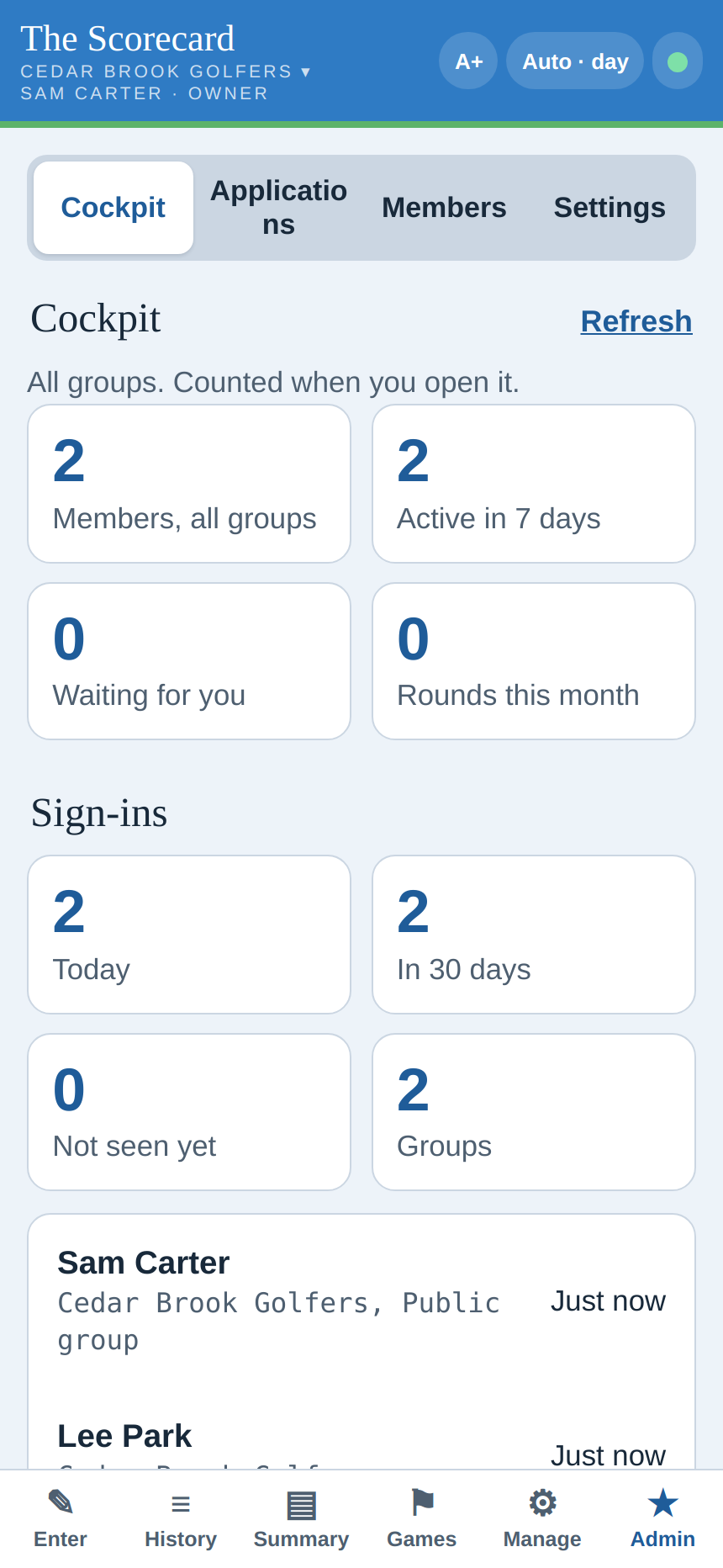
- Tap Admin. The Cockpit counts members, who was active in 7 days, who is waiting for you, and rounds this month.
- Sign-ins shows who signed in today and in 30 days. Your own row shows your golfer name.
- Tap a group to see only that group. Tap Refresh for the latest counts.
18. Admin: group members
AdministratorMembers lists the people who can sign in to the group.
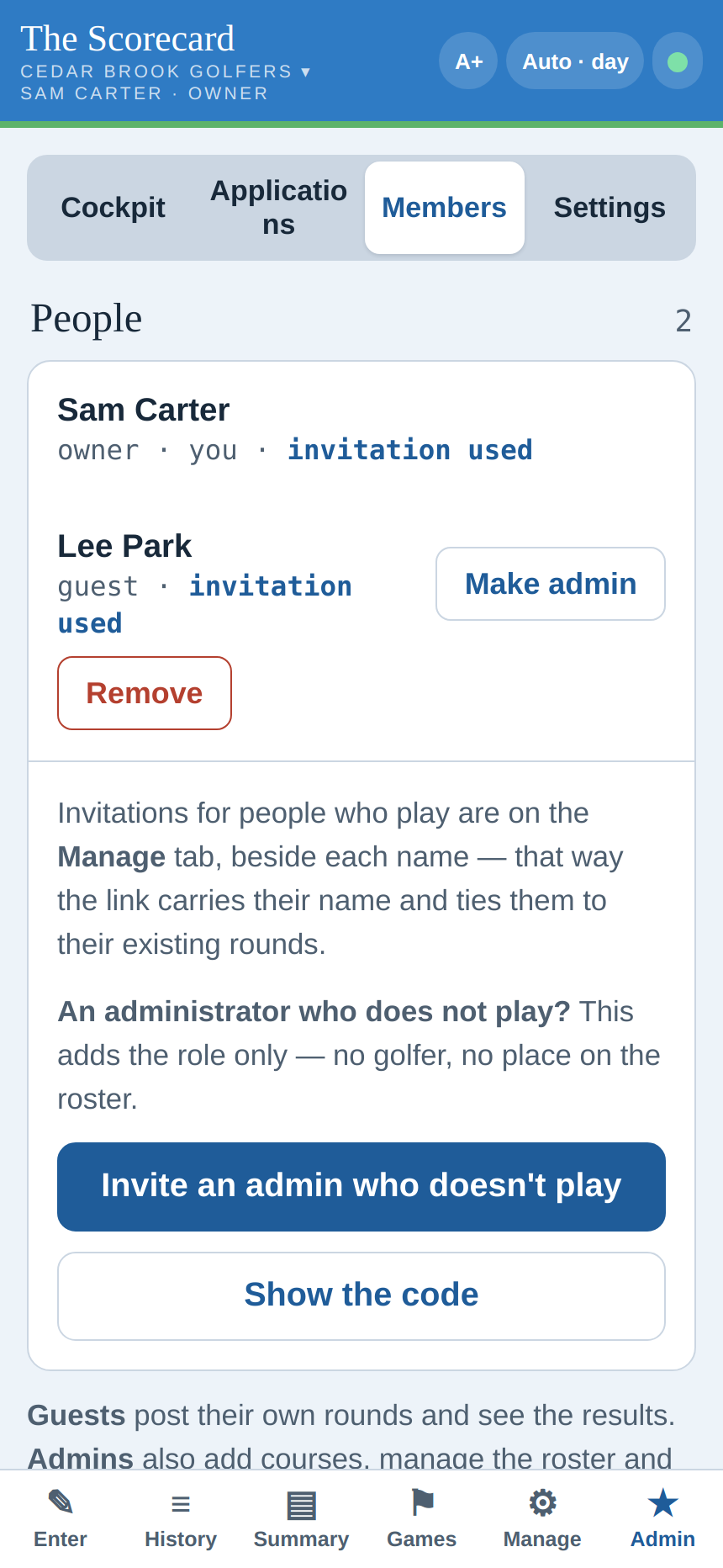
- Tap Admin, then Members.
- Make admin gives a member the admin tools. Remove takes away their access; their golfer and rounds stay.
- An admin who doesn't play? Tap Invite an admin who doesn't play.
19. Owner: rename, tidy or delete the group
Group ownerSettings is for the group's owner.
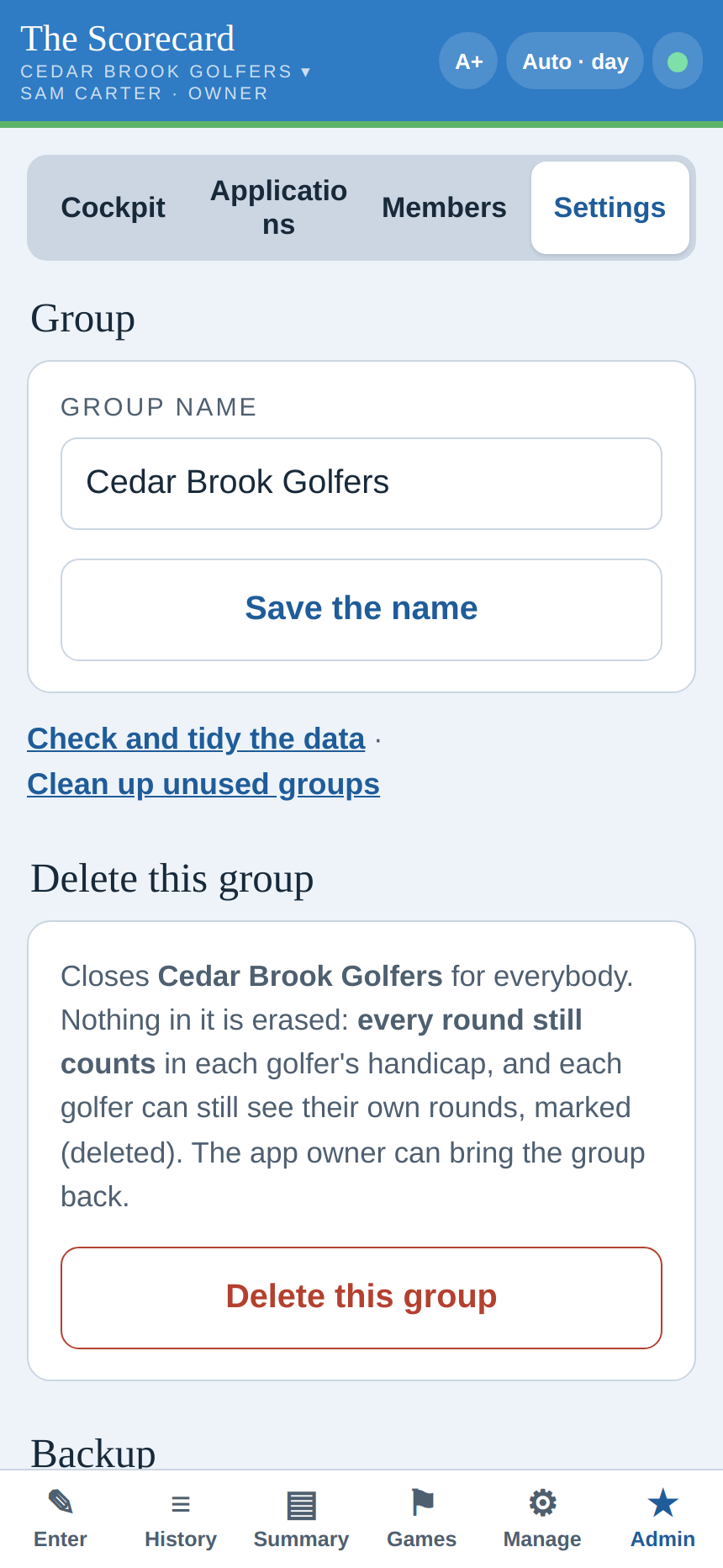
- Tap Admin, then Settings. Change the name and tap Save the name.
- Check and tidy the data and Clean up unused groups keep things in order.
- Delete this group closes the group for everybody. Every round still counts in each golfer's handicap, and the app owner can bring the group back.
20. Switch between groups
Regular userGolfers in more than one group switch with one tap.
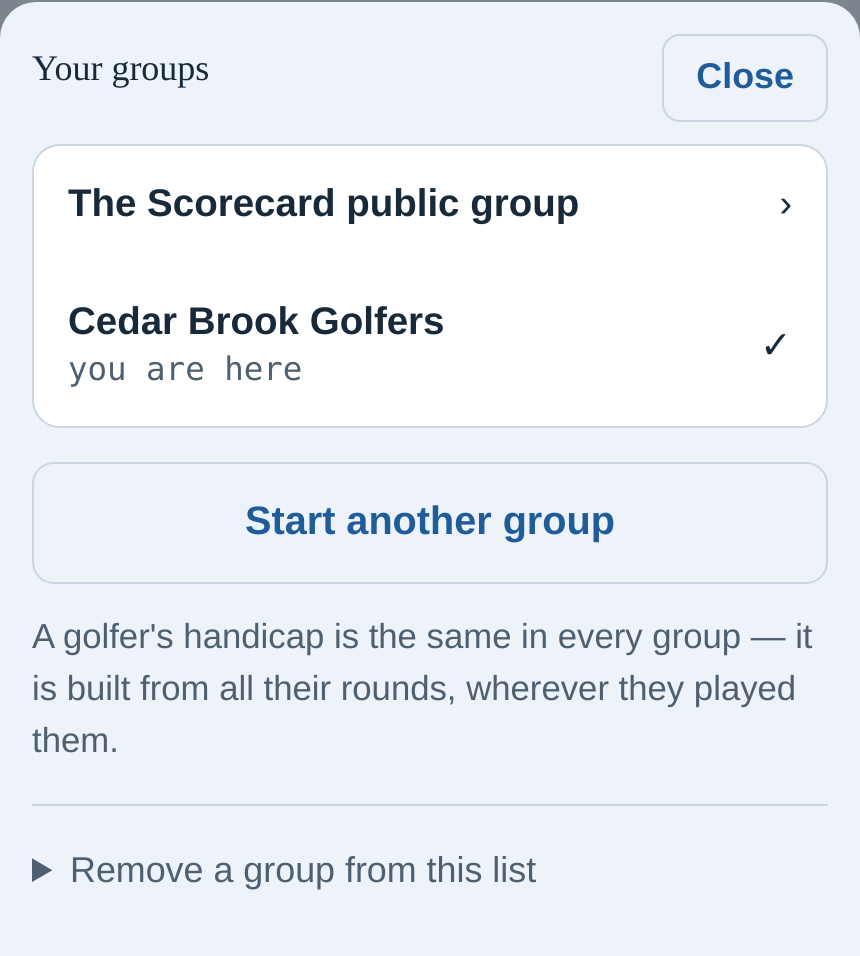
- Tap the group name under The Scorecard at the top.
- Tap the group you want. A golfer's handicap is the same in every group.
21. Public group: applications
AdministratorAdmins of the public group review applications on the Admin tab.
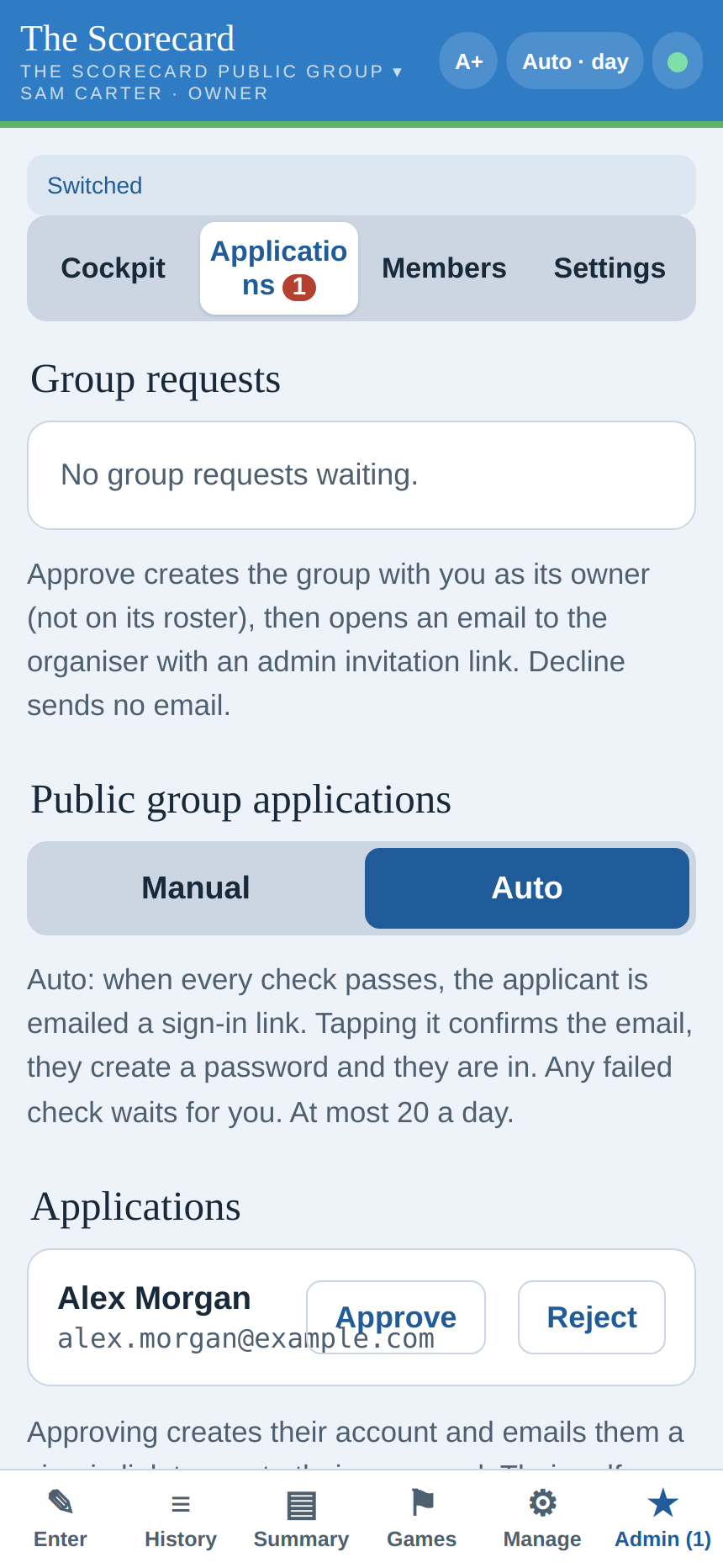
- Tap Admin, then Applications. The number shows how many are waiting.
- Auto: an applicant who passes every check gets a sign-in link straight away. Manual: you approve each one.
- Tap Approve or Reject. Approving creates their account and emails them a link.
22. Delete your account
Regular userDelete my account is at the bottom of every page, under the version.
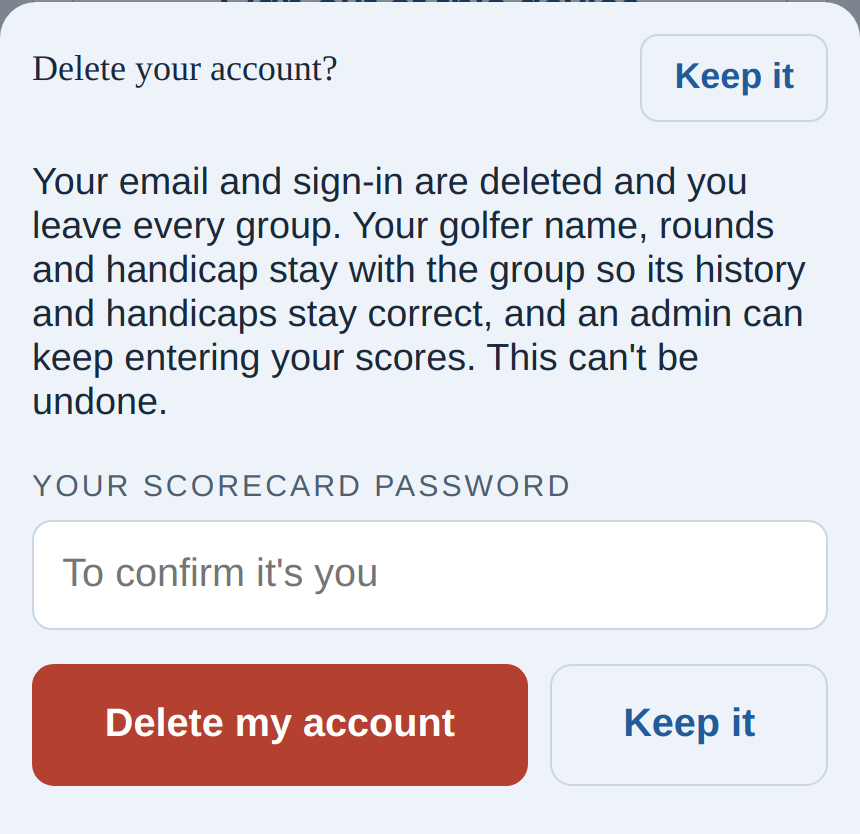
- Scroll to the bottom and tap Delete my account.
- Read Delete your account?: your email and sign-in are deleted and you leave every group.
- Type your Scorecard password to confirm, and tap the red button. Tap Keep it to stop.
23. What is removed — and what stays
Removed: your Scorecard sign-in, account email, group memberships, accepted invitation claims and the link between your account and golfer record.
Retained for other group members: your golfer name, entered scores, round history and handicap information. These remain shared golf records, and an administrator may keep entering that golfer's scores.
Deleting your Scorecard account does not erase the shared golf history. See the Scorecard Privacy Policy.
Before deleting
- Ensure your app is online and shows Synced. Changes waiting to upload block deletion.
- If the app warns that earlier changes could not be saved, review them carefully. Dismiss them discards those unsaved changes; do not press it unless you accept losing them.
- If the app reports a group-management restriction, contact Support for the proper next step. Do not delete a shared group merely to test account deletion. Contact Support if unsure.
Account deletion versus group removal
Self-service account deletion: removes your personal sign-in and leaves all groups.
Admin → Members → Remove from group: removes another regular member’s access to the current group while retaining their golfer and rounds. It does not delete their Scorecard account.
Remove from my list: only hides a group from your switcher; it does not remove your membership or delete your account.
24. If deletion stops or displays an error
Regular user- If the app says Your account isn't deleted yet, you are still signed in. Tap Try again once you are online. If it repeatedly fails, the automated completion process is intended to finish within a day.
- If the app says This account is being deleted, you have already been signed out. The app says it will finish automatically, normally within 20 minutes. Do not create a replacement account immediately.
- A wrong password returns an error and should leave the account unchanged. Enter the correct Scorecard password instead.
- If the app shows Send a report for a failed deletion check, use that option. For a lingering problem, contact Scorecard Support and include the exact error without sharing your password.
25. Troubleshooting and account help
My round is missing
Check My rounds or History, clear date/course filters and confirm the device is synced. Do not post a duplicate just because the connection was lost.
I cannot post a score
Check the golfer, course, tee and score. A regular user whose account is not linked to their golfer must ask the group organiser to provide the correct personal invitation.
I cannot see Admin
Only users with an appropriate management role receive that tab. Ask your group administrator to check which permissions have been assigned to you.
My handicap is blank
An initial index normally needs at least three recorded rounds. Verify the golfer and rounds first.
Delete my account
See the deletion instructions, including confirmation, retained records, account prerequisites and recovery.
Support
Contact willyros01@gmail.com or use Scorecard Support. Include the screen, action and exact error message. Never share passwords or invitation codes.